

- Colleagues and educators
- Students
Invite colleagues to your organization
Use this for co-admins, Learning Partners, and colleagues who’ll work across several spaces or be assigned to spaces later.Go to the org Members tab
Click Add members or Create invite link
Set the permission
Answer the students question
Send or share
Add a colleague to a space
If a colleague already has a Playlab account in your organization, search for them and add them directly. No email goes out, and they land in the space right away. Then give them the Manager role so they can help manage members and apps and review activity.Open the space and go to Members
Click Add Members
Search by name or email
Confirm and add
Make them a Manager
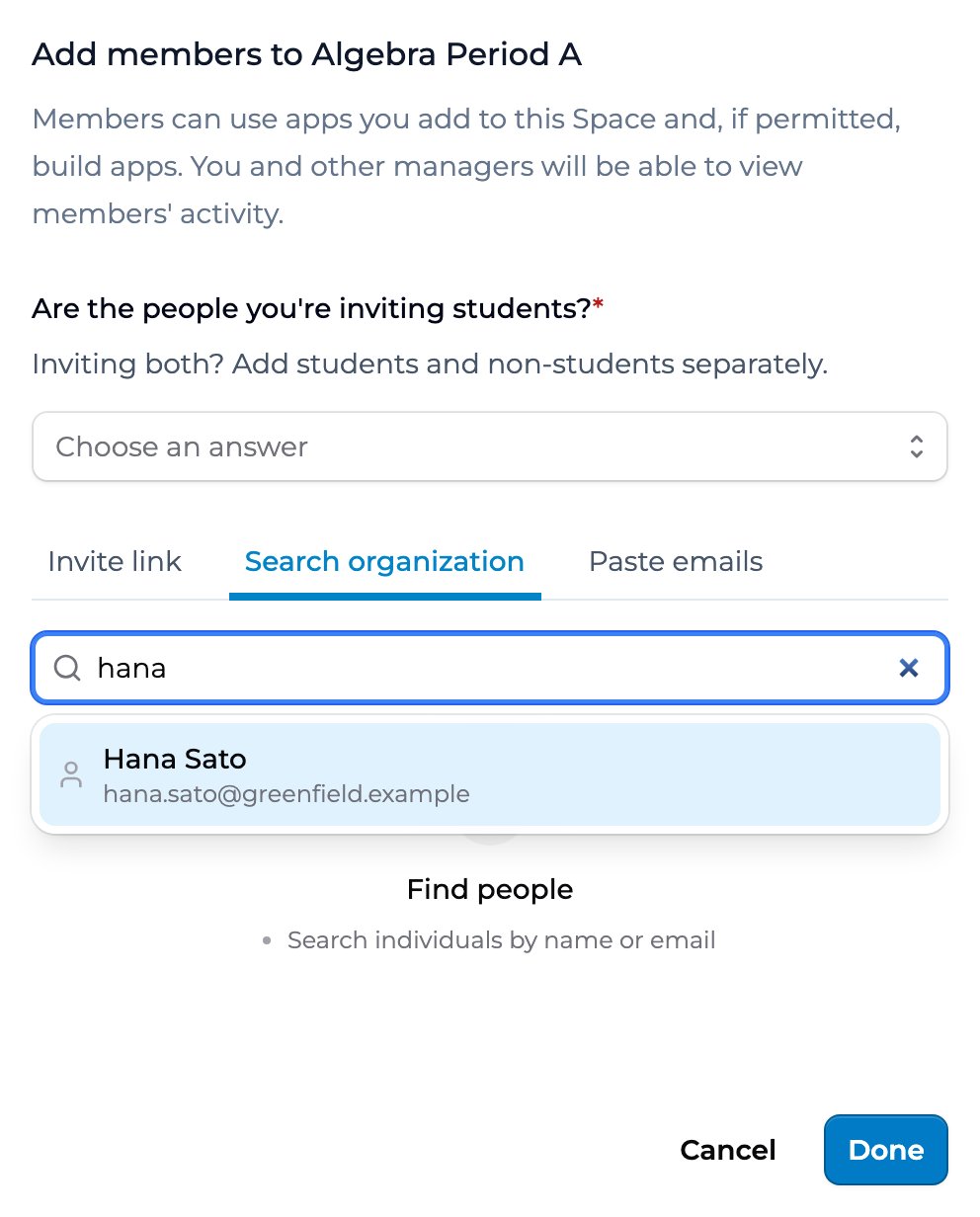
The Search organization tab of the Add members dialog, with a matching org member.
Space roles
A space has three roles you can assign: Owner. The person who created the space. Can do everything a Manager can. A space has one Owner, and the Owner’s role can’t be changed or removed from the space. Manager. Can manage members and apps, view and export activity and insights, and review moderated content — everything an Owner can do. Best for co-teachers and admin support. Member. The default role for invited people. Can use the apps shared in the space and (depending on building permissions) may be able to build their own. See Space building permissions. For the full role-to-permission matrix, see Space roles and permissions. For org-level roles that span spaces, see Organization permissions and roles.Choosing the right method
Best practices
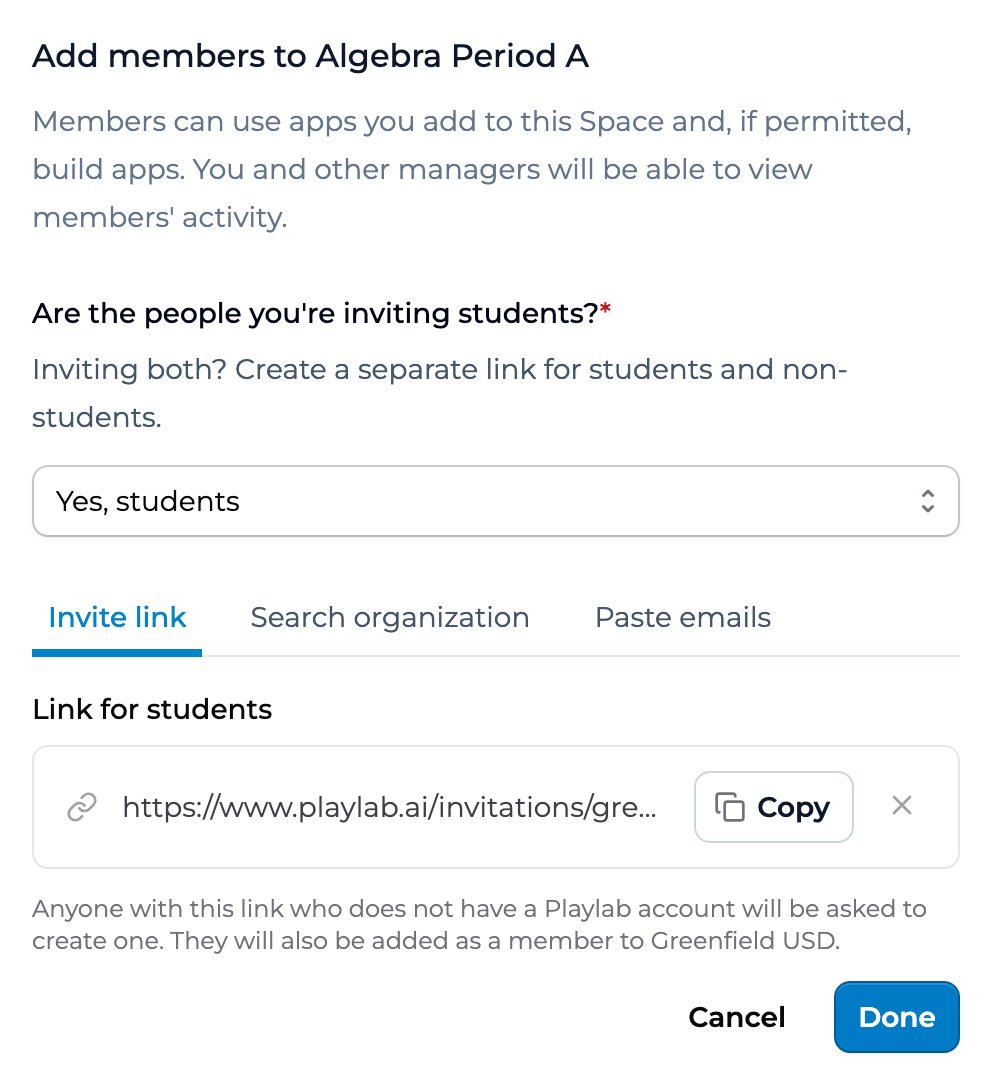
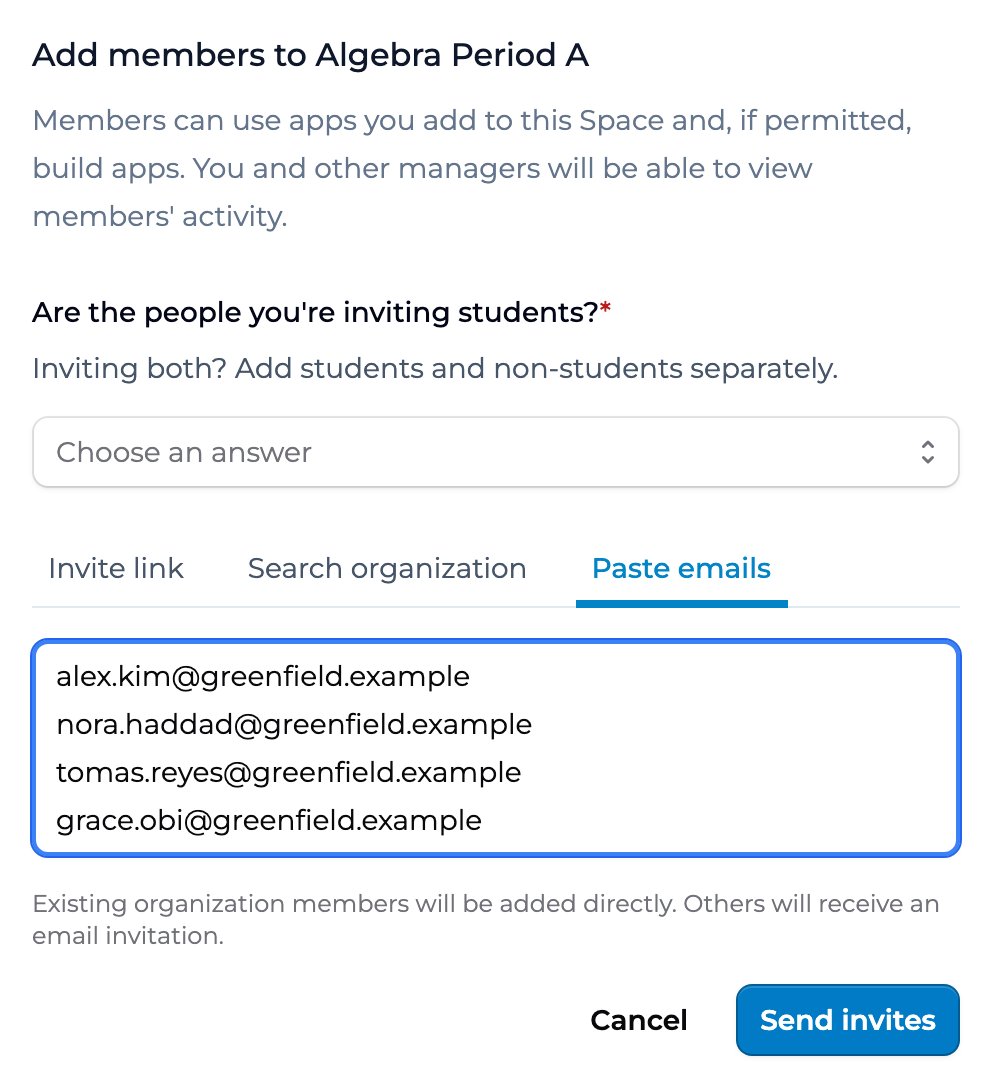
Choose the right scope. Invite at the org level when someone needs access that spans spaces — co-admins, Learning Partners, or members you’ll assign to multiple classes later. Invite at the space level when someone only needs a specific class or team; it keeps activity and visibility scoped to that one space. Pick the space method that fits. Use org search for a colleague who already has an account in your org — it’s instant and skips the email round-trip. Use email invites for a class roster from a student information system. Use the invite link for after-school or club settings where attendance is fluid. Set the default permission low. It’s easier to upgrade a Member to a Manager than to walk back excessive access. Every way of adding someone to a space makes them a Member; change the role to Manager only for people who help run the space. Revisit roles each term. Coaches who were active last year may not need access this year. Document who has Owner access to your org, and review it twice a year to catch stale assignments.Key points
- Two scopes: invite someone to the whole organization, or add them to a specific space
- Each scope supports direct email invites and shareable invite links
- Roles set on invitation control what people can do; change them anytime
FAQ
What if I don't have a list of recipients yet?
What if I don't have a list of recipients yet?
What if I add an email that doesn't have a Playlab account?
What if I add an email that doesn't have a Playlab account?
Can I add the same person to multiple spaces?
Can I add the same person to multiple spaces?
How do I remove a member?
How do I remove a member?
What if I need to remove a lot of members at once?
What if I need to remove a lot of members at once?
Can I see how each member joined, or when they last signed in?
Can I see how each member joined, or when they last signed in?
What if I revoke a link by accident?
What if I revoke a link by accident?
Can members invite other members?
Can members invite other members?
How do roles cascade between org and space?
How do roles cascade between org and space?
What happens to a member's apps if they leave?
What happens to a member's apps if they leave?
What if a user forgets their password?
What if a user forgets their password?
Can a user belong to multiple orgs at once?
Can a user belong to multiple orgs at once?
Is there a maximum number of users per org?
Is there a maximum number of users per org?
Last updated: 10-28-2026 Contact us at [email protected]