

Watch How to Delete or Archive Your Playlab App
Watch a short clip of how to archive a Playlab app.Follow these steps to archive an app:
1
Navigate to Your App
Locate the app you want to archive.
- Go to Apps under Projects in the sidebar, or open a space
- Find the app you want to archive
- Click Edit on its card to open it in the builder
2
Access Archive Option
Use the app options menu to find the archive function.
- Click the App Options menu (⋮) next to the app’s name at the top of the builder
- Select Archive App from the dropdown menu
3
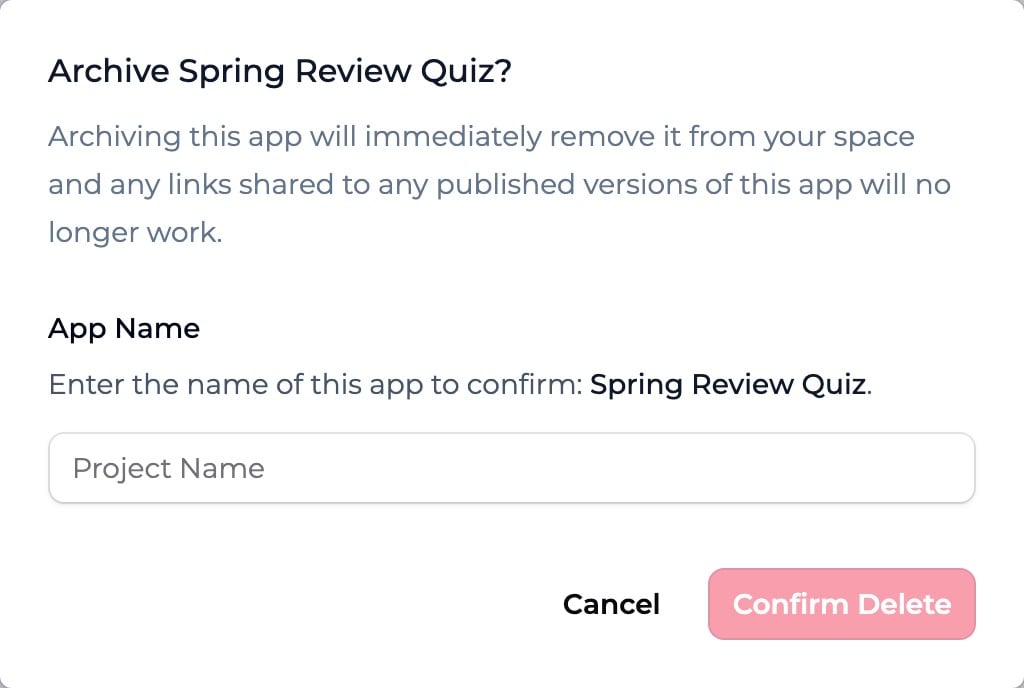
Confirm Deletion
Verify the deletion by typing the app name.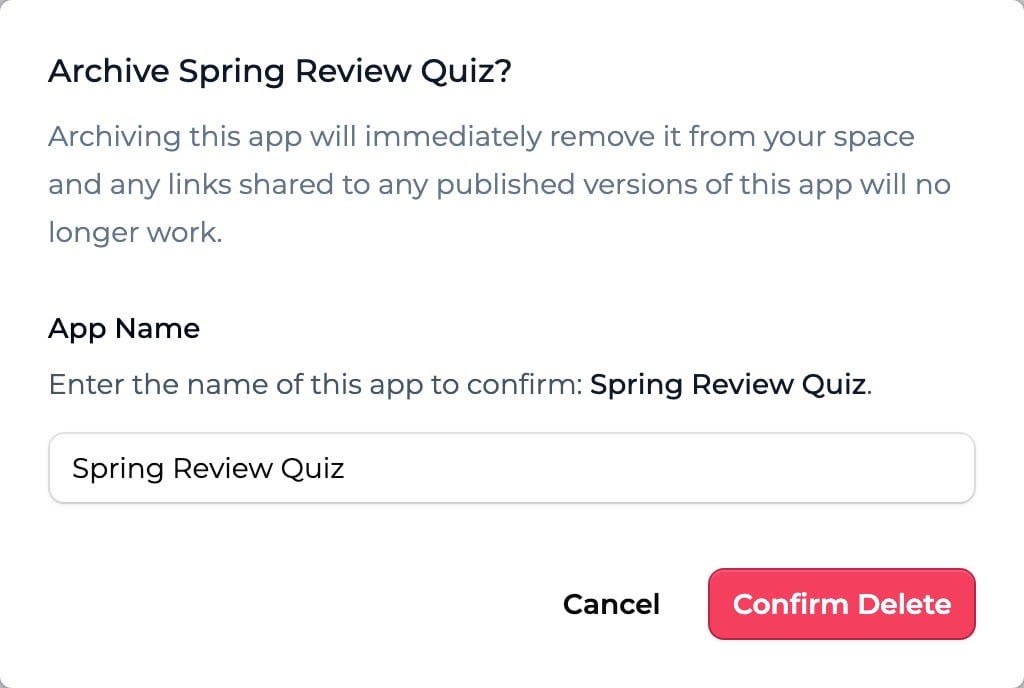
- Type in the case-sensitive name of your app in the text field
- The Confirm Delete button will become clickable only when the app name is entered correctly
- Click on Confirm Delete to permanently remove the app from your space
App Management Best Practices
Consider these recommendations when managing your Playlab apps:- Export important data before archiving an app
- Communicate with team members before deleting shared apps
- Create a backup by remixing the app if you might need it later
- Document key features of apps before deletion for future reference
- Review app usage to determine if it’s truly no longer needed
Frequently Asked Questions
Is app archiving permanent?
Is app archiving permanent?
Archiving removes the app from your space and can’t be undone from within Playlab. If you need it back, contact [email protected] within a few days — we can usually recover a recently archived app. After that window, recovery isn’t guaranteed.If you think you might need the app in the future, consider remixing it first as a backup.
Can I recover an archived app?
Can I recover an archived app?
There’s no self-serve recovery inside Playlab, but support usually can help. Contact [email protected] within a few days of archiving and we can typically restore a recently archived app. After that window recovery isn’t guaranteed, so remix as a backup if you might need it.
Can I archive multiple apps at once?
Can I archive multiple apps at once?
No, you must archive apps individually. There is currently no batch archiving feature. You’ll need to go through the archive confirmation process for each app separately.
Is there a limit to how many apps I can archive?
Is there a limit to how many apps I can archive?
There is no limit to the number of apps you can archive. You can archive as many apps as needed to keep your space organized and manageable.
Need Support?
If you encounter any issues while archiving a Playlab app:- Contact us at [email protected]