

Organizations and spaces each have their own Owner role. This page covers organization roles, where Owner is the all-access role. A space Owner only governs a single space — always read “Owner” with its scope in mind.
Roles in your organization
A Playlab organization has five roles, listed from most to least access: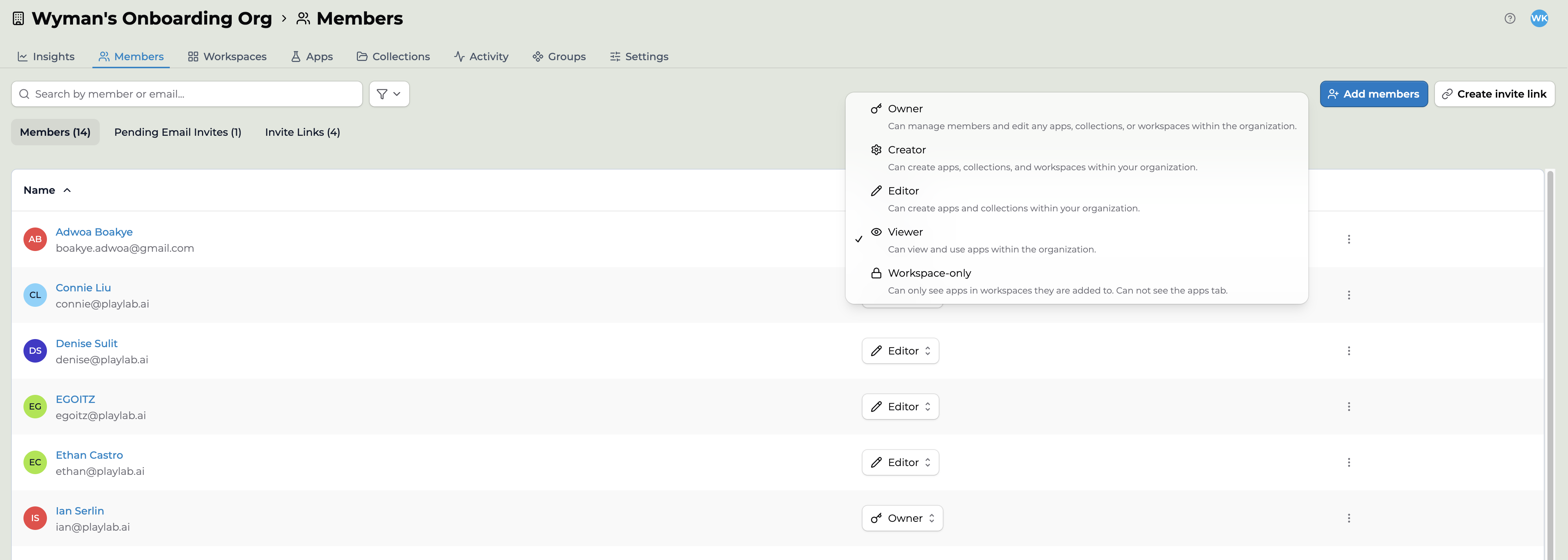
The organization-level roles, shown in the member role picker.
Which role should I pick?
✓ allowed · — not allowed. Owners are alerted to every flagged message in the organization. Builders and Editors get self-harm alerts only for their own spaces and apps.
Owner
The all-access role. Owners can manage members and edit any apps, collections, or spaces in the organization — invite people, change anyone’s role, configure organization settings, and open every app and space. Owners get every moderated alert in the organization — not just self-harm, but also off-topic nonsense, trolling, and bullying. That volume can be overwhelming, so keep this role to one or two people. Good for: school and district leaders who are accountable for the whole organization.Builder
Can create apps, collections, and spaces within the organization. Builders can manage almost everything they build, but they can’t add members or change roles. Builders don’t get organization-wide alerts. They get self-harm alerts for spaces they run and apps they built. Good for: educators, instructional coaches, and cohort organizers who set up spaces for their own classes or groups.Editor
Can create apps and collections within the organization, but not spaces. Good for: anyone who is building — teachers, colleagues, and student builders who make apps and share them, without running a space of their own.User
Can use apps within the organization. Formerly called Viewer. Users see apps in the launch view only: they can interact with an app, but they can’t open its editor or build their own. Good for: people who aren’t building yet but should see a set of apps — for example, teachers who haven’t gone through onboarding, or demo audiences.Space-only
Can only see apps in the spaces they’ve been added to — they don’t get the organization-wide Apps tab. The most scoped role. Good for: students, and anyone else who should only ever work inside the spaces a teacher adds them to. Their conversations are moderated, and the Owners and Managers of their spaces can review their activity.How to change a member’s role
1
Go to the organization Members page
In the sidebar, under Admin, click Members. You see all organization members, with each member’s role in the Permission column.
2
Find the member
Search by member or email, or scroll to their row.
3
Change the role
Open the Permission menu on their row and pick one of the five roles.
4
Confirm
Click Confirm Change. The new role applies right away. Only Owners can change roles, and you can’t change your own.
Permission inheritance
Permissions cascade from organization to space to app. Each level grants access to what’s inside it, with one exception (apps follow their owner, not the space). Organization Owner has Owner-level access to every space and every app in the organization, regardless of explicit invites: they can manage any space and edit any app. This is the trust and safety layer. Space Owner and Manager have full access inside the space they run. They do not get organization-wide access from a space role alone. Space Member has access to the space they were invited to. App-level permissions are set per app. App owner keeps control of their app, even if their space role changes. Removing a person from a space does not transfer their apps. Apps follow their owner. For trust and safety: an organization Owner can always open every app and space in the organization, including private apps, and review members’ sessions on the organization’s apps. This is documented in App privacy and visibility.Best practices
Useful patterns for organization Owners: Keep the Owner count small — one or two for most organizations. Each Owner can do everything and gets every moderated alert; more Owners means more noise and blurrier accountability. Use Builder for educators, coaches, and cohort organizers who need to build apps and spin up spaces, without full organization administration. Use Editor for teachers and student builders who build apps but don’t run spaces. Default new joiners to User or Space-only. Upgrade as needed. Walking back access is harder. Review roles every semester. Past staff, departed coaches, and former co-owners often retain access longer than they should.Key points
- Five organization roles cover most needs: Owner, Builder, Editor, User, Space-only
- Owner is the all-access role (and is distinct from a space Owner)
- Only Owners get every moderated alert; keep the role to one or two people
- Only the Owner role reaches into every space; everyone else gets a space role by being added to a space
- Cross-organization sharing scopes permissions to the share, not the recipient’s organization
FAQ
Is an organization Owner the same as a space Owner?
Is an organization Owner the same as a space Owner?
No. An organization Owner has organization-wide access — every space, app, and setting. A space Owner controls a single space. The names are the same; the scope is not. Always read “Owner” with its scope in mind.
What's the difference between an Owner and a Builder?
What's the difference between an Owner and a Builder?
Owners administer the whole organization — members, roles, settings, and visibility into all activity — and get every moderated alert. Builders can build apps, collections, and spaces, but can’t add members, change roles, or see organization-wide activity, and they only get self-harm alerts for their own spaces and apps. Editors are a step down from Builders: they build apps and collections but not spaces.
Which role should students have?
Which role should students have?
Space-only for most students, so they only see the spaces their teacher adds them to. Give Editor to student builders who need to create apps outside a space. Whether students can build inside a space is set by that space’s building toggles, not by their organization role. See Space building permissions.
Who gets alerted when a message is moderated?
Who gets alerted when a message is moderated?
Organization Owners hear about every flagged message in the organization. Self-harm alerts also go to the Owners and Managers of the spaces where it happened and to the person who built the app. See Reviewing app activity.
Can I create custom roles?
Can I create custom roles?
No. Every member has one of the five organization roles: Owner, Builder, Editor, User, or Space-only.
How do roles cascade across organizations in cross-organization sharing?
How do roles cascade across organizations in cross-organization sharing?
When you share an app or Collection with another organization, permissions are scoped to that share. The recipient organization’s roles do not transfer to your organization. Members of the recipient organization gain access only at the level you granted in the share.
Are roles different for SSO organizations?
Are roles different for SSO organizations?
The role structure is the same. Some organizations sync role changes from their identity provider; others manage roles directly in Playlab. Check with your organization’s Owner.
Can I bulk-change roles?
Can I bulk-change roles?
No. Change roles one member at a time: on the Members page, pick the new role from the Permission menu on their row, then click Confirm Change.
What happens to apps when a member's role is downgraded?
What happens to apps when a member's role is downgraded?
Nothing happens to their apps. Changing an organization role doesn’t change their access to apps they own or that were shared with them. A former Owner does lose the access Owners get to every app and space in the organization.
Can I see who changed someone's role?
Can I see who changed someone's role?
No. Playlab doesn’t show a history of who changed a member’s role or when.
Are role changes logged for audit?
Are role changes logged for audit?
No. Organization role changes aren’t recorded in an audit log, and organization settings don’t have a log to export.
Last updated: 09-30-2026 Contact us at [email protected]