

These three roles govern space administration. They are separate from organization-level roles (Owner, Builder, Editor, User, Space-only) — for those, see Organization permissions and roles.
The three space roles
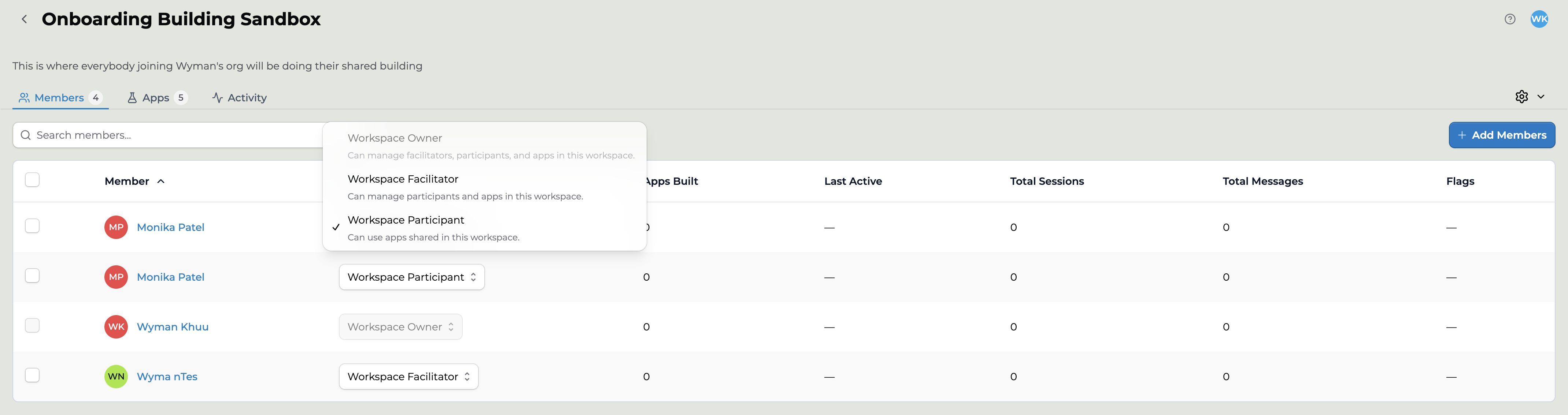
The space-level roles, shown in the member role picker.
Who each role is for
Think of a space as a classroom. The teacher who sets it up runs it, co-teachers help run it, and students work inside it. Space Owner — the teacher who runs the space. Whoever creates a space becomes its Owner. Owners manage members and apps in the space. The Owner’s role is fixed: it can’t be changed, and the Owner can’t be removed from the space’s Members tab. Space Manager — a co-teacher or helper. Managers can manage members and apps in the space, just like an Owner. Add a co-teacher, instructional coach, or teaching assistant as a Manager so they can help run the class and keep an eye on student activity. Space Member — a student or learner. Members can:- Use the apps and collections shared in the space
- Build their own apps, or remix apps you’ve shared, if the space has Build Apps turned on
Permissions by role
✓ allowed · — not allowed. Owners and Managers have the same capabilities; the difference is that the Owner’s role can’t be changed or removed.
Key takeaways
A Manager can do everything an Owner can. A Manager can manage members, manage apps, edit and archive the space, view and export insights and activity, and review moderated content. What sets the Owner apart is that their role is fixed: nobody can change it or remove them from the space’s Members tab. A Member is view-only at the space level. They can see the space and use the apps shared into it, but cannot edit settings, see other members, view insights or activity, or manage anything. Roles don’t carry between spaces. The mapping is flat: each role’s permission set is independent, and a person’s role is set per space. Being an Owner in one space says nothing about your role in another.Two caveats worth flagging
Space creation is an org-level permission. Who can create a space is granted at the organization level, not by any of the three space roles above. See Organization permissions and roles. Content access is a separate layer. These three roles govern space administration. What a person can actually open or edit among the apps and collections inside the space is driven by app- and collection-level permissions. See App privacy and visibility.Key points
- Three space roles: Owner (the teacher), Manager (a co-teacher or helper), Member (a student)
- Owner and Manager can do the same things; only the Owner’s role is fixed
- Member is view-and-use only; it cannot manage anything
- Roles are set per space and do not cascade between spaces
- Space creation is an org-level permission, not a space role
FAQ
What's the difference between Owner and Manager?
What's the difference between Owner and Manager?
In what they can do, nothing: both can manage members and apps, edit and archive the space, view and export activity and insights, and review moderated content. The difference is that the Owner’s role is fixed. It can’t be changed from the role picker, and the Owner can’t be removed from the space.
Can a space have more than one Owner or Manager?
Can a space have more than one Owner or Manager?
A space has one Owner: the person who created it. Nobody can be made Owner afterward, but a space can have any number of Managers. Managers can manage the space as fully as the Owner, so give the role only to people who help run it.
How do I change someone's space role?
How do I change someone's space role?
Open the space Members tab, find the person, pick a new role from the menu on their row, and click Confirm Change. You can switch people between Manager and Member; the Owner’s role can’t be changed. See Adding members and inviting users.
If I'm a space Owner, am I an organization Owner too?
If I'm a space Owner, am I an organization Owner too?
No. Space roles and organization roles are independent, even though both use the name Owner. A space Owner controls one space; an organization Owner has access across the whole organization. See Organization permissions and roles.
Can a Member build apps in the space?
Can a Member build apps in the space?
Whether a Member can build is controlled by the space’s building-permission toggles, not by the role itself. See Space building permissions.
Last updated: 10-01-2026 Contact us at [email protected]