

How to share a Collection
Open the Collection and click Share
The Share button is in the top right of the Collection’s page. You can also choose Share collection from the Collection card’s ⋮ menu on the Collections list.
Add a recipient
In Search for name or emails, add a person who shares one of your organizations, a group in one of your organizations, or an organization you belong to. Each recipient is added as User as soon as you pick them. Recipients are grouped under Organizations with access, Groups with access, and Users with access.
Set each recipient's role
Choose from the role dropdown: User, Editor, or Owner (see below). Only Owners see the Owner option. Pick Remove access to revoke someone.
Done
Click Done. The Collection appears in each recipient’s view, ready to use directly or add to a space.
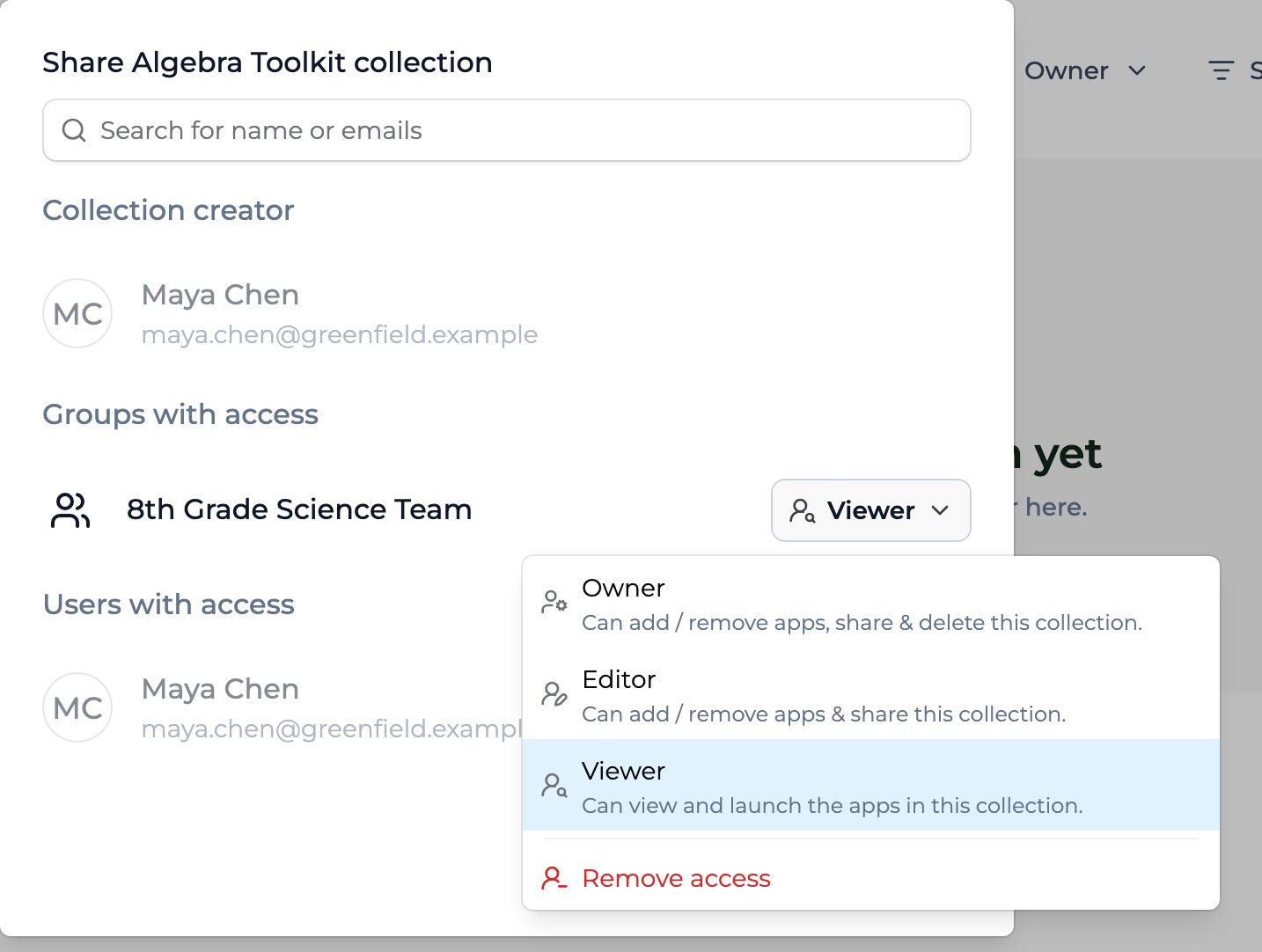
The Share dialog for a Collection: add people or groups, then set each one's role — User, Editor, or Owner.
Permission levels
Most recipients should be Users — they get the apps without being able to change the bundle. Reserve Editor for trusted partners who co-curate, and Owner for co-leads who need full control.
Sharing with groups and orgs
Sharing with a group reaches everyone in it at once — pair a curated app bundle with a whole team by sharing a Collection with a Group. Sharing with an organization reaches that whole org, and each org sees only its own people’s activity. You can share only with organizations you belong to, so to deploy a starter pack across several districts, you need to be a member of each one. For cross-org deployment, permission cascade, and curation depth, see Creating and sharing a Collection, Curating a Collection, and Using a shared Collection.Key points
- Share a Collection much like you share an app — with people, groups, or whole orgs
- Roles: User (use), Editor (curate & share), Owner (full control, incl. delete)
- Change a Collection’s apps anytime; recipients see updates without re-sharing
FAQ
What permission should most recipients get?
What permission should most recipients get?
User. It lets people use the apps without changing the Collection. Editor and Owner can modify the bundle, so reserve them for co-curators and co-leads.
Do recipients get updates when I change the Collection?
Do recipients get updates when I change the Collection?
Yes. Add or remove apps and recipients see the new set on their next visit — no re-sharing needed. New published versions of the apps inside flow through too.
How do I stop sharing with someone?
How do I stop sharing with someone?
Open the Share dialog, find the person or group, and choose Remove access from their role dropdown.
Can I make a Collection public?
Can I make a Collection public?
No. Collections have no public setting. You share a Collection with specific people, groups, or organizations from the Share dialog.
What's the difference between sharing a Collection and sharing each app?
What's the difference between sharing a Collection and sharing each app?
A Collection is one resource you share once. Recipients get User access to every app inside, whatever Collection role you give them, and the bundle stays in sync as you change it, with no per-app sharing or re-sharing. To let someone edit an app, share that app with them directly.
Last updated: 09-30-2026 Contact us at [email protected]