

What this controls
The four toggles are: Build Apps. When on, space members can create their own apps inside the space. Turn it on for classes where students build apps as part of the curriculum. Members can see each other’s apps. When on, members can browse apps built by other members of the same space. Useful for collaborative classes; leave off when individual work matters. Share apps outside the space. Members can always share an app with other members inside the space. This toggle controls whether they can also share it with people, groups, or organizations outside the space. Manage own apps. When on, members can view moderated messages and delete their own apps. Recommended for adults only — keep it off in any space with minors.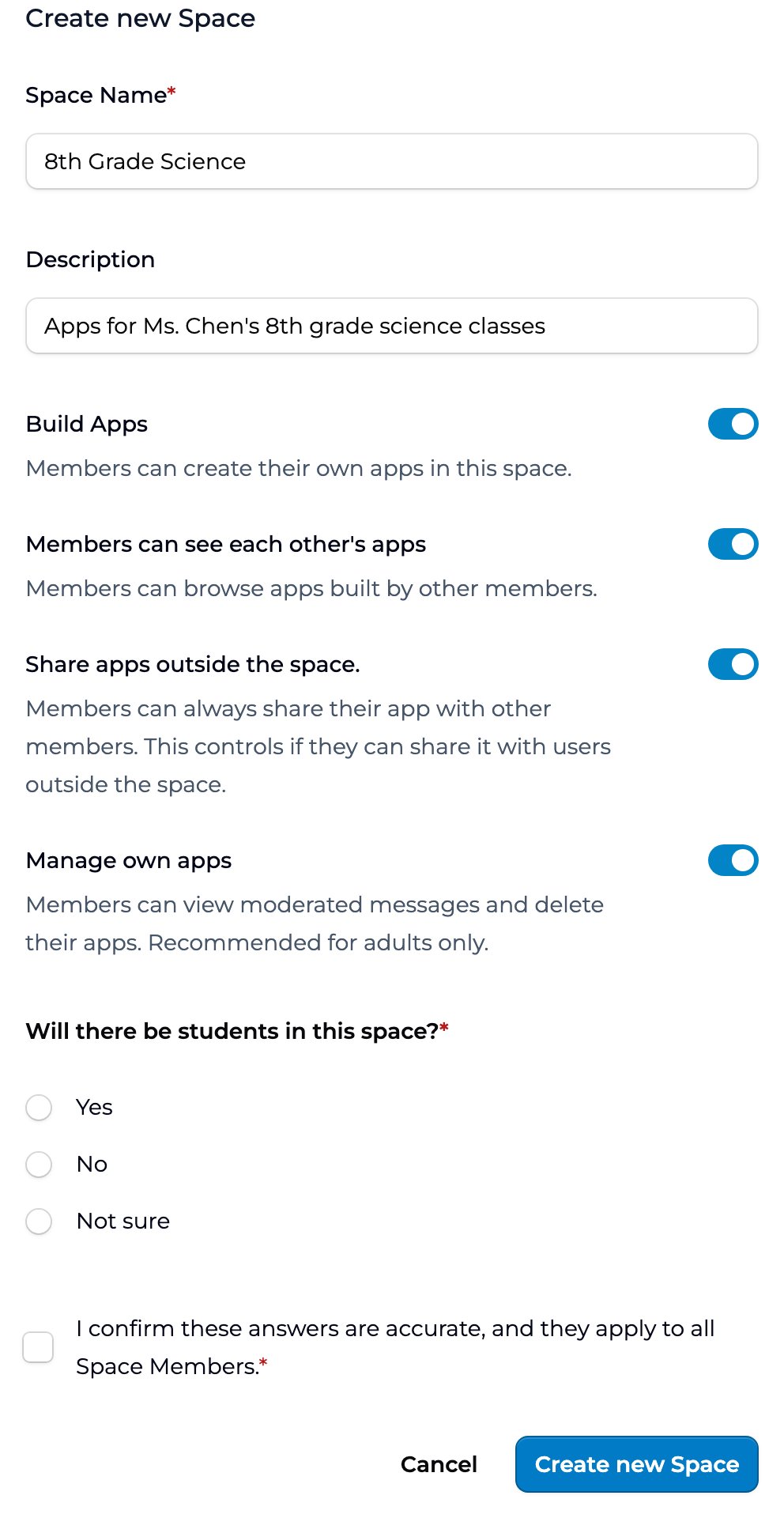
The Create new Space form. The four building-permission toggles sit below the name and description.
How to set permissions on space creation
The toggles appear on the Create new Space form. Set them as you create the space. Below them, the form asks Will there be students in this space? and, after Yes, which ages. That answer is separate from the toggles: see Student status and ages. See Creating and managing a space for the full creation flow.How to change permissions later
1
Open the space
Go to the space you want to update.
2
Open Edit details
Click the gear in the top right of the space and choose Edit details.
3
Find the toggles
The four toggles are listed below the name and description. The other three can only be turned on while Build Apps is on.
4
Update toggles
Turn on or off as needed.
5
Click Update
Changes apply right away, including to apps members have already built. Turning off Build Apps stops new apps, but members keep the ones they made.
Recommended settings by use case
A few patterns that have worked for teachers:
These are starting points. Adjust to match the class. The fourth toggle, Manage own apps, isn’t in the table above because it’s a safety setting rather than a collaboration one: leave it off for any space with minors, and turn it on only for teacher- or staff-only spaces.
Key points
- Four toggles: build apps, see each other’s apps, share beyond the space, manage own apps
- Start conservative and open up as the class needs grow; “Manage own apps” is adults-only
- Changes apply right away, including to apps members have already built
FAQ
Can I override permissions for individual students?
Can I override permissions for individual students?
No. Permissions apply to the whole space. If you need exceptions, the simplest path is to create a separate space with different permissions for those members.
What happens to existing apps when I change a permission?
What happens to existing apps when I change a permission?
Existing apps and sessions stay in the space. Turning off Build Apps stops members from making new apps, but they keep the ones they already built. The other toggles apply to existing apps right away: for example, turning on Members can see each other’s apps shows members every app their classmates have already built, and turning it off hides them again.
Can students see each other's drafts?
Can students see each other's drafts?
Only if Members can see each other’s apps is on. Then other members’ apps show in the space, including ones that aren’t published yet, but an unpublished app can’t be opened until it’s published. With the toggle off, members see only their own apps and the ones you’ve added.
What if my org admin has set org-wide policies?
What if my org admin has set org-wide policies?
Organization settings don’t override a space’s building permissions; each space’s toggles are set by its Owners and Managers. What organization settings do control is app capabilities, such as Allow Images as Inputs to Apps and Allow Voice Inputs to Apps, which apply to every app in the organization.
Can I copy permissions from one space to another?
Can I copy permissions from one space to another?
No. Set the four toggles on the Create new Space form for each new space.
What's the safest default for a brand-new class?
What's the safest default for a brand-new class?
All four toggles off, which is how a new space starts. Turn on Build Apps when students are ready to create; the other three toggles stay unavailable until you do. Add Members can see each other’s apps when collaboration becomes part of the lesson, keep Share apps outside the space off unless you’ve talked through what students might share, and leave Manage own apps off for any class with minors.
Can I lock permissions so other owners or managers can't change them?
Can I lock permissions so other owners or managers can't change them?
No. Any Owner or Manager of the space, and any organization Owner, can change its building permissions. There’s no organization setting that locks them.
Last updated: 10-28-2026 Contact us at [email protected]