

What is this feature?
Single Sign-On (SSO) allows you to access Playlab using your existing authentication credentials without creating a separate account. This streamlines the login process and helps maintain security across your educational or organizational tools. Playlab supports four SSO options: Google and Microsoft, available to everyone, and Clever and ClassLink, available to organizational partners. Clever and ClassLink connect Playlab to the rostering system your district already uses.Watch How to Use Single Sign-On
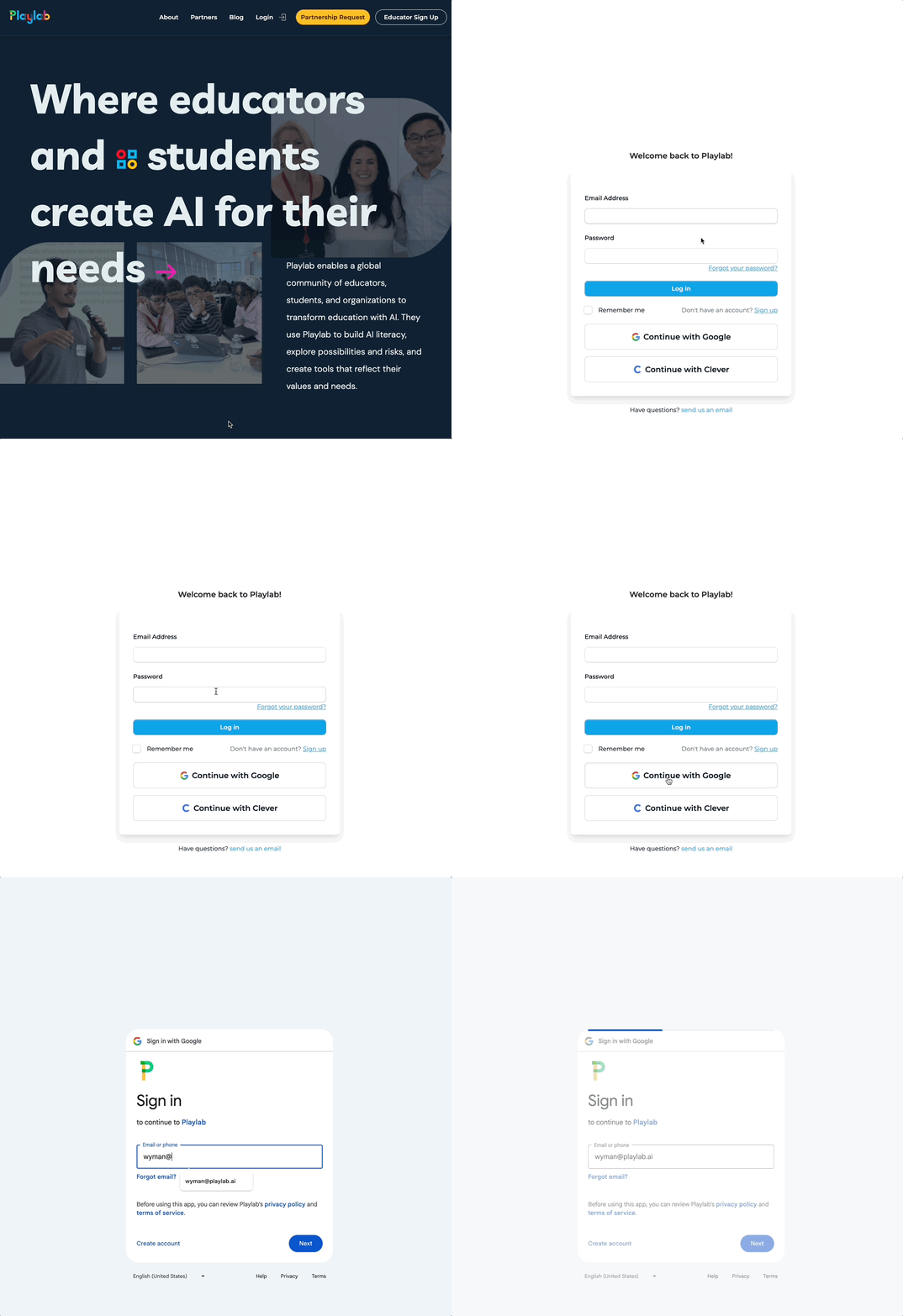
Accessing Playlab with Single Sign-On Authentication
Benefits of single sign-on
One less password
Log in to Playlab instantly with your existing Google, Microsoft, Clever, or ClassLink account, with no extra password to remember.
Your district's security
Sign-in follows your organization’s existing security policies, such as password rules and multi-factor authentication, so Playlab is protected the same way as your other tools.
Accounts managed for you
With Clever or ClassLink rostering, staff and students are added, updated, and deactivated automatically as your rosters change. No manual invites or account cleanup.
The right access from day one
Rostered admins, teachers, and students get the right Playlab role automatically, and Playlab appears on your Clever or ClassLink dashboard next to your other apps.
How to access Playlab with SSO
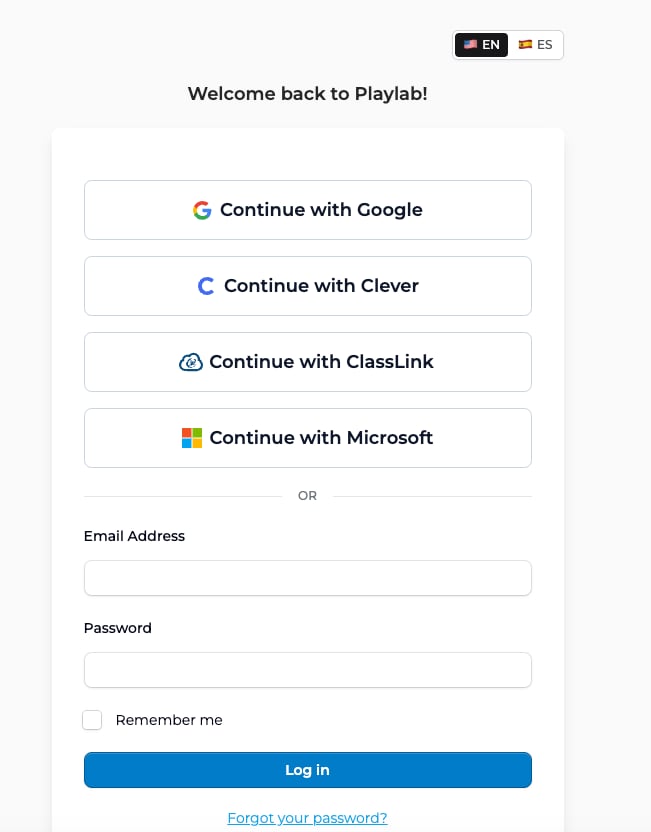
Google and Microsoft sign-in need an existing Playlab account or an emailed invitation to Playlab. The invitation must go to the same email address you sign in with. For example, if you were invited at your school address, sign in with that school’s Microsoft or Google account, not a personal one.
SSO Options Available
Google + Microsoft SSO
- Available to all users immediately
- Uses your existing Google or Microsoft account for authentication
- Organizations using Google Workspace or Microsoft Entra can set it up for all their users
Clever SSO - Playlab Partners
- Available through the Clever dashboard for partner districts
- Automatic organizational structure creation
- Role-based access control for educators and students
ClassLink SSO - Playlab Partners
- Available through the ClassLink LaunchPad for partner districts
- Rosters stay in sync with your district’s records
- Role-based access control for educators and students
Which option should I use?
Anyone can use Google or Microsoft SSO with a personal or work account. Organizations that manage identity through Google Workspace or Microsoft Entra can also set up Playlab for all of their users. Districts that roster through Clever or ClassLink can use those integrations.Set up SSO for your organization
Google and Microsoft sign-in work right away. If your organization uses Microsoft Entra for identity management, your IT admin can add Playlab as an app in the Microsoft Entra admin portal so staff, faculty, and students sign in with the Microsoft accounts they already have. Each user still needs an existing Playlab account or an invitation sent to that same email address. To set up Clever or ClassLink for your school or district, contact the Playlab team:1
Email the Playlab team
Email [email protected] with the subject “SSO setup,” or reach out to your Playlab partnership contact. Let us know:
- Your school or district name
- Which provider you use: Clever or ClassLink
- Which schools and student grades should have access to Playlab
- Who your district’s Clever or ClassLink admin is
2
Plan the setup with us
We’ll confirm the details, answer questions about data sharing and roles, and send your district admin an invitation to connect Playlab.
3
Accept the invitation and sync
Your district admin accepts the invitation and chooses what data to share. We then run the first roster sync, which can take up to 24 hours.
4
Sign in and check
Staff and students sign in with Continue with Clever or Continue with ClassLink, or from their district dashboard. Confirm that your schools, members, and roles look right, and let us know if anything is missing.
Playlab + Clever Rostering Set Up Guide
Easier logins. Automatic rosters. No manual updates.Why Set Up Clever Rostering?
Clever rostering creates a seamless connection between your district’s existing student information system and Playlab. Once it’s set up:- Instant access – Students, teachers, and admins sign in with a single click through their Clever dashboard (no new usernames/passwords).
- Always up to date – Rosters update daily, so new students and staff are added automatically, and removed users are disabled without manual work.
- Accurate permissions – District admins, teachers, and students automatically get the right access levels.
- No duplicate data entry – All information flows directly from your SIS through Clever to Playlab.
- Consistent across schools – Each school gets its own Playlab organization with the correct sections and assigned teachers.
How Accounts Will Be Set Up
When Clever rostering is enabled:- Each synced school will appear as its own organization in Playlab.
- District admins will be Owners of each organization.
- Teachers will be Builders, who can build and manage apps.
- Students will be Space-only members (they can use apps shared with their spaces, not create them).
- Sections in Clever will be matched to sections in Playlab, and if teacher data is available, ownership of those sections will be assigned to the correct teacher.
How the Process Works
1
Info We Need to Get Started
To begin the Clever integration process, please provide:
- What schools should have access to Playlab?
- What student grades do you want to give access to Playlab?
2
Accept Our Invitation to Your District
We will contact your Clever admin with an invitation to sync the district’s info with us. Through the invitation they will be able to:
- See what data we will receive from the district
- Customize what data gets shared
3
Sync and Test
Once you accept the invitation and we are notified, we will set up the sync on our end. Please account for up to 24 hours for us to schedule and run the sync.Once we have done so, you should be able to log in to Playlab by signing in via Clever, and should see organizations corresponding to all the schools you have shared with us. Each organization should have teachers, staff members, and students based on the information on Clever.Note that as you update information on Clever, these changes will affect Playlab within 24 hours. We run a daily sync between the data on Clever and the data on Playlab. Users may be disabled if they are no longer shared with us, but organizations will not be removed.
What You’ll See Once Connected
- Playlab icon in Clever for all synced users
- District admins as Owners of every organization
- Teachers as Builders
- Students as Space-only members
- Sections in Playlab matching Clever rosters (teacher ownership applied where possible)
- Daily updates for roster changes (additions, removals, section changes)
Tips for Using SSO
Best Practices
- Choose the right option: Use Google or Microsoft SSO for individual access or organization-wide sign-in through Google Workspace or Microsoft Entra, and Clever or ClassLink SSO for district rostering.
- Understand permissions: Familiarize yourself with the access levels provided by your SSO method.
- Leverage organization structure: Take advantage of automatic section creation with Clever or ClassLink rostering for classroom management.
- Maintain security: Follow your organization’s guidelines for account security and access management.
- Explore dashboard integration: Use your Clever or ClassLink dashboard as your central hub for accessing educational tools including Playlab.
Need Help?
Email [email protected] – We’ll guide you through setup and make sure everything works smoothly.Last updated: 10-02-2026