

Read this first if you are new to Playlab. The rest of the docs assume you know the containers below.
The four containers
Everything you do in Playlab happens inside one of these four containers.Organization
Your school, district, or partner. Holds spaces, members, apps, collections, and policies.
Space
A class, team, or group inside the org. Spaces hold members and the apps they use, with their own sessions and permissions.
App
A Playlab app. Belongs to the organization it was created in. Can be added to any number of spaces and collections.
Collection
A curated set of apps you can share like a single resource. Useful for partner deployments and starter packs.
What each container gives you
Your apps are yours. New apps start private. You and your organization’s Owners can see them. Nobody else, until you share or publish. (An app built inside a space is also visible to that space’s managers, and the space’s settings decide whether other members see it.) Drafts stay yours until you’re ready. Sharing is direct. Add a peer as Editor or User on one app. They get access to that app, not your whole space. You can change or revoke access at any time. One app, many classes. Add the same app to as many spaces as you need. Each class sees segmented sessions. Update the app once, and every class using it sees the new version. Collections for curated bundles. If you ship a set of apps to partners or districts, build a Collection once and share it. Recipients see updates as you publish them. Space controls you set. Toggles on each space decide what members can do: Build Apps, Members can see each other’s apps, Share apps outside the space, and Manage own apps. The settings can match the class. Sessions at the level you need. Space, member, or org. Same data, different scope. Teachers see their class. Organization Owners see across classes.How content moves
Playlab lets you share an app, add it to a space, or include it in a collection.1
An app is owned in one place
The person who creates the app owns it. The app belongs to the organization it was created in.
2
The owner shares it
Sharing happens through the Share modal: with individuals, groups, or organizations. To bundle it with other apps, use Add to collection.
3
Recipients add it where they need it
A teacher can add a shared app to any of their spaces. A partner can drop a Collection into their org and use it immediately.
4
Updates flow automatically
When the owner publishes a new version, everyone with access sees the update. No re-sharing required.
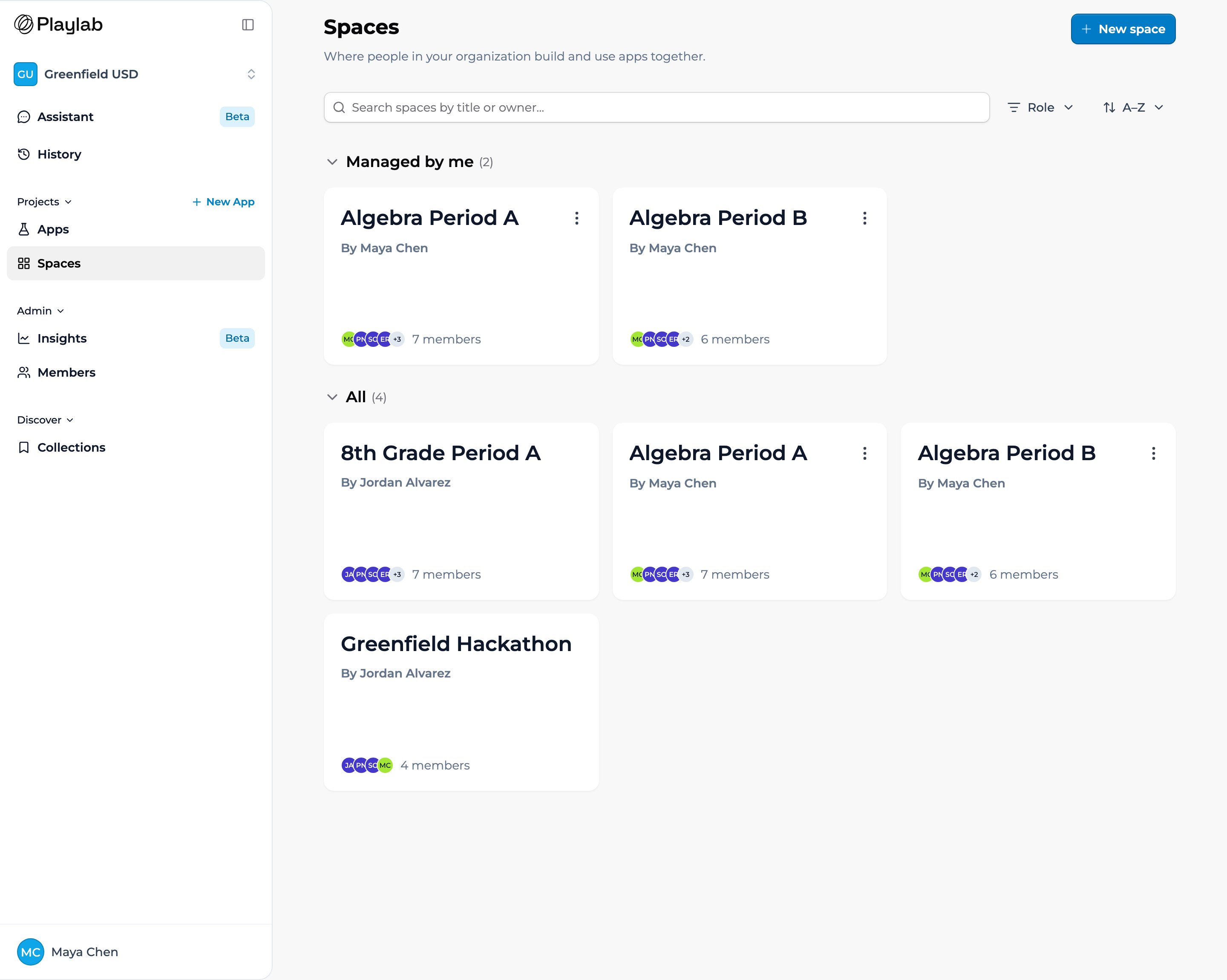
An organization's Spaces page, opened from Projects in the sidebar. Each class is its own space, with the spaces you manage listed first.
Finding apps: filter by scope
The organization’s Apps page (under Projects in the sidebar) has three tabs, each with a count, above the search field:- My apps — every app you created, in any organization. It’s the same list whichever organization you’re in.
- Org apps — apps in the organization you’re viewing that you can open, whether built there or shared into it. This is the only tab that changes when you switch organization.
- Shared with me — apps someone shared with you by name from outside your organizations. Apps you can already reach through one of your organizations appear under Org apps instead.
- Built in my org — apps created in this organization.
- Shared with my org — apps shared with this organization from another organization.
Getting around
Your left sidebar is home base, and it always shows one organization at a time.- Organization switcher — the top of the sidebar shows the organization you’re in. Click it to switch to another organization you belong to. Everything below it follows the org you pick.
- Assistant — your Playlab Assistant.
- History — every session you’ve had with a published Playlab app, in any of your organizations, newest first. Click one to read it back. Assistant chats aren’t listed here; they stay in the Assistant.
- Projects — the organization’s Apps and Spaces, plus New App to start building. Your own apps are on the My apps tab of Apps, and starred apps are a sort option there (see Finding apps).
- Admin — organization management. Builders see Insights for the apps they built, and Members. Owners see Insights for the whole organization, plus Sessions, Members, Knowledge Base, Settings, and API Keys. Each item appears only if your role can use it.
- Discover — the organization’s Collections. Collections you made are on its My collections tab.
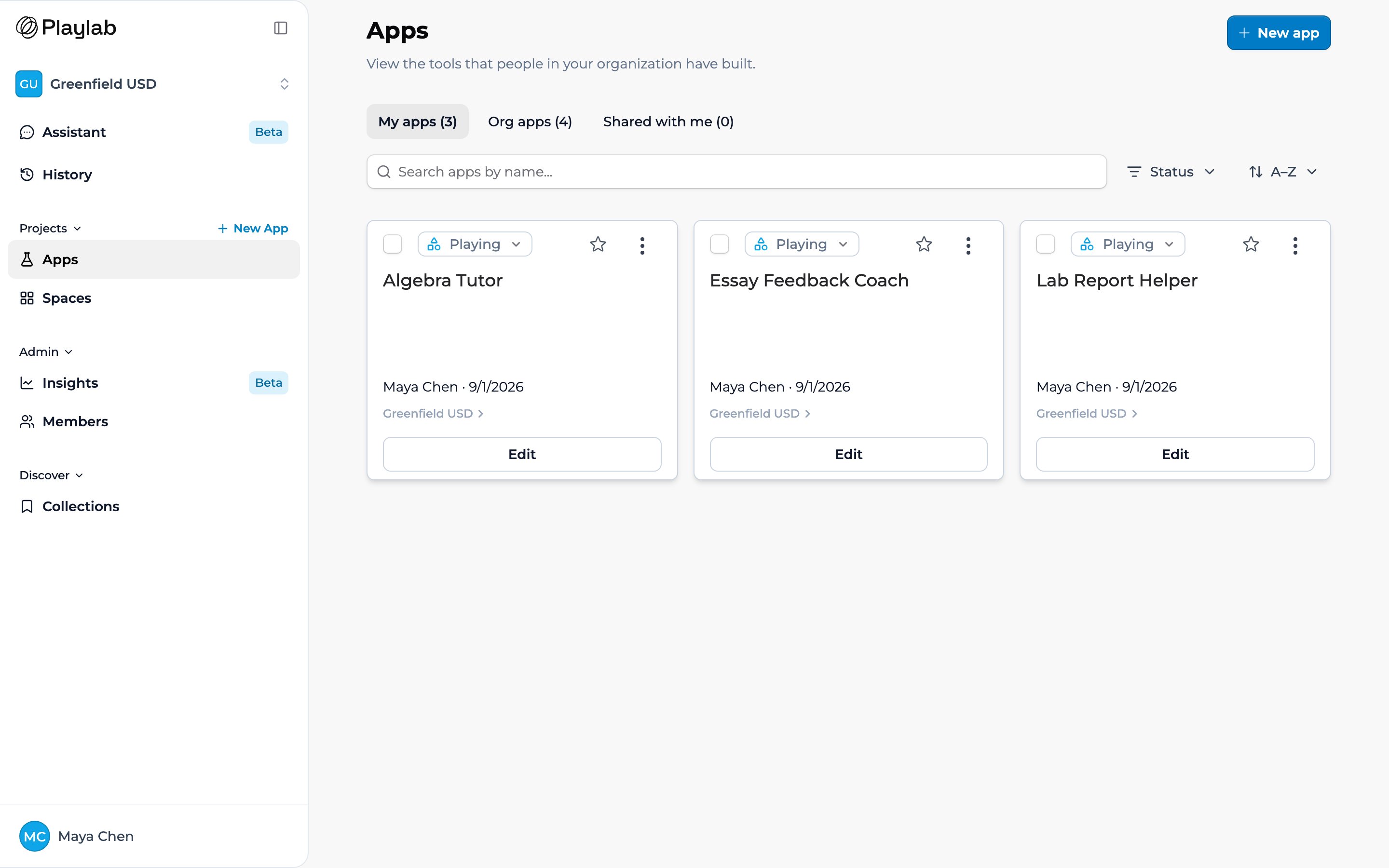
The left sidebar, as a Builder sees it — the organization switcher, then Assistant, History, Projects, Admin, and Discover — next to the organization's Apps page.
Where to go next
If you build apps, your apps are private until you share them, and Editor sharing keeps collaboration scoped to a single app. See App privacy and visibility and Collaborating on an app. If you teach, your space gives you visibility into student sessions and finer control over what students can do. See Space building permissions and Space member detail. If you admin an org, you have a centralized view of sessions and flags across all spaces. See Reviewing app activity and Organization permissions and roles. If you deploy across a network, Collections were designed for you. See Share with Collections.Key points
- Playlab has four containers: organization, space, app, collection
- Apps belong to an organization; spaces and collections add them where they’re needed
- Sessions are visible at space, member, or org scope
FAQ
Why these four containers?
Why these four containers?
The container structure separates the jobs that often collide on a single platform: who owns content, who can see it, who can change it, and where it shows up. Each container solves one of those jobs cleanly.
Can a space belong to more than one organization?
Can a space belong to more than one organization?
No. A space lives inside a single organization. Apps can be added to spaces in different orgs through sharing.
Where do my apps live if I'm not in a space?
Where do my apps live if I'm not in a space?
Every app belongs to an organization. The Create a new App dialog shows which organization the app will be created in, or asks you to pick one under Create in. From there, add it to as many spaces as you need.
How is this different from Google Drive?
How is this different from Google Drive?
Drive is a generic file system. Playlab is built around apps and the people who use them, with sharing, activity, and permissions designed for classrooms.
Is there a mobile app?
Is there a mobile app?
Playlab runs in the browser on phones and tablets. There is no native mobile app today. Pages adjust to small screens; for example, a published app’s Edit and Remix buttons move into a menu.
Does Playlab work offline?
Does Playlab work offline?
No. Playlab needs an internet connection. Each message goes to Playlab’s servers to get the AI’s response.
Last updated: 10-02-2026 Contact us at [email protected]