How to share a Playlab app with individuals, groups, or organizations using the Share dialog.
The Share dialog lets you add individuals, groups, or whole organizations as Owners, Editors, or Users on a single app. Access is per-app — if you give someone Editor on App A, they don’t get access to your other apps. Publishing has its own button and dialog; see Publishing.
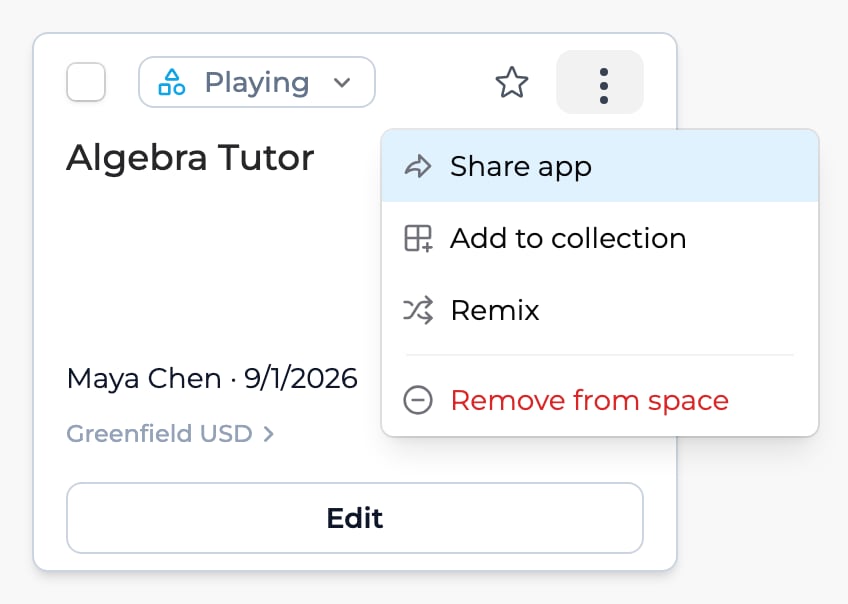
On an app card, open the card menu (⋮) and choose Share app. In the builder, click Share in the top right, next to Publish.
Share from the app card.
Share from inside the builder.
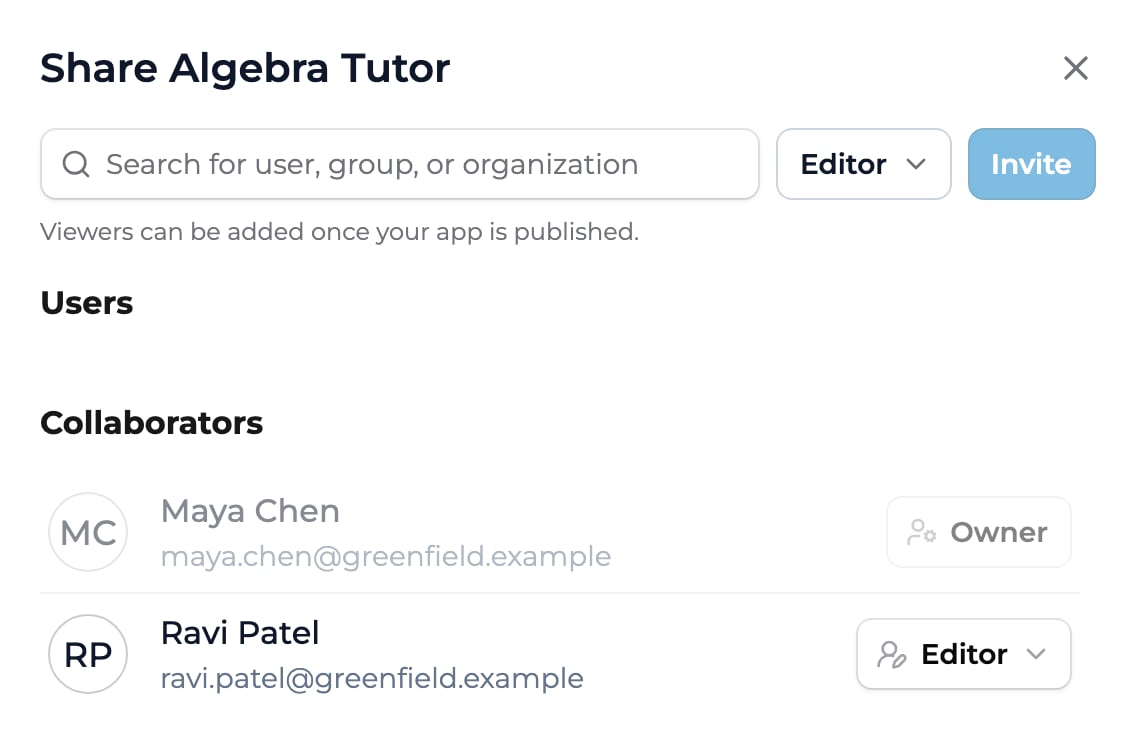
Search for a user, group, or organization
Type a name, email, group, or org name. Matches appear as you type, drawn from the organizations you belong to. You can add an individual, a group (like a class or cohort), or a whole organization, one at a time.
Choose a role
Pick Owner, Editor, or User from the role menu next to the search field. User appears once the app is published, and Owner only if you can manage owners.
Click Invite
Click Invite. Playlab doesn’t notify recipients, so let them know. Editors and Owners are listed under Collaborators, people with the User role under Users. To change someone’s role or revoke access later, open the role menu next to their name and pick a new role or Remove access.
The Share dialog: search for a user, group, or organization, pick a role, and click Invite. People are grouped into Users and Collaborators.
Full control. Edit, publish, share, archive, and add or remove other Owners. Use for co-builders who need the same authority you have.
Editor
Can edit and publish. Edit instructions, references, starter inputs, model settings, and welcome message. Publish, unpublish, and share as Editor or User. Cannot add Owners or archive the app. Use for collaborators who help build and refine.
User
Use only. Use the app once it’s published. Cannot edit it, open Share, or see its Sessions tab. Use for people who only need to use the app.
Yes. Add as many Editors as you need. Each one has the same edit rights.
Does this replace space-level sharing?
Space membership still controls the space’s Sessions tab and access to apps added to the space as a whole. App sharing is the right tool when you want to grant access to one specific app.
What if my peer is in a different organization?
You can add them only if they also belong to one of your organizations. The search in Share only finds people who share an organization with you, and Playlab doesn’t send invites to anyone else.
What if my Editor leaves the org?
Their access is removed automatically when they’re removed from the org. The app stays with you.
Can I see what changes my Editor made?
Partly. In the builder, click the History (clock) icon at the top right to open Prompt History, which lists each version with who made it. Comparing versions shows changes to the instructions only, not to other settings.
Can two Editors edit the same app at the same time?
Yes, but the last save wins on the same field. For close collaboration, agree on who owns which section before editing together.