Bundle members into a Group so you can share apps and Collections with the whole set at once.
A Group is a named set of members inside your organization that you can share with all at once. Instead of adding fifteen teachers to an app one at a time, you put them in a Group and share with the Group. Add or remove members later and their access follows automatically. Groups are an org-level container, so you create and manage them from your organization dashboard.Groups are about people; Collections are about apps. They pair well: share a Collection with a Group to hand a curated set of apps to a whole team in one move.
Groups live at the org level. Click Members under Admin in the sidebar.
Go to the Groups tab
You’ll see existing Groups in your org and a button to make a new one. An org with no Groups yet shows an empty state inviting you to create your first.
The Groups tab on the Members page. An org with no Groups yet shows this empty state.
Click Create Group
Click Create Group in the empty state (or Add Group in the top right), enter a Group Name, and click Add Group. Give your Group a clear name that says who’s in it — like “9th Grade Science Team,” “District Coaches,” or “Pilot Cohort.”
Add members
Click the new Group’s name in the list to open the Manage Group Members dialog. Add people two ways: Search for people by name and pick them from the results, or Paste a list of email addresses (comma-, whitespace-, or line-separated). Everyone you add must already have a Playlab account and belong to your organization — Groups organize existing org members, they don’t invite new people. For a pasted list, click Add members to group.Current members show in the list below, each with a remove icon. Managing a Group is just adding and removing people here, anytime.
The Manage Group Members dialog: search for people or paste a list of org emails, then click Add members to group. Current members appear below, each removable.
Close when done
Members are added the moment you pick them in search or click Add members to group — there’s no separate save. Close the dialog and the Group is ready to use as a recipient anywhere you share.
Open the app or Collection you want to share and click Share.
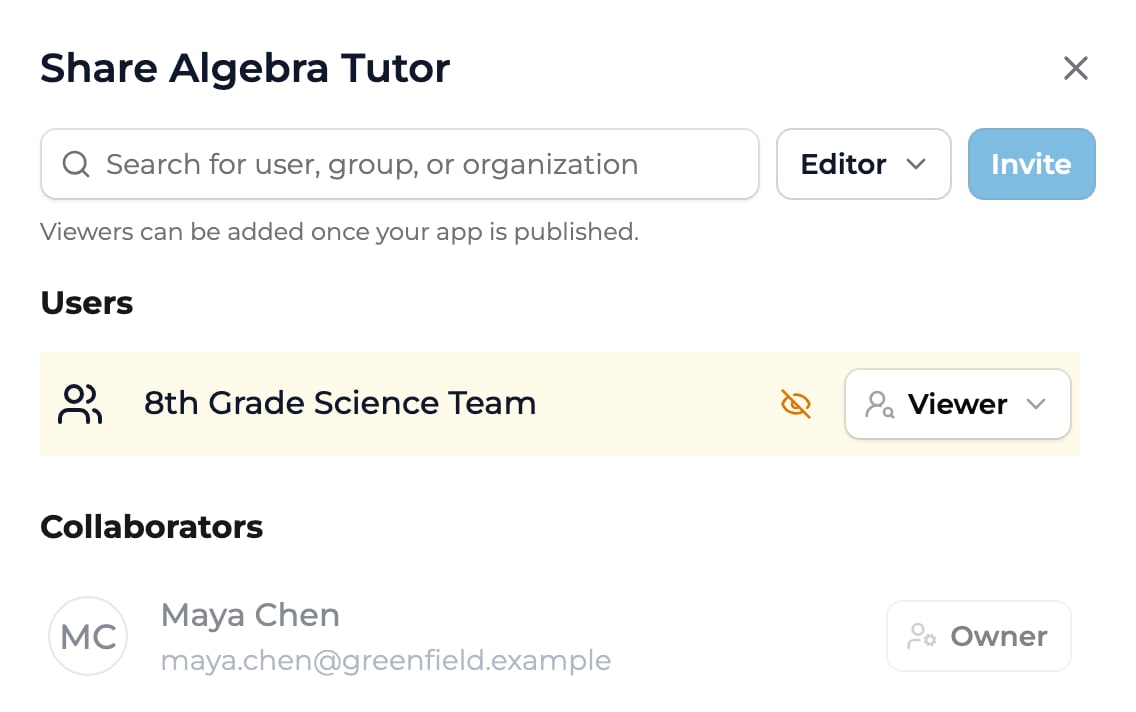
In the Search for user, group, or organization field, start typing the Group’s name and select it.
Set the role in the menu next to the search field: User lets members use what you shared; Editor is for collaborators who build with you.
Click Invite. Every member of the Group gets access at the role you set. In an app’s Share dialog, the Group is then listed under Users (User role) or Collaborators (Editor role).
The Share dialog with a Group added as a recipient. Set its role — here User — and every member of the Group gets that access.
Temporarily unavailable. Adding a Group directly to a space is paused while we improve how groups and spaces work together. In the meantime, place a whole team into a space by setting up the spaces and groups on an organization invitation — new members land in the right spaces on their first sign-in. Sharing apps and Collections with a Group (above) is unaffected.
When this returns, you’ll add a Group to a space from the space’s Add members dialog: switch to the Search organization tab, start typing the Group’s name, and pick it to bring in all its members at once — no need to add them one by one.
Membership changes flow through. Add someone to the Group later and they pick up everything already shared with it; remove them and their access drops. You don’t re-share.
What's the difference between a Group and a space?
A space is where apps live and where classroom activity happens. A Group is just a named list of people you can share to at once. A Group has no apps or activity of its own.
Can a member be in more than one Group?
Yes. People can belong to any number of Groups. Each Group’s shares apply independently.
Do I have to recreate a Group to change who's in it?
No. Open the Group and add or remove members. Anything already shared with the Group updates to match the new membership.
Can I share a Group with people outside my org?
Groups hold members of your own organization. To reach another organization, share with that org directly. See Sharing with groups and orgs.