

New
When to share with individuals
Some common cases: You finished a draft and want a coworker to look it over before you publish. Add them as an Editor. Users can only be added once the app is published. You want a peer to help refine the prompt or references. Add them as an Editor. You want a co-builder with the same control you have. Add them as an Owner. You want one colleague to use the app without opening it to your whole organization. Publish it, then add them as a User. You are running a small pilot with three teachers across two organizations you belong to. Add each one directly. For sharing with whole groups or organizations, see Sharing with groups and orgs.How to share an app with an individual
1
Open the app
Open the app in the builder, or find its card on the Apps page.
2
Click Share
The Share button is in the top right of the builder, next to Publish. From an app card, open the card’s menu (⋮) and choose Share app.
3
Type their email or name
Matches come from people who share at least one organization with you.
4
Pick a role and click Invite
In the role menu next to the search field, choose Owner to give them full control, Editor to let them help build, or User to let them use the app. Then click Invite. Playlab doesn’t notify them, so let them know. Once the app is published, it appears on their Apps page under Shared with me.
User appears only once the app is published, and Owner only if you can manage owners. Owners and Editors are listed under Collaborators, and people with the User role under Users.
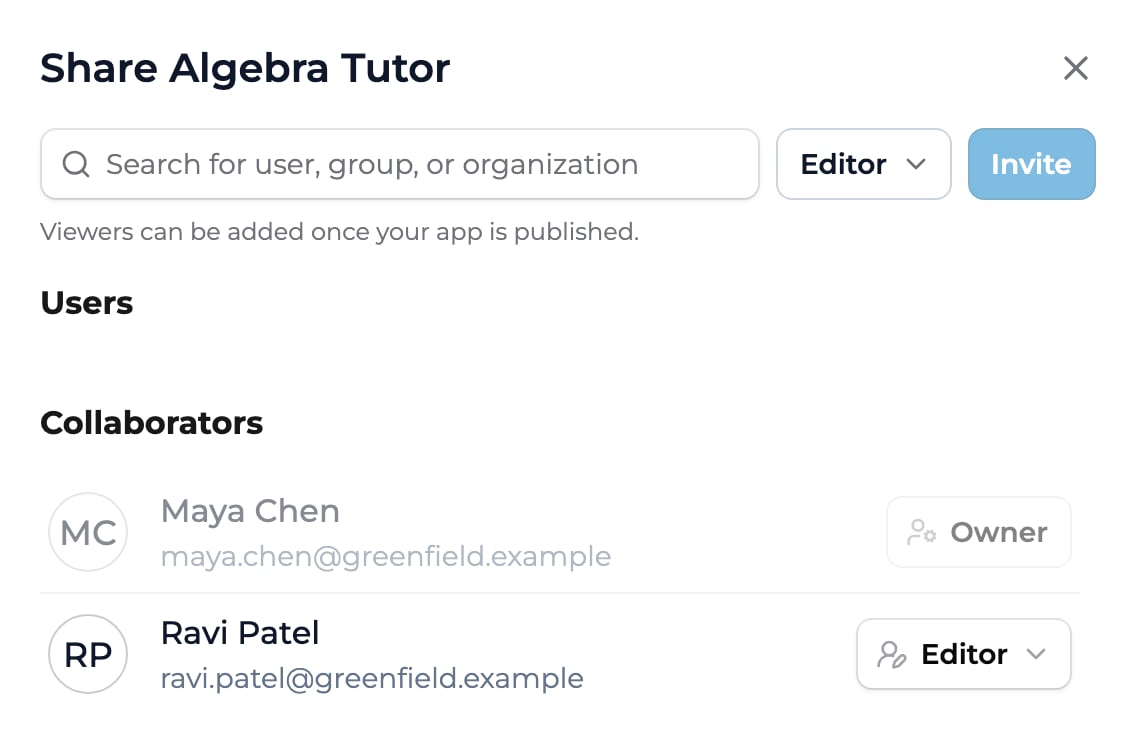
The Share dialog: search for the person, pick a role, then click Invite.
Permission levels
Owner Full control: can edit, publish, share, and archive the app, and add or remove other Owners. Use for co-builders who need the same authority you have. Editor Can edit the app: prompt, references, starter inputs, settings. Can also publish and unpublish it, and share it with others as an Editor or User. Cannot add Owners or archive the app. See Collaborating on an app. User Can use the app. Cannot edit it or open Share. Users can only be added once the app is published.Removing or changing access
Open the app, click Share, find the person in the list, and open the role menu next to their name. Pick a new role, or choose Remove access. Changes take effect immediately. If you remove someone, they lose the access that share gave them, unless they reach the app another way, such as a group, a space, or a collection.Key points
- Use Share on any app to add a person as Owner, Editor, or User
- Owners have full control, Editors can edit, publish, and share the app, and Users can only use it
- Users can only be added once the app is published
- You can only add people who share an organization with you
FAQ
Do they need a Playlab account?
Do they need a Playlab account?
To be added in Share, yes. You can only add people who already have a Playlab account and belong to one of your organizations. If you set the general audience to Public, anyone with the link can open the app without an account.
Is there a notification when I add someone?
Is there a notification when I add someone?
No. Playlab doesn’t send an email or notification when you add someone. Once the app is published, use Copy published link at the top of the Share dialog and send them the link.
Last updated: 09-30-2026 Contact us at [email protected]