

New
When to share with a group or org
Common cases: You want every teacher in your organization to use an app. Share with the organization as a User. A department or grade-level team should use an app. Share with its group as a User. A team of co-builders helps refine the app. Share with their group as an Editor. You belong to several organizations, such as a district and its schools, and want each to have the app. Share with each organization separately. For sharing with one specific person, see Sharing with individuals.Sharing with a space
Spaces don’t appear in the Share dialog. To share an app with a space, start from the space instead:1
Go to the space
Open the space you want to share the app with. You need to be its Owner or Manager.
2
Click Add apps
In the top right, click Add apps and choose Add existing apps or collections.
3
Pick the app
Search for the app or pick it from the list, then click the add button (for example, Add 1 app). The list shows the apps and Collections you can use or edit.
How to share with a group
1
Open the app or collection
Both apps and Collections share the same way.
2
Click Share
In the app builder, click Share in the top right. On a Collection’s page, click Share.
3
Type the group name
Start typing. Matching groups from your organizations appear as suggestions.
4
Pick a role
In the role menu next to the search field, pick User to let group members use the app, or Editor for collaborators on the build. User appears only once the app is published, and Owner only if you can manage owners.
5
Click Invite
Click Invite. Every member of the group gets the role you set. Playlab doesn’t notify them, so let them know.
How to share with an organization
The flow is the same. In the search field, type the organization’s name. Only organizations you belong to appear.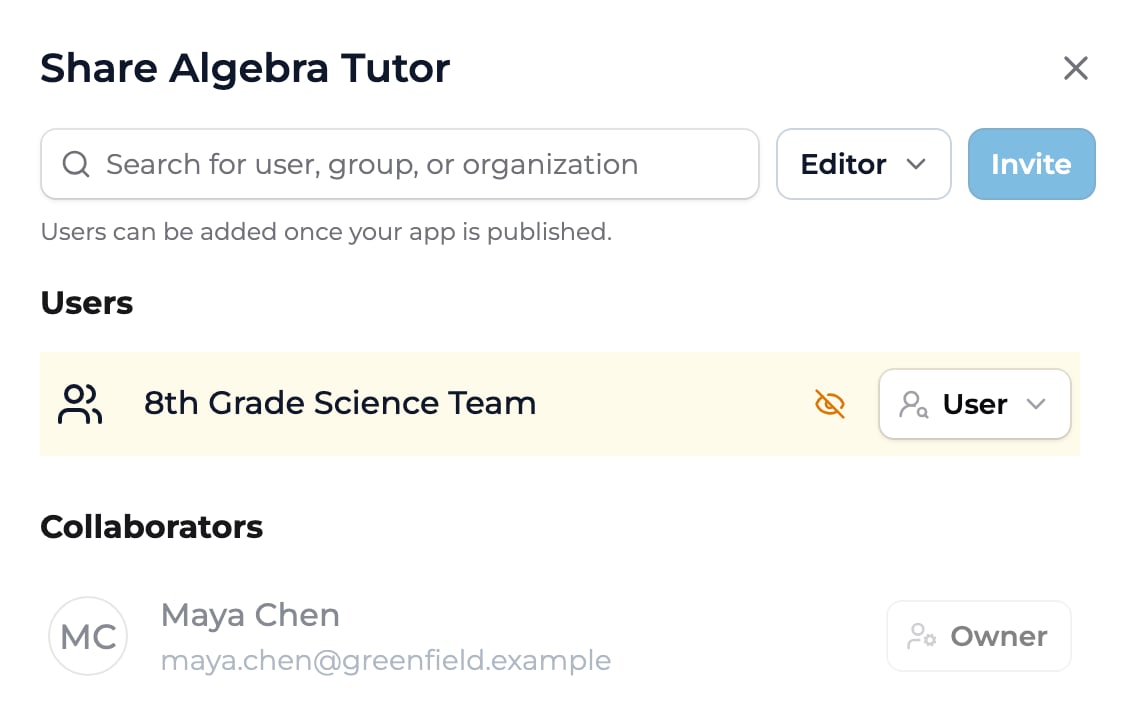
Sharing with a group or organization is the same flow as sharing with a person: search for it, pick a role, then click Invite. Here the group '8th Grade Science Team' is listed under Users as a User.
Cross-org sharing
You can share an app with any organization you belong to, including one other than the app’s own. You can’t share with an organization you aren’t a member of. A few things to know about cross-org sharing: The original org owns the app. Updates flow from the source. Once changes are published, recipient orgs get the latest version. Sessions stay with each org. Each organization’s Owners see sessions by their own members. See Activity segmentation. Roles apply to every member. Every member of the recipient org gets the role you pick. To let only some people edit, share with the org as a User and with those people or their group as Editors. Recipients can add it to their spaces. Once you share an app with an org, that org’s space Owners and Managers can add it to their spaces using the Add apps flow. For partner-style deployment with curated bundles of apps, Collections are usually a better fit.Activity segmentation
When the same app is in use across several orgs, who sees which sessions depends on where you look. On the app’s Sessions tab, its Owners and Editors see sessions by people who share an organization with them, plus logged-out sessions. Sessions by people from other organizations aren’t shown. On an organization’s Sessions page, its Owners see their own members’ sessions, including on apps shared into the org from elsewhere. In Insights, people who don’t share an organization with you are listed as Member of another organization. For more, see Reviewing session activity.Key points
- The same Share dialog works for groups and entire organizations
- You can only share with organizations you belong to
- Each org’s Owners see their own members’ sessions
- For curated bundles of multiple apps, use Collections instead
FAQ
Do recipient orgs see each other?
Do recipient orgs see each other?
Not unless they have Owner or Editor access. Only the app’s Owners and Editors can open Share and see who it’s shared with.
How do permissions cascade?
How do permissions cascade?
Every member of a group or org gets the role you pick for it, so sharing an org as Editor lets all its members edit the app. Org Owners also get Owner access to every app built in their organization.
Last updated: 10-28-2026 Contact us at [email protected]