

What this controls
The four toggles are: Build Apps. When on, workspace members can create their own apps inside the workspace. Turn it on for classes where students build apps as part of the curriculum. Members can see each other’s apps. When on, members can browse apps built by other members of the same workspace. Useful for collaborative classes; leave off when individual work matters. Share apps outside the workspace. Members can always share an app with other members inside the workspace. This toggle controls whether they can also share it with people, groups, or organizations outside the workspace. Manage own apps. When on, members can view moderated messages and delete their own apps. Recommended for adults only — keep it off in any workspace with minors.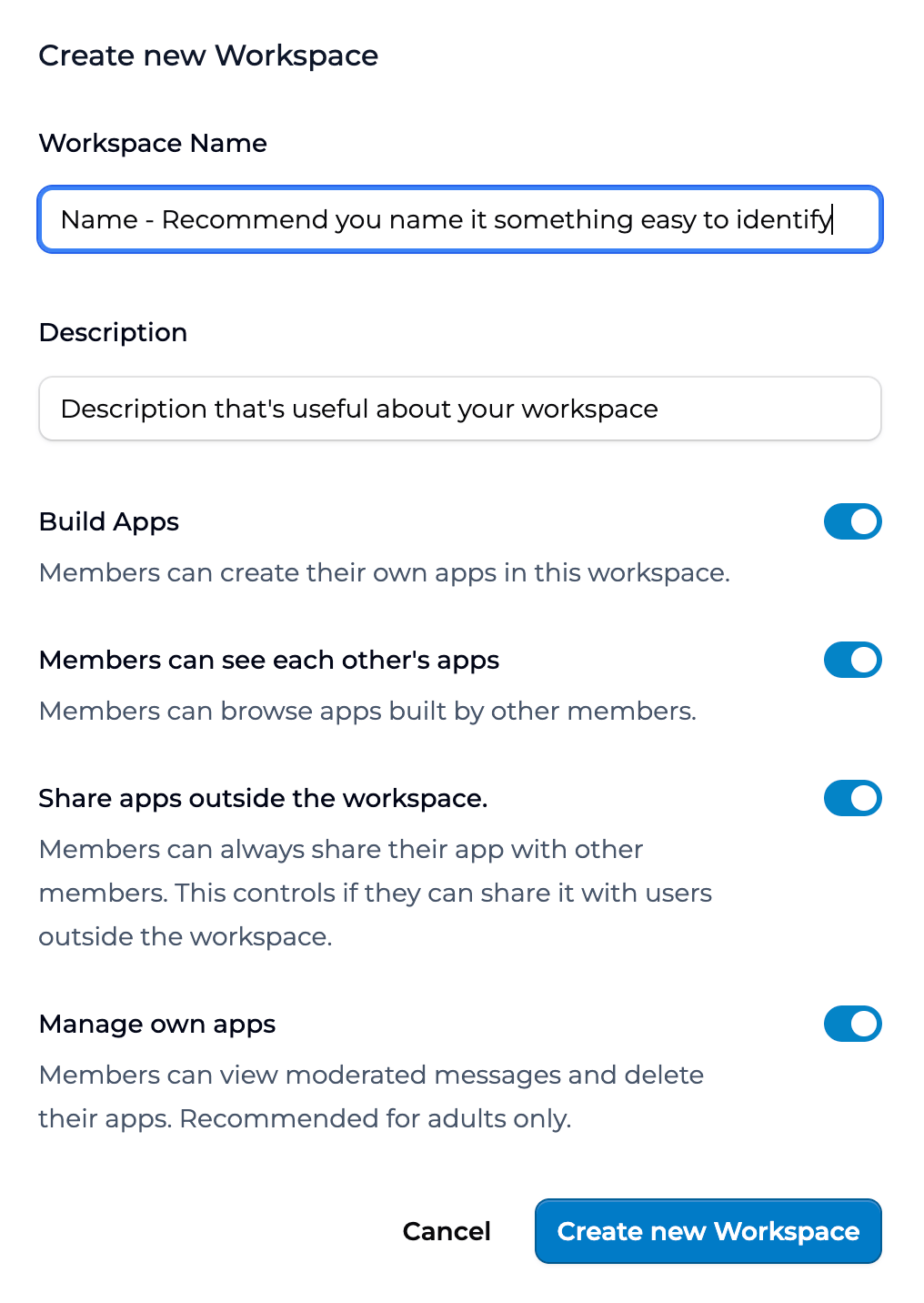
The Create new Workspace form. The four building-permission toggles sit below the name and description.
How to set permissions on workspace creation
The toggles appear on the New Workspace form. Set them as you create the workspace. See Creating and managing a workspace for the full creation flow.How to change permissions later
1
Open the workspace
Go to the workspace you want to update.
2
Open Settings
Click the settings gear in the top right of the workspace.
3
Find Building Permissions
The three toggles are listed together.
4
Update toggles
Turn on or off as needed.
5
Save
Changes apply going forward. Existing apps and conversations are not affected.
Recommended settings by use case
A few patterns that have worked for teachers:
These are starting points. Adjust to match the class. The fourth toggle, Manage own apps, isn’t in the table above because it’s a safety setting rather than a collaboration one: leave it off for any workspace with minors, and turn it on only for teacher- or staff-only workspaces.
Key points
- Four toggles: build apps, see each other’s apps, share beyond the workspace, manage own apps
- Start conservative and open up as the class needs grow; “Manage own apps” is adults-only
- Changes apply going forward, not retroactively
FAQ
Can I override permissions for individual students?
Can I override permissions for individual students?
No. Permissions apply to the whole workspace. If you need exceptions, the simplest path is to create a separate workspace with different permissions for those members.
What happens to existing apps when I change a permission?
What happens to existing apps when I change a permission?
Existing apps stay. Conversations stay. The change applies to what members can do going forward. If you turn off “members can build apps,” existing student apps remain accessible. New ones cannot be created.
Can students see each other's drafts?
Can students see each other's drafts?
Only if “members can see each other” is on. A draft is just an unpublished app. With the toggle on, members see drafts from other members. With it off, they see only their own.
What if my org admin has set org-wide policies?
What if my org admin has set org-wide policies?
Org-level policies take precedence. If the org disables public sharing, the workspace toggle for “share beyond workspace” still works for in-org sharing, but public visibility is unavailable.
Can I copy permissions from one workspace to another?
Can I copy permissions from one workspace to another?
Not in this release. The fastest path is to set the toggles by hand on each new workspace, or to use the workspace template feature once it ships.
What's the safest default for a brand-new class?
What's the safest default for a brand-new class?
All four toggles off. Turn on Build apps when students are ready to create. Add See each other when collaboration becomes part of the lesson. Keep Share beyond off unless you’ve talked through what students might share, and leave Manage own apps off for any class with minors.
Can I lock permissions so other owners or facilitators can't change them?
Can I lock permissions so other owners or facilitators can't change them?
Org-level policies override workspace toggles. If you need that level of control, ask your org admin to set the policy at the org level.
Last updated: 06-01-2026 Contact us at [email protected]