

What is this feature?
Spanish Mode allows you to configure your Playlab applications to interact with users in Spanish. This feature enables natural language processing, responses, and user interactions entirely in Spanish, making your apps accessible to Spanish-speaking audiences.Rationale for the feature
Reaching Spanish-speaking audiences is essential for global applications. Spanish Mode ensures that your Playlab app can communicate naturally and effectively with users in their preferred language, improving accessibility and user experience.Watch how to use Spanish Mode
How to Use Spanish Mode
1
Enable the feature
Click Account options (your name at the bottom of the left sidebar) to open your account menu.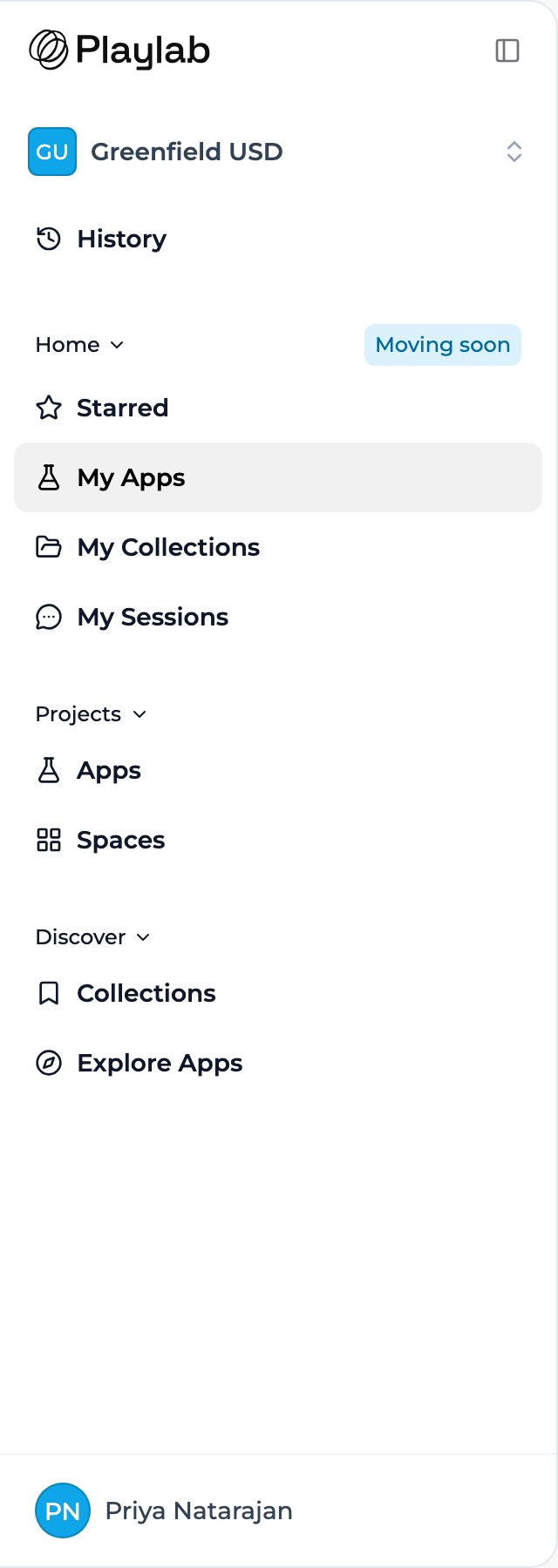
2
Select language preferences
At the top of the account menu, select ES to switch Playlab to Spanish. Select EN to switch back to English.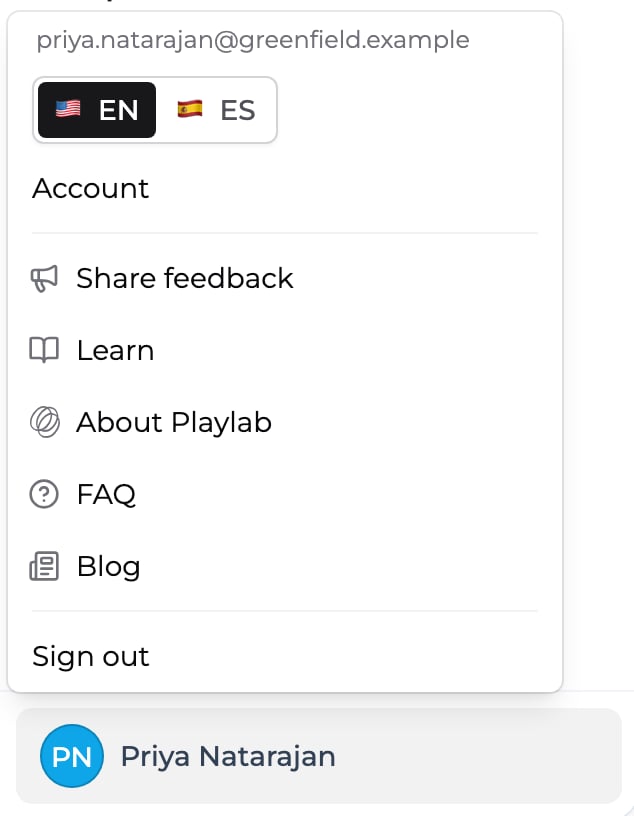
3
Configure your prompts
Playlab’s menus and pages now show in Spanish. Update your app prompts to include Spanish language instructions or use bilingual prompts if needed.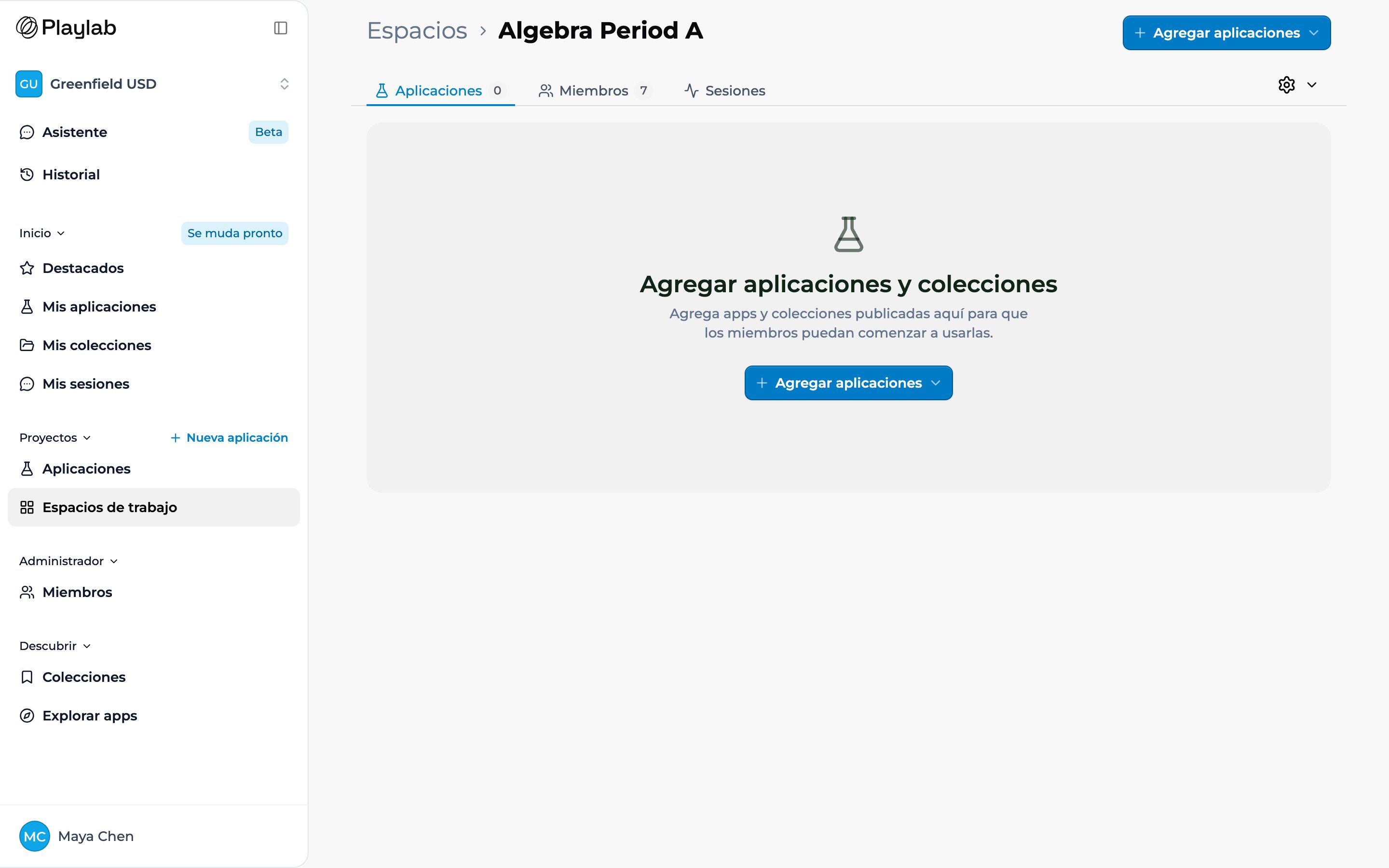
Tips for Using Spanish Mode Effectively
Best Practices
Use culturally appropriate content
Use culturally appropriate content
Ensure your prompts and responses consider cultural nuances and regional variations in Spanish-speaking markets.
Test with native speakers
Test with native speakers
Have native Spanish speakers review your app to identify any awkward phrasing or translation issues that automated systems might miss.
Consider regional variations
Consider regional variations
Spanish varies by region (Spain, Mexico, Argentina, etc.). Consider which variant is most appropriate for your target audience.
Maintain consistency in terminology
Maintain consistency in terminology
Use consistent Spanish terminology throughout your app to avoid confusing users with different words for the same concept.
FAQ
Can I switch between Spanish and English modes?
Can I switch between Spanish and English modes?
Yes, you can toggle between language modes in your app settings. You can also create bilingual apps that detect user language preferences automatically.
Does Spanish Mode support regional dialects?
Does Spanish Mode support regional dialects?
Spanish Mode uses neutral Spanish by default, but you can customize your prompts to target specific regional variations like Mexican Spanish or European Spanish.
Will my existing prompts work in Spanish Mode?
Will my existing prompts work in Spanish Mode?
Your existing English prompts will need to be translated or adapted for Spanish Mode. The AI Assisted Builder can help you optimize prompts for Spanish-language interactions.
Can users switch languages within the app?
Can users switch languages within the app?
Yes, you can configure language switching functionality within your app to allow users to toggle between Spanish and other supported languages.
Important Considerations
Always test your Spanish Mode apps with native speakers before launching to production. Language quality and cultural appropriateness are crucial for user satisfaction and engagement. Spanish Mode is designed to make your apps accessible to Spanish-speaking audiences, but you maintain full control over the content and tone of interactions. Combine Spanish Mode with thoughtful prompt engineering for the best results.We Want Your Feedback!
Have you used Spanish Mode to reach new audiences? We’d love to hear about your experience and any suggestions for improvement! Contact us at [email protected]Last updated: 05-13-2026