

What is this feature?
The Google Drive Export feature lets an app save the content it creates, like documents and spreadsheets, directly to your Google Drive account. Whether you’ve created lesson plans, educational resources, student assignments, or research materials, you can now organize and store everything in your preferred cloud storage system with just a few clicks. Think of it like having a direct pipeline from your Playlab space to your filing cabinet. Instead of manually copying and pasting content or taking screenshots, you ask the app to export it, and the file is saved to your Drive with its formatting.What is the Rationale for this feature?
Currently, saving Playlab content requires manually copying and pasting text, which often results in lost formatting and creates organizational overhead when managing multiple files across different systems. This manual process becomes particularly cumbersome when sharing materials with colleagues or students, requiring multiple steps and often leading to version control issues. The Google Drive Export feature eliminates these friction points by providing an easier way to move content from Playlab to Google Drive. This integration leverages Google Drive’s built-in collaboration features, making it easier to share materials while maintaining organization and version tracking.Connect Playlab to Your Google Drive
There are two ways to connect your Playlab Account to Google DriveOption 1 - From Account Settings
Navigate to Account Settings
Find the Connections Section

Connect Google Drive
Authorize Access
Confirm Connection
Option 2 - From Builder Interface
Open Your Playlab App
Access Export Options

Select Google Drive Integration
Complete Authorization
Return to Export
How to Export Content to Google Drive
Ensure Google Drive Export is Enabled
Generate Content in Your Playlab App
Request Export to Google Drive
Click the Generated Link
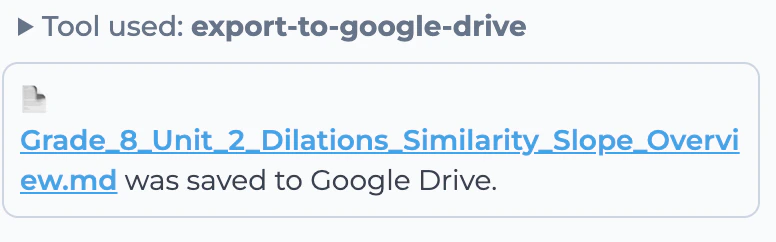
Open in Google Workspace
Edit and Share
Best Practices
Choose the Best Export Formats
Choose the Best Export Formats
- Spreadsheets (CSV): for data and tables. Open them with Google Sheets.
- HTML files: for interactive tools and web pages. Only exported when you ask for HTML.
- Images (SVG): for vector graphics.
How to Access and Edit Your Exported Files
How to Access and Edit Your Exported Files
Working with HTML Exports
Working with HTML Exports
Leverage Google Drive Sharing
Leverage Google Drive Sharing
- Share folders with your teaching team for easy collaboration
- Create view-only links for student resources
- Use comment features for collaborative review of lesson plans
- Set up shared folders for department-wide resource sharing
Frequently Asked Questions
What file formats can I export to Google Drive?
What file formats can I export to Google Drive?
- Google Docs for text-based content and documents
- Google Sheets for data, tables, and spreadsheets
- Google Slides for presentations and visual content
- HTML for interactive tools and web-based content These formats provide optimal functionality and editing capabilities within the Google Drive ecosystem.
Can I export multiple conversations at once?
Can I export multiple conversations at once?
How much Google Drive storage will my exports use?
How much Google Drive storage will my exports use?
- Text-based conversations: 50-500 KB typically
- Conversations with code: 200 KB - 2 MB
- Rich content with images: 1-10 MB
- Large lesson plans or comprehensive materials: 2-20 MB
Can I disconnect Google Drive later if I change my mind?
Can I disconnect Google Drive later if I change my mind?
What permissions does Playlab need for Google Drive?
What permissions does Playlab need for Google Drive?
Can Playlab read files from my Google Drive?
Can Playlab read files from my Google Drive?
Can I export content from team spaces?
Can I export content from team spaces?
What happens if my Google Drive is full?
What happens if my Google Drive is full?
We Want Your Feedback!
Thank you for trying out exporting to Google Drive. Our hope is to make this even more seamless and effective moving forward. We’d love to hear from you as this feature is still in beta. Contact us at [email protected]Last updated: 10-02-2026