> ## Documentation Index
> Fetch the complete documentation index at: https://learn.playlab.ai/llms.txt
> Use this file to discover all available pages before exploring further.
# Signing up for Playlab
> How to create a Playlab account and get oriented.
Getting started with Playlab takes a few minutes. This page walks through creating an account, joining your organization, and getting to your first workspace.
 ## Creating your Playlab account
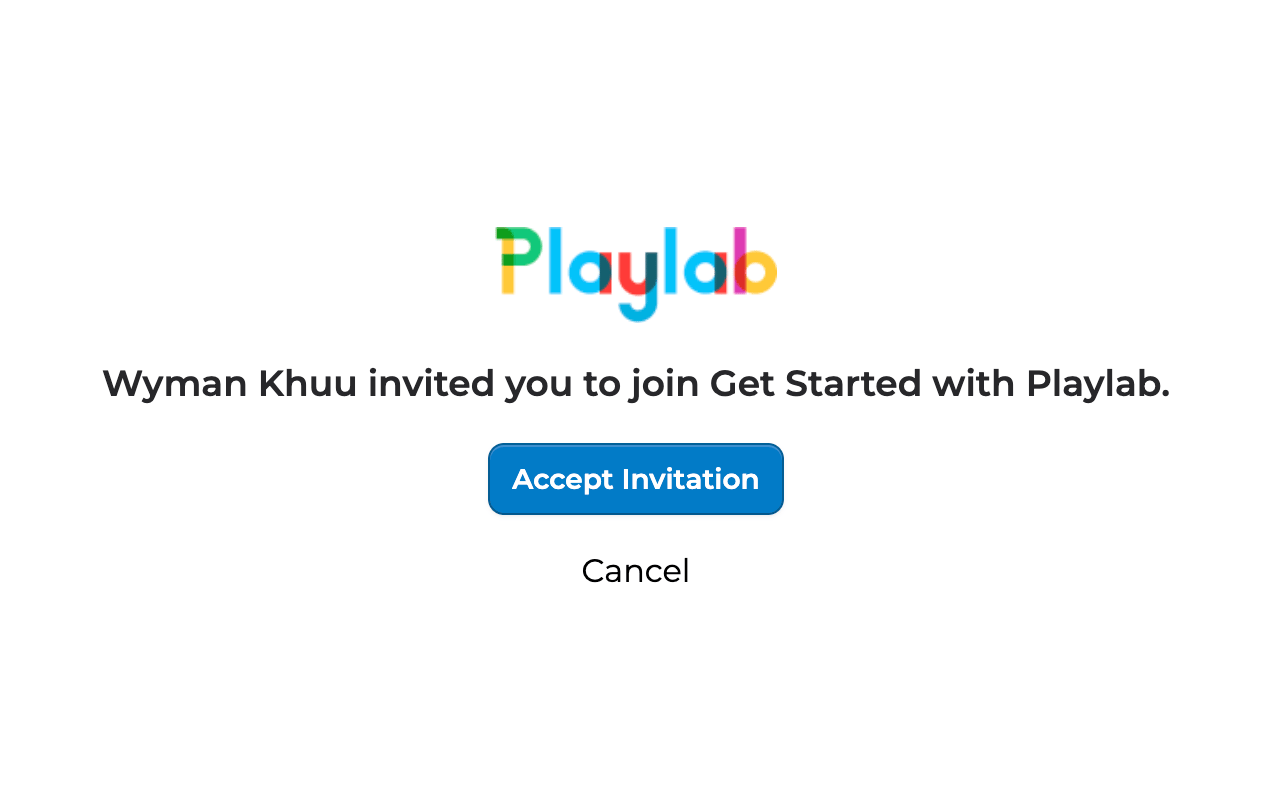
Playlab access starts with an invitation. You either receive one through your school, district, or organization, or you sign up through a Playlab event or program. The walkthrough below shows what to expect from invite email to landing in your dashboard.
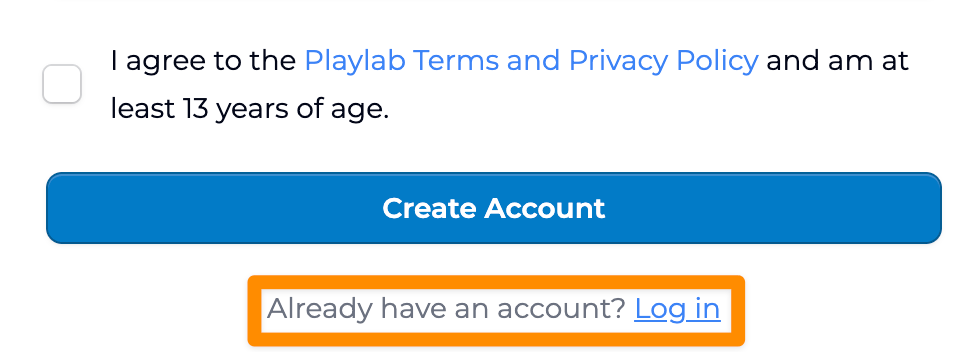
**Already have a Playlab account?** Just click **Log in** instead of signing up again. The invite link will recognize your existing account and add you to the new organization.
## Creating your Playlab account
Playlab access starts with an invitation. You either receive one through your school, district, or organization, or you sign up through a Playlab event or program. The walkthrough below shows what to expect from invite email to landing in your dashboard.
**Already have a Playlab account?** Just click **Log in** instead of signing up again. The invite link will recognize your existing account and add you to the new organization.
 Prefer to read through it? Here are the same steps:
Most invitations come by email. Some partners share an invite link that lets multiple people sign up at once.
The link takes you to a sign-up page. From playlab.ai directly, you sign up with email or single sign-on if your org supports it.
Add your name and a password (or use SSO). Confirm your email if asked.
Your invitation usually places you in an existing organization. Your dashboard shows the workspaces and apps available to you.
## Where to start once you're in
The recommended next stop. Walks you through the four containers and points to workflows by role.
Came in through a partner program? Your Learning Partner may have a specific path for you. Check with them or your org admin.
## Onboarding programs
Playlab runs Intro to Playlab workshops and Office Hours regularly. These sessions help new users get hands-on with the platform.
60-minute live onboarding workshop with a Playlab facilitator. Best for first-time users.
Drop-in support sessions for one-on-one guidance on your Playlab implementation.
## Key points
* Playlab access starts with an invitation from your org or a Playlab event
* Sign up with email or SSO, depending on your organization
* Already have an account? Click **Log in** instead — your account joins the new org automatically
## FAQ
No. Click **Log in** on the invite page instead. Your existing account will be added to the new organization.
Reach out to a Playlab partner organization, attend a Playlab event, or contact [support@playlab.ai](mailto:support@playlab.ai) to ask about access.
Most Playlab features assume you are part of an org. Individual accounts are supported for community-facing features like trying public apps, but the full Playlab experience (workspaces, sharing, building) requires org membership.
If your org has SSO set up, you sign in with your work or school account. The first time you sign in, Playlab creates your account and places you in your org. Subsequent sign-ins go through your identity provider.
Name, email, organization, and role. We do not collect demographic information from teachers or students at signup. The full privacy policy is at playlab.ai/privacy.
Org admins decide. Some orgs require SSO for all members. Others allow personal emails. Ask your admin if you're unsure.
Immediate for SSO. Email signups require clicking a confirmation link, which usually arrives within a few minutes.
***
Last updated: 06-01-2026
Contact us at [support@playlab.ai](mailto:support@playlab.ai)
Prefer to read through it? Here are the same steps:
Most invitations come by email. Some partners share an invite link that lets multiple people sign up at once.
The link takes you to a sign-up page. From playlab.ai directly, you sign up with email or single sign-on if your org supports it.
Add your name and a password (or use SSO). Confirm your email if asked.
Your invitation usually places you in an existing organization. Your dashboard shows the workspaces and apps available to you.
## Where to start once you're in
The recommended next stop. Walks you through the four containers and points to workflows by role.
Came in through a partner program? Your Learning Partner may have a specific path for you. Check with them or your org admin.
## Onboarding programs
Playlab runs Intro to Playlab workshops and Office Hours regularly. These sessions help new users get hands-on with the platform.
60-minute live onboarding workshop with a Playlab facilitator. Best for first-time users.
Drop-in support sessions for one-on-one guidance on your Playlab implementation.
## Key points
* Playlab access starts with an invitation from your org or a Playlab event
* Sign up with email or SSO, depending on your organization
* Already have an account? Click **Log in** instead — your account joins the new org automatically
## FAQ
No. Click **Log in** on the invite page instead. Your existing account will be added to the new organization.
Reach out to a Playlab partner organization, attend a Playlab event, or contact [support@playlab.ai](mailto:support@playlab.ai) to ask about access.
Most Playlab features assume you are part of an org. Individual accounts are supported for community-facing features like trying public apps, but the full Playlab experience (workspaces, sharing, building) requires org membership.
If your org has SSO set up, you sign in with your work or school account. The first time you sign in, Playlab creates your account and places you in your org. Subsequent sign-ins go through your identity provider.
Name, email, organization, and role. We do not collect demographic information from teachers or students at signup. The full privacy policy is at playlab.ai/privacy.
Org admins decide. Some orgs require SSO for all members. Others allow personal emails. Ask your admin if you're unsure.
Immediate for SSO. Email signups require clicking a confirmation link, which usually arrives within a few minutes.
***
Last updated: 06-01-2026
Contact us at [support@playlab.ai](mailto:support@playlab.ai)