> ## Documentation Index
> Fetch the complete documentation index at: https://learn.playlab.ai/llms.txt
> Use this file to discover all available pages before exploring further.
# Sharing a Collection
> Share a Collection with people, groups, or organizations, and set who can view, edit, or own it.
Once you've [created a Collection](/getstarted/Creating%20a%20Collection), sharing it hands the whole bundle to others as a single resource. Sharing works just like sharing an app: add recipients, set a role, done.
## How to share a Collection
The **Share** button is on the Collection's page.
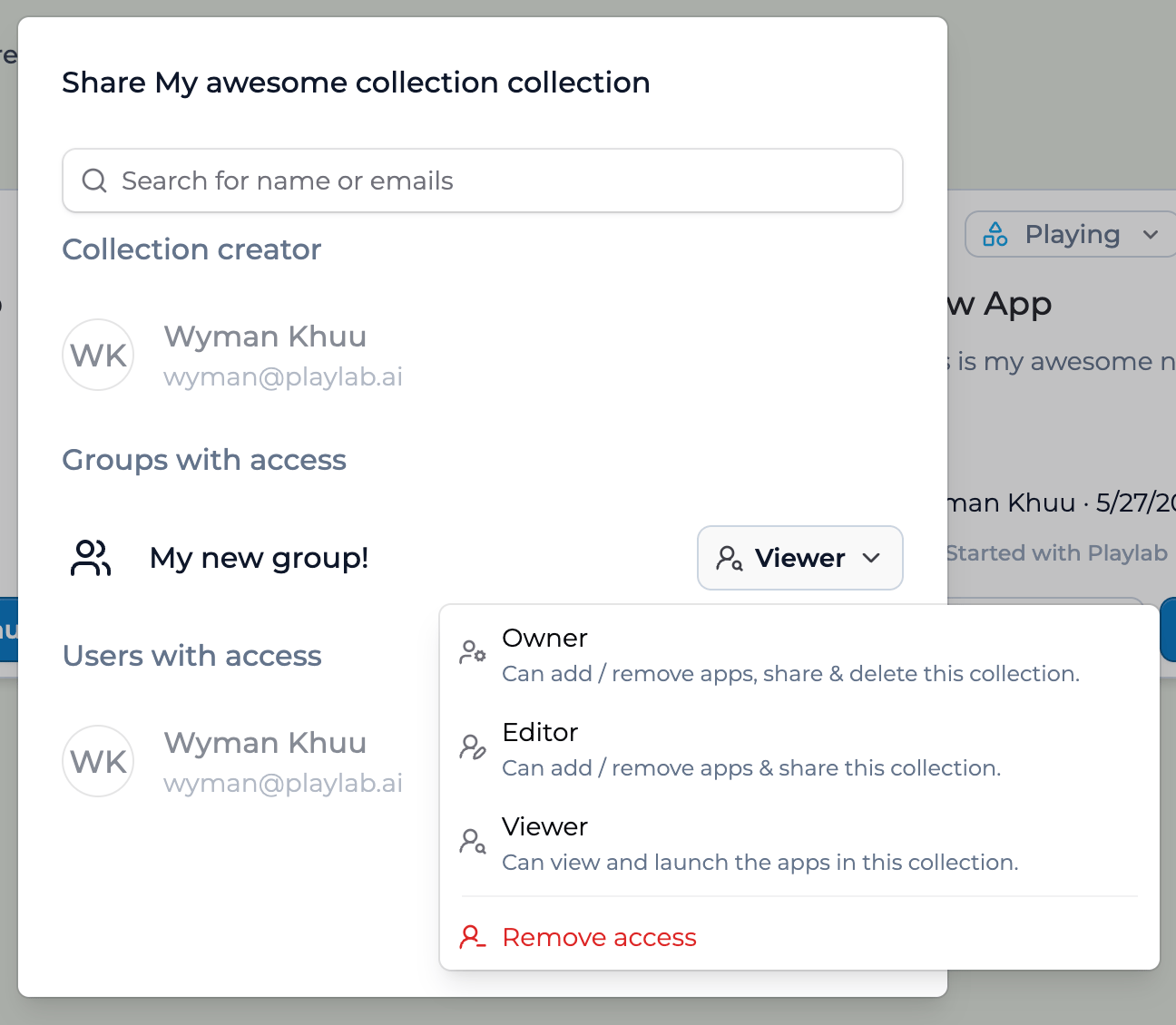
In **Search for name or emails**, add a person, a group in your org, or another organization. Recipients are grouped under **Users with access** and **Groups with access**.
Choose from the role dropdown — **Viewer**, **Editor**, or **Owner** (see below). Pick **Remove access** to revoke someone.
The Collection appears in each recipient's view, ready to add to a workspace or use directly.
 ## Permission levels
| Role | Can do |
| ---------- | ---------------------------------------------------- |
| **Viewer** | View and launch the apps in the Collection |
| **Editor** | Add or remove apps, and share the Collection |
| **Owner** | Add or remove apps, share, and delete the Collection |
Most recipients should be **Viewers** — they get the apps without being able to change the bundle. Reserve **Editor** for trusted partners who co-curate, and **Owner** for co-leads who need full control.
## Sharing with groups and orgs
Sharing with a **group** reaches everyone in it at once — pair a curated app bundle with a whole team by sharing a Collection with a [Group](/getstarted/Creating%20a%20Group). Sharing with an **organization** reaches that whole org, with activity kept segmented per org. This is how partners deploy a starter pack across many districts at once.
You don't re-share when you change a Collection. Add or remove apps and recipients see the new set on their next visit — and when an app's owner publishes a new version, that flows through too.
For cross-org deployment, permission cascade, and curation depth, see [Creating and sharing a Collection](/features/collections/Creating%20and%20Sharing%20a%20Collection), [Curating a Collection](/features/collections/Curating%20a%20Collection), and [Using a shared Collection](/features/collections/Using%20a%20Shared%20Collection).
## Key points
* Share a Collection the same way you share an app — with people, groups, or whole orgs
* Roles: **Viewer** (use), **Editor** (curate & share), **Owner** (full control, incl. delete)
* Change a Collection's apps anytime; recipients see updates without re-sharing
## FAQ
Viewer. It lets people use the apps without changing the Collection. Editor and Owner can modify the bundle, so reserve them for co-curators and co-leads.
Yes. Add or remove apps and recipients see the new set on their next visit — no re-sharing needed. New published versions of the apps inside flow through too.
Open the Share dialog, find the person or group, and choose **Remove access** from their role dropdown.
Yes. Set its visibility to Public and anyone on Playlab can find and use it.
A Collection is one resource you share once. Recipients get every app inside at the role you set, and the bundle stays in sync as you change it — no per-app sharing or re-sharing.
***
Last updated: 05-27-2026
Contact us at [support@playlab.ai](mailto:support@playlab.ai)
## Permission levels
| Role | Can do |
| ---------- | ---------------------------------------------------- |
| **Viewer** | View and launch the apps in the Collection |
| **Editor** | Add or remove apps, and share the Collection |
| **Owner** | Add or remove apps, share, and delete the Collection |
Most recipients should be **Viewers** — they get the apps without being able to change the bundle. Reserve **Editor** for trusted partners who co-curate, and **Owner** for co-leads who need full control.
## Sharing with groups and orgs
Sharing with a **group** reaches everyone in it at once — pair a curated app bundle with a whole team by sharing a Collection with a [Group](/getstarted/Creating%20a%20Group). Sharing with an **organization** reaches that whole org, with activity kept segmented per org. This is how partners deploy a starter pack across many districts at once.
You don't re-share when you change a Collection. Add or remove apps and recipients see the new set on their next visit — and when an app's owner publishes a new version, that flows through too.
For cross-org deployment, permission cascade, and curation depth, see [Creating and sharing a Collection](/features/collections/Creating%20and%20Sharing%20a%20Collection), [Curating a Collection](/features/collections/Curating%20a%20Collection), and [Using a shared Collection](/features/collections/Using%20a%20Shared%20Collection).
## Key points
* Share a Collection the same way you share an app — with people, groups, or whole orgs
* Roles: **Viewer** (use), **Editor** (curate & share), **Owner** (full control, incl. delete)
* Change a Collection's apps anytime; recipients see updates without re-sharing
## FAQ
Viewer. It lets people use the apps without changing the Collection. Editor and Owner can modify the bundle, so reserve them for co-curators and co-leads.
Yes. Add or remove apps and recipients see the new set on their next visit — no re-sharing needed. New published versions of the apps inside flow through too.
Open the Share dialog, find the person or group, and choose **Remove access** from their role dropdown.
Yes. Set its visibility to Public and anyone on Playlab can find and use it.
A Collection is one resource you share once. Recipients get every app inside at the role you set, and the bundle stays in sync as you change it — no per-app sharing or re-sharing.
***
Last updated: 05-27-2026
Contact us at [support@playlab.ai](mailto:support@playlab.ai)