> ## Documentation Index
> Fetch the complete documentation index at: https://learn.playlab.ai/llms.txt
> Use this file to discover all available pages before exploring further.
# Reviewing Activity
> How to monitor usage and analyze app engagement in a Playlab workspace.
The Activity view lets workspace owners, facilitators, and org admins see how members are using the apps in a workspace. You can filter by app, user, date, whether a session needs attention, or whether it's builder activity.
**Access requirements**
Activity views are visible to workspace owners, facilitators, and org admins. Members see their own activity from their dashboard.
## What activity shows
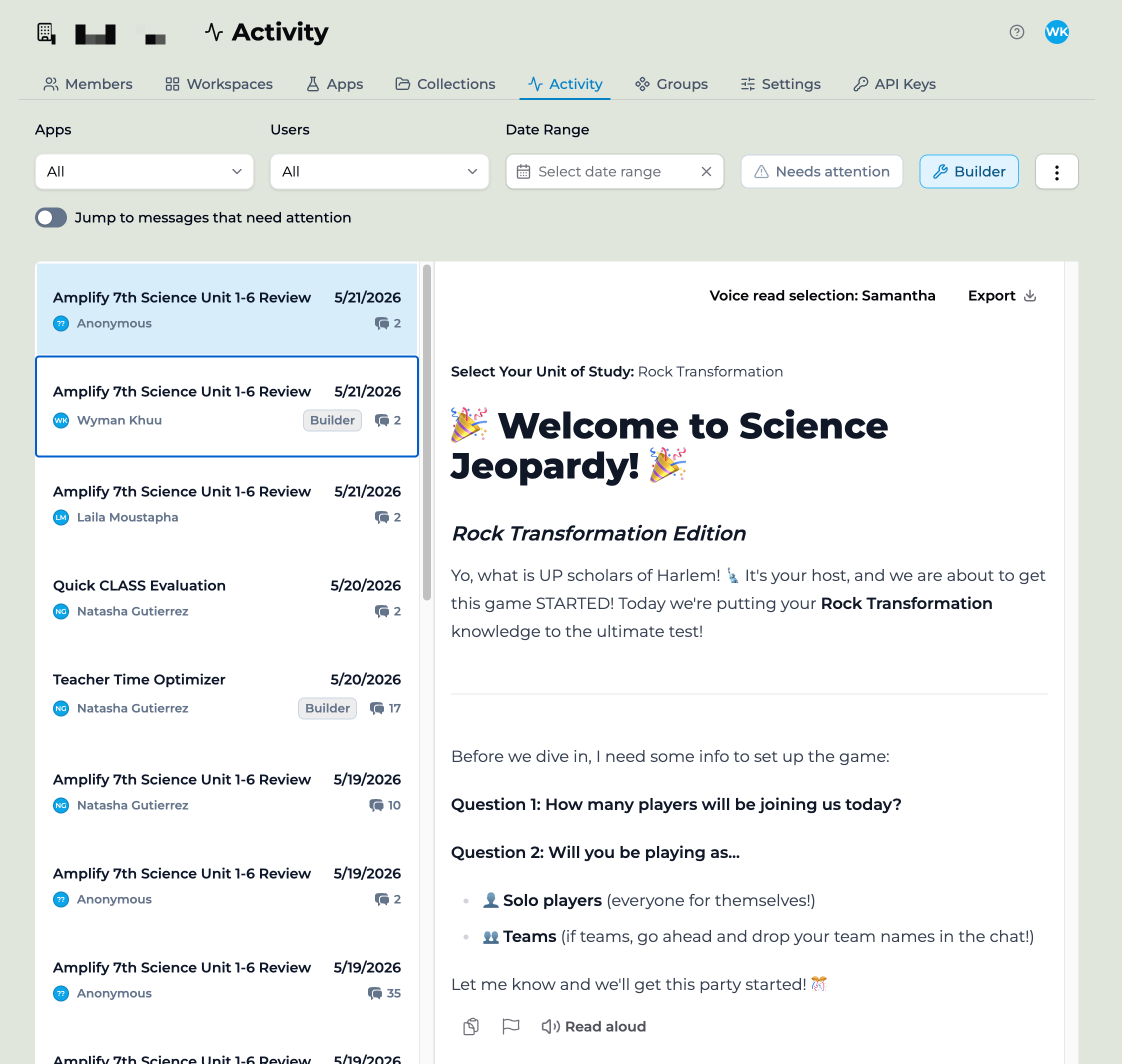 The Activity view inside a workspace lists every app session that took place there. For each session, you see:
* The app used
* The member who used it
* The date of the conversation
* Message count
* Any flags raised during the session
You can click into any session to read the full transcript. Conversations are preserved for the lifetime of the workspace.
## Tracking and filtering activity
The controls across the top of the Activity view let you narrow what you're tracking:
The Activity view inside a workspace lists every app session that took place there. For each session, you see:
* The app used
* The member who used it
* The date of the conversation
* Message count
* Any flags raised during the session
You can click into any session to read the full transcript. Conversations are preserved for the lifetime of the workspace.
## Tracking and filtering activity
The controls across the top of the Activity view let you narrow what you're tracking:
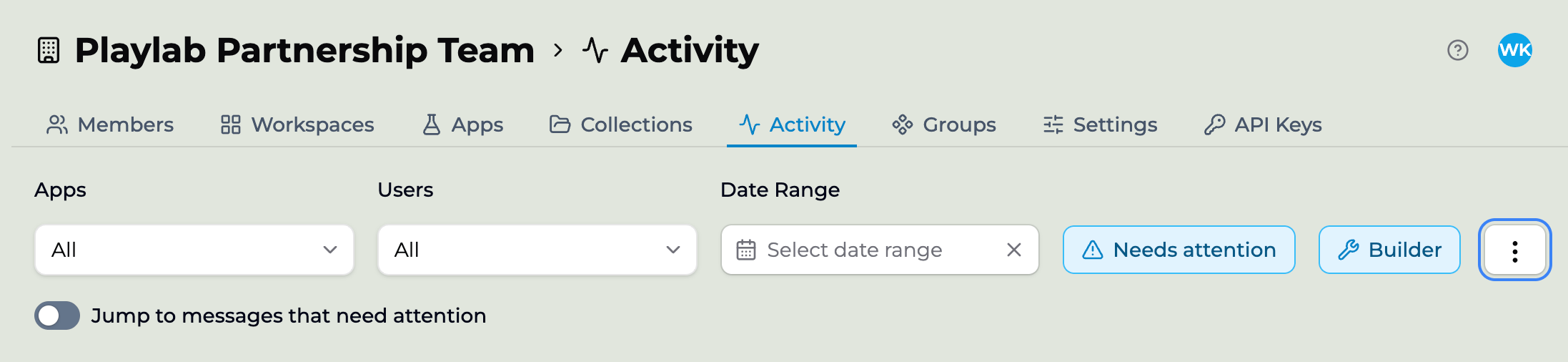 **Apps.** Show sessions for one specific app, or all of them.
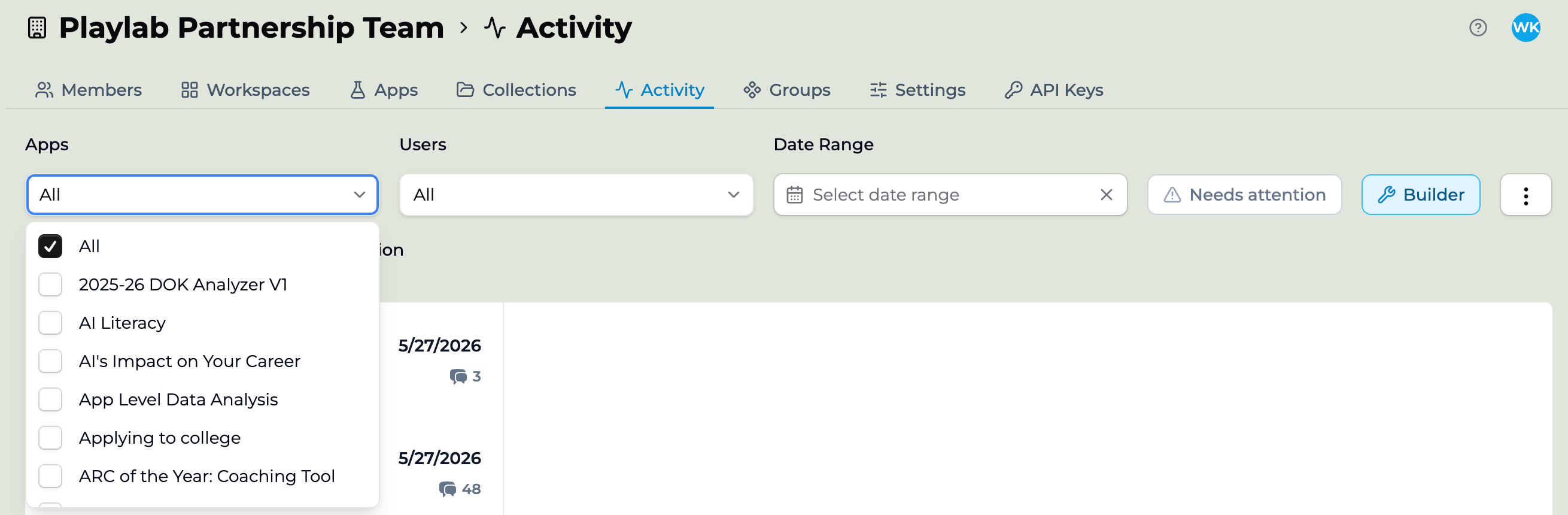 **Users.** Show sessions from one member, or all of them.
**Date Range.** Pick a window or a custom range, or clear it to see everything.
**Needs attention.** Filter to sessions with messages flagged as needing attention — safety flags or conversations that went sideways. Pair it with the **Jump to messages that need attention** toggle to step straight through the messages that matter, skipping the routine ones. For a video walkthrough of filtering to moderated messages, see [Safety and moderation updates](/features/Safety%20and%20Moderation%20Updates#responding-to-a-moderation-email).
**Builder.** Filter to builder activity — sessions from people building or testing the app, marked with a *Builder* tag — to separate authoring from real student usage.
Filters combine: a single user's flagged sessions on one app in the last week is one path through the same view.
From the **⋮** overflow menu you can also:
* **Export activity data (JSON)** — download the currently filtered activity as a JSON file.
* **Show community activity** — include activity from community use of the app alongside your org's own.
For org-wide exports and the CSV format, see [Exporting activity data](/getstarted/Exporting%20Activity%20Data).
## Best practices
A few things teachers have asked about and that have worked:
Set a weekly review cadence. Open the Activity view every Friday and scan for sessions that stalled or members who have not engaged. Five minutes catches most issues.
Use date filtering to avoid being overwhelmed. The all-time view is rarely useful for monitoring. Last 7 days or last 14 days is the right window.
Pay attention to flags first. Filter by flag status when you open the view. Anything flagged is worth a quick read.
Open conversations that look unusual. A very long session for a brief assignment, or a very short session for a complex assignment, are signals worth investigating.
## Key points
* Activity view shows every app session inside a workspace
* Filter by app, user, date, **Needs attention**, or **Builder** activity
* Export filtered activity as JSON
## FAQ
Yes. From the **⋮** menu, choose **Export activity data (JSON)** to download the currently filtered activity as a JSON file. Org Owners can also export org-wide Insights as CSVs — see [Exporting activity data](/getstarted/Exporting%20Activity%20Data).
Workspace activity is scoped to one class. Org-level monitoring (admins only) sees activity across every workspace in the org and surfaces flags from across the network. See [Centralized org monitoring](/features/Reviewing%20App%20Activity).
For the lifetime of the workspace. Archived workspaces retain history. Deleted workspaces' activity remains visible to org admins for compliance and review.
No. Members see their own conversations and their own apps. Cross-member visibility is a manager and admin role.
Not as push notifications. The activity view updates in real time when you have it open. Email digests are on the roadmap.
Use the App filter at the top of the view to focus on the apps you care about. There's no permanent exclude option today.
***
Last updated: 06-26-2026
Contact us at [support@playlab.ai](mailto:support@playlab.ai)
**Users.** Show sessions from one member, or all of them.
**Date Range.** Pick a window or a custom range, or clear it to see everything.
**Needs attention.** Filter to sessions with messages flagged as needing attention — safety flags or conversations that went sideways. Pair it with the **Jump to messages that need attention** toggle to step straight through the messages that matter, skipping the routine ones. For a video walkthrough of filtering to moderated messages, see [Safety and moderation updates](/features/Safety%20and%20Moderation%20Updates#responding-to-a-moderation-email).
**Builder.** Filter to builder activity — sessions from people building or testing the app, marked with a *Builder* tag — to separate authoring from real student usage.
Filters combine: a single user's flagged sessions on one app in the last week is one path through the same view.
From the **⋮** overflow menu you can also:
* **Export activity data (JSON)** — download the currently filtered activity as a JSON file.
* **Show community activity** — include activity from community use of the app alongside your org's own.
For org-wide exports and the CSV format, see [Exporting activity data](/getstarted/Exporting%20Activity%20Data).
## Best practices
A few things teachers have asked about and that have worked:
Set a weekly review cadence. Open the Activity view every Friday and scan for sessions that stalled or members who have not engaged. Five minutes catches most issues.
Use date filtering to avoid being overwhelmed. The all-time view is rarely useful for monitoring. Last 7 days or last 14 days is the right window.
Pay attention to flags first. Filter by flag status when you open the view. Anything flagged is worth a quick read.
Open conversations that look unusual. A very long session for a brief assignment, or a very short session for a complex assignment, are signals worth investigating.
## Key points
* Activity view shows every app session inside a workspace
* Filter by app, user, date, **Needs attention**, or **Builder** activity
* Export filtered activity as JSON
## FAQ
Yes. From the **⋮** menu, choose **Export activity data (JSON)** to download the currently filtered activity as a JSON file. Org Owners can also export org-wide Insights as CSVs — see [Exporting activity data](/getstarted/Exporting%20Activity%20Data).
Workspace activity is scoped to one class. Org-level monitoring (admins only) sees activity across every workspace in the org and surfaces flags from across the network. See [Centralized org monitoring](/features/Reviewing%20App%20Activity).
For the lifetime of the workspace. Archived workspaces retain history. Deleted workspaces' activity remains visible to org admins for compliance and review.
No. Members see their own conversations and their own apps. Cross-member visibility is a manager and admin role.
Not as push notifications. The activity view updates in real time when you have it open. Email digests are on the roadmap.
Use the App filter at the top of the view to focus on the apps you care about. There's no permanent exclude option today.
***
Last updated: 06-26-2026
Contact us at [support@playlab.ai](mailto:support@playlab.ai)