> ## Documentation Index
> Fetch the complete documentation index at: https://learn.playlab.ai/llms.txt
> Use this file to discover all available pages before exploring further.
# Navigating Playlab
> How Playlab is organized, where your work lives, and how content moves between containers.
Playlab is organized around four clear containers. They give you direct control over your apps, sharper boundaries between classes, and ways to share what you build with the people you build for.
Read this first if you are new to Playlab. The rest of the docs assume you know the containers below.
```mermaid theme={null}
graph TD
Org["🏛️ Organization"]
WS1["📁 Workspace
(Class A)"]
WS2["📁 Workspace
(Class B)"]
Coll["📚 Collection
(curated set)"]
A1["✏️ App 1"]
A2["✏️ App 2"]
A3["✏️ App 3"]
Org --> WS1
Org --> WS2
Org --> Coll
WS1 --> A1
WS1 --> A2
WS2 --> A2
WS2 --> A3
Coll -.references.-> A1
Coll -.references.-> A3
classDef container fill:#fbf9f6,stroke:#0c0f14,stroke-width:2px,color:#0c0f14
classDef app fill:#a4beeb,stroke:#0c0f14,stroke-width:1px,color:#0c0f14
class Org,WS1,WS2,Coll container
class A1,A2,A3 app
```
*Solid lines show containment. Dotted lines show reference (a Collection points to apps but does not own them).*
## The four containers
Everything you do in Playlab happens inside one of these four containers.
Your school, district, or partner. Holds workspaces, members, collections, and policies. Most people belong to one organization.
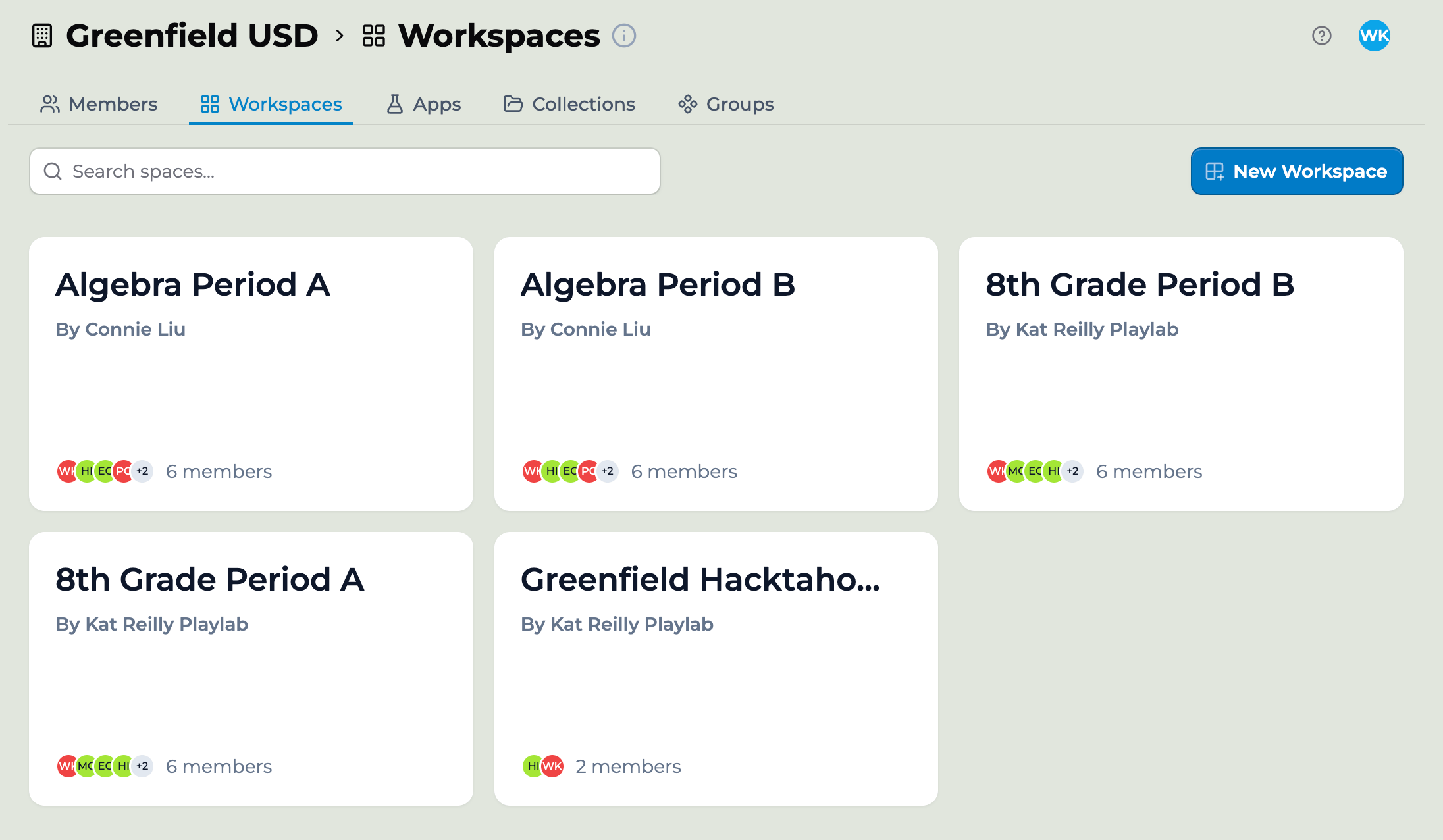
A class, team, or group inside the org. Workspaces hold members and apps, with their own activity and permissions.
A Playlab app. Lives in a workspace. Can be added to other workspaces and to collections.
A curated set of apps you can share like a single resource. Useful for partner deployments and starter packs.
## What each container gives you
**Your apps are yours.** New apps start private. You and your org's admins can see them. Nobody else, until you share or publish. Drafts stay yours until you're ready.
**Sharing is direct.** Add a peer as Editor or Viewer on one app. They get access to that app, not your whole workspace. You can change or revoke access at any time.
**One app, many classes.** Add the same app to as many workspaces as you need. Each class sees segmented activity. Update the app once, and every class using it sees the new version.
**Collections for curated bundles.** If you ship a set of apps to partners or districts, build a Collection once and share it. Recipients see updates as you publish them.
**Workspace controls you set.** Toggles on each workspace decide whether members can build apps, see each other's work, or share apps beyond the workspace. The settings can match the class.
**Activity at the level you need.** Workspace, member, or org. Same data, different scope. Teachers see their class. Organization Owners see across classes.
## How content moves
Playlab lets you share an app, add it to another workspace, or include it in a collection.
The person who creates the app owns it. The app lives in a single workspace.
Sharing happens through the **Share** modal: with individuals, groups, organizations, or as a Collection.
A teacher can add a shared app to any of their workspaces. A partner can drop a Collection into their org and use it immediately.
When the owner publishes a new version, everyone with access sees the update. No re-sharing required.
To put the same app in front of more than one class, see [Using an app across multiple classes](/features/Cross-Workspace%20App%20Use).
 ## Finding apps: filter by scope
Wherever you browse apps — the org **Apps** tab or a workspace — a row of filters narrows the list to the apps you care about:
* **All** — every app you can see.
* **Built by me** — apps you created.
* **Shared with me** — apps someone shared with you directly.
* **Built in my org** — apps created by anyone in your organization that you have access to.
* **Shared with my org** — apps published to your whole organization.
The filters never expand what you can see — they only narrow it. Each one shows a subset of the apps you already have permission to open, mirroring the [privacy and visibility scopes](/features/App%20Privacy%20and%20Visibility).
## Getting around
Your **left sidebar** is home base. The top of it gathers your own work, no matter which organization it lives in: the **Assistant**, **My Projects** (the page Playlab opens to when you sign in), your **My Apps** and **My Collections**, **Starred** apps you've pinned, and **My Activity**. Below that, **Organizations** lists every org you belong to — click one to switch into it and open its dashboard, where each org's **Workspaces** tab lives. At the bottom, **Explore**, **Learn**, and **Blog** reach the wider Playlab community.
**My Projects** replaced the old **My Workspaces** landing view. Your workspaces haven't gone anywhere — reach them from each organization's **Workspaces** tab in the Organizations list.
## Finding apps: filter by scope
Wherever you browse apps — the org **Apps** tab or a workspace — a row of filters narrows the list to the apps you care about:
* **All** — every app you can see.
* **Built by me** — apps you created.
* **Shared with me** — apps someone shared with you directly.
* **Built in my org** — apps created by anyone in your organization that you have access to.
* **Shared with my org** — apps published to your whole organization.
The filters never expand what you can see — they only narrow it. Each one shows a subset of the apps you already have permission to open, mirroring the [privacy and visibility scopes](/features/App%20Privacy%20and%20Visibility).
## Getting around
Your **left sidebar** is home base. The top of it gathers your own work, no matter which organization it lives in: the **Assistant**, **My Projects** (the page Playlab opens to when you sign in), your **My Apps** and **My Collections**, **Starred** apps you've pinned, and **My Activity**. Below that, **Organizations** lists every org you belong to — click one to switch into it and open its dashboard, where each org's **Workspaces** tab lives. At the bottom, **Explore**, **Learn**, and **Blog** reach the wider Playlab community.
**My Projects** replaced the old **My Workspaces** landing view. Your workspaces haven't gone anywhere — reach them from each organization's **Workspaces** tab in the Organizations list.
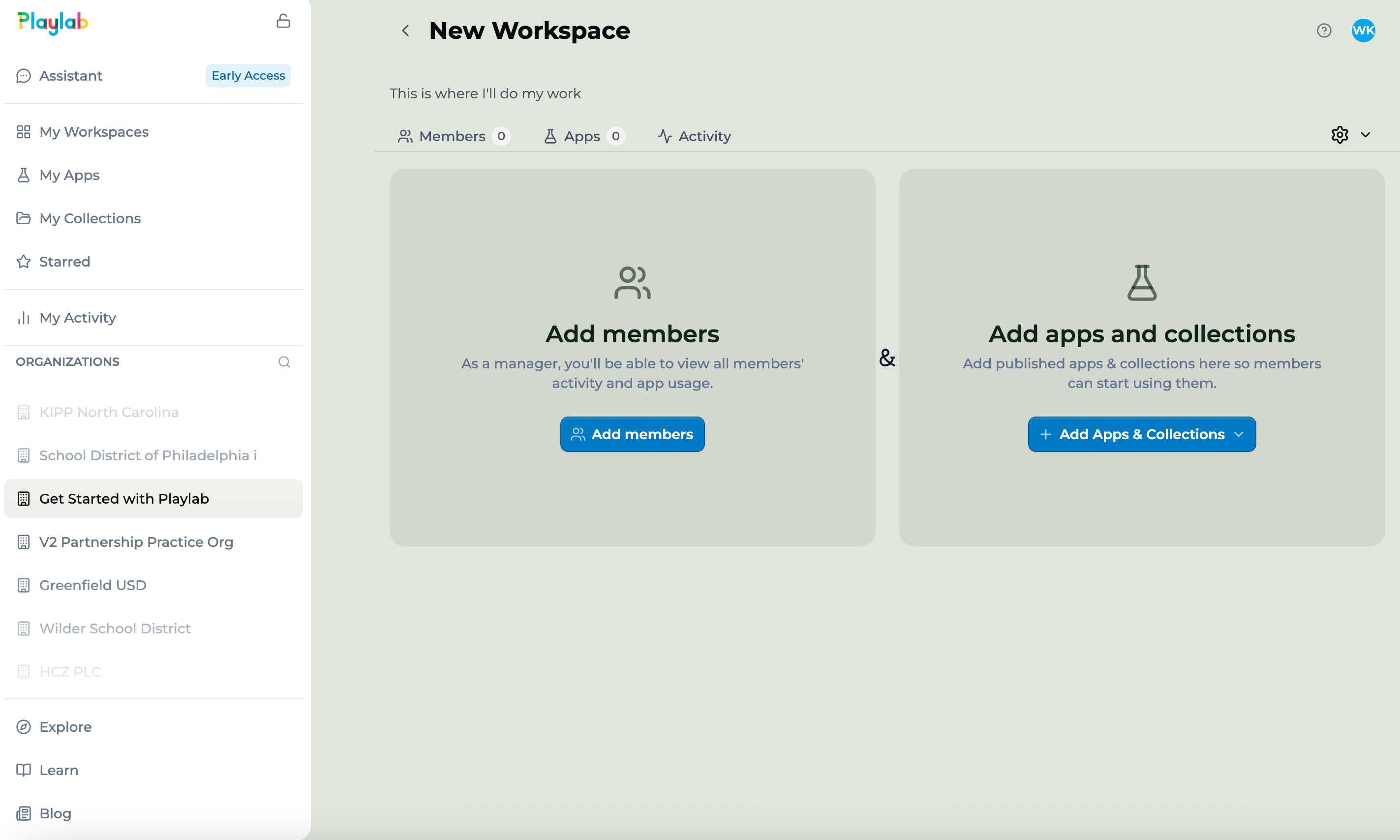 The **My** views collect your work across every organization; an organization's own tabs show only that org's contents. If you don't see something you expect, check that you're in the right org — switch with the Organizations list in the sidebar.
## Where to go next
If you build apps, your apps are private until you share them, and Editor sharing keeps collaboration scoped to a single app. See [App privacy and visibility](/features/App%20Privacy%20and%20Visibility) and [Collaborating on an app](/getstarted/Collaborating%20on%20an%20App).
If you teach, your workspace gives you visibility into student activity and finer control over what students can do. See [Workspace building permissions](/getstarted/Workspace%20Building%20Permissions) and [Workspace member detail](/features/Workspace%20Member%20Detail).
If you admin an org, you have a centralized view of activity and flags across all workspaces. See [Reviewing app activity](/features/Reviewing%20App%20Activity) and [Org permissions and roles](/features/Org%20Permissions%20and%20Roles).
If you deploy across a network, Collections were designed for you. See [Share with Collections](/features/collections/What%20are%20Collections).
## Key points
* Playlab has four containers: organization, workspace, app, collection
* Apps live in workspaces; Collections are sharing bundles
* Activity is visible at workspace, member, or org scope
## FAQ
The container structure separates the jobs that often collide on a single platform: who owns content, who can see it, who can change it, and where it shows up. Each container solves one of those jobs cleanly.
No. A workspace lives inside a single organization. Apps can be added to workspaces in different orgs through sharing.
Every app lives in one workspace. If you start an app from the org dashboard, you choose which workspace owns it. You can move it later.
Drive is a generic file system. Playlab is built around apps and the people who use them, with sharing, activity, and permissions designed for classrooms. The container metaphor borrows from Drive because it is familiar.
Playlab runs in the browser on phones and tablets. There is no native mobile app today. Most workflows work on mobile, though detail-heavy admin views are easier on a wider screen.
No. Playlab apps run against language models that need a network connection. Conversations sync when the connection comes back, but new sessions require live access.
***
Last updated: 06-26-2026
Contact us at [support@playlab.ai](mailto:support@playlab.ai)
The **My** views collect your work across every organization; an organization's own tabs show only that org's contents. If you don't see something you expect, check that you're in the right org — switch with the Organizations list in the sidebar.
## Where to go next
If you build apps, your apps are private until you share them, and Editor sharing keeps collaboration scoped to a single app. See [App privacy and visibility](/features/App%20Privacy%20and%20Visibility) and [Collaborating on an app](/getstarted/Collaborating%20on%20an%20App).
If you teach, your workspace gives you visibility into student activity and finer control over what students can do. See [Workspace building permissions](/getstarted/Workspace%20Building%20Permissions) and [Workspace member detail](/features/Workspace%20Member%20Detail).
If you admin an org, you have a centralized view of activity and flags across all workspaces. See [Reviewing app activity](/features/Reviewing%20App%20Activity) and [Org permissions and roles](/features/Org%20Permissions%20and%20Roles).
If you deploy across a network, Collections were designed for you. See [Share with Collections](/features/collections/What%20are%20Collections).
## Key points
* Playlab has four containers: organization, workspace, app, collection
* Apps live in workspaces; Collections are sharing bundles
* Activity is visible at workspace, member, or org scope
## FAQ
The container structure separates the jobs that often collide on a single platform: who owns content, who can see it, who can change it, and where it shows up. Each container solves one of those jobs cleanly.
No. A workspace lives inside a single organization. Apps can be added to workspaces in different orgs through sharing.
Every app lives in one workspace. If you start an app from the org dashboard, you choose which workspace owns it. You can move it later.
Drive is a generic file system. Playlab is built around apps and the people who use them, with sharing, activity, and permissions designed for classrooms. The container metaphor borrows from Drive because it is familiar.
Playlab runs in the browser on phones and tablets. There is no native mobile app today. Most workflows work on mobile, though detail-heavy admin views are easier on a wider screen.
No. Playlab apps run against language models that need a network connection. Conversations sync when the connection comes back, but new sessions require live access.
***
Last updated: 06-26-2026
Contact us at [support@playlab.ai](mailto:support@playlab.ai)