> ## Documentation Index
> Fetch the complete documentation index at: https://learn.playlab.ai/llms.txt
> Use this file to discover all available pages before exploring further.
# Image Inputs in Playlab
> Learn how to enable and use image inputs in your Playlab applications
**Enterprise Feature**
Image inputs are an enterprise-only feature. Contact your organization administrator if you need access to this capability.
Image inputs allow users to upload images to your Playlab app, enabling visual interactions and image-based workflows. Before you can use this feature, it must be enabled at both the organization and app levels.
## Prerequisites
Before adding image inputs to your app, ensure:
* Your organization has an enterprise plan
* You have admin access to organization settings (or can request an admin to enable the feature)
* You are the creator or have edit access to the app you want to modify
## Enabling Image Inputs at the Organization Level
Organization administrators must first enable image inputs for the entire organization.
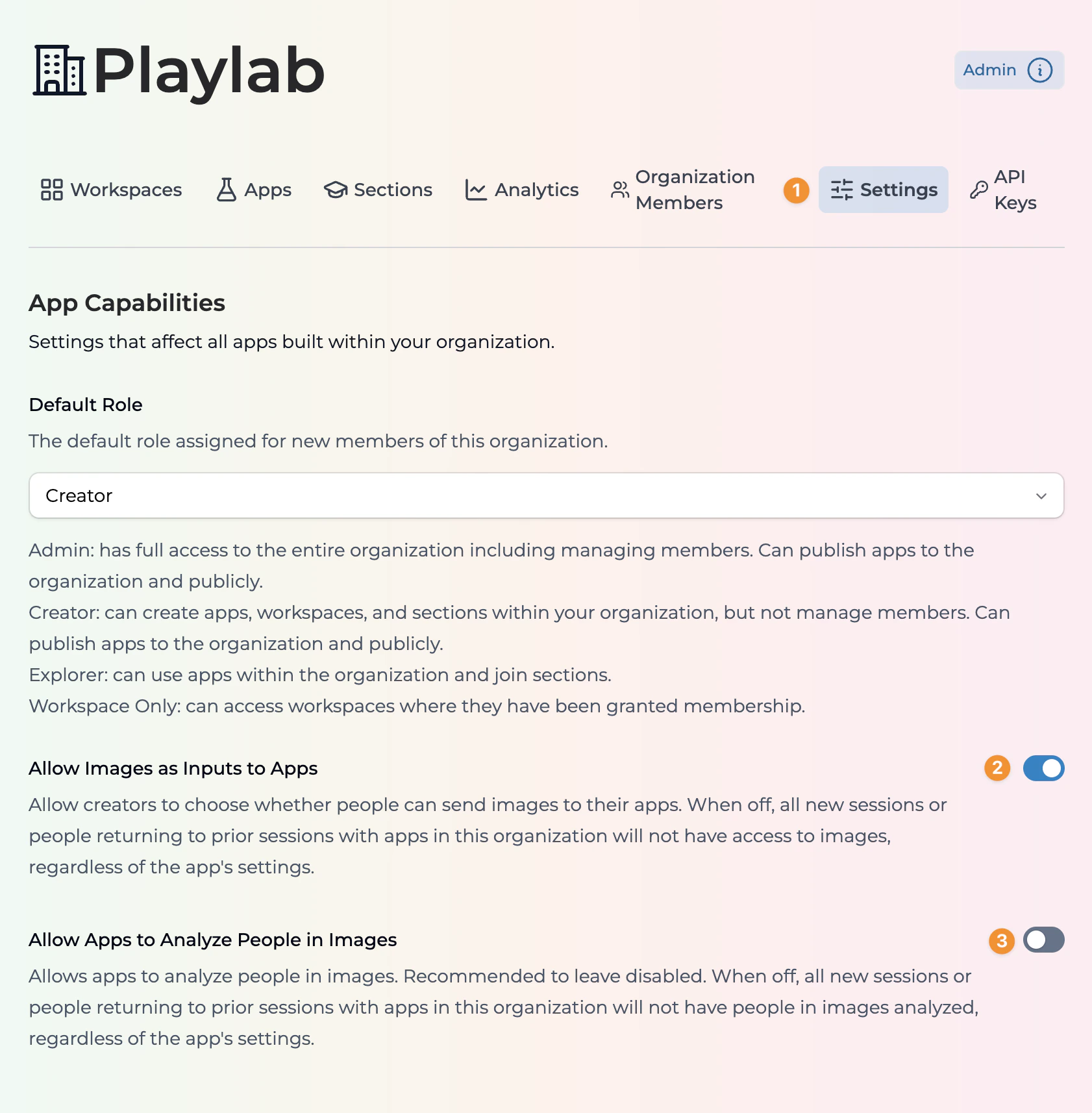 **Access your organization's settings panel.**
1. Click on **Settings** in the top navigation bar
2. You will see the App Capabilities section
**Toggle the image input setting.**
1. Locate the **Allow Images as Inputs to Apps** toggle
2. Switch the toggle to the ON position (blue)
3. The setting is automatically saved for all apps in your organization
**Control whether apps can analyze people in images.**
1. Locate the **Allow Apps to Analyze People in Images** toggle
2. It is recommended to leave this disabled for privacy reasons
3. When disabled, new or returning sessions will not have people in images analyzed
When the organization-level setting is off, all new sessions or people returning to prior sessions with apps will not have access to images, regardless of individual app settings.
## Enabling Image Inputs for Your App
After the organization setting is enabled, you can turn on image inputs for individual apps.
**Navigate to the app you want to configure.**
1. Go to your Playlab workspace
2. Select the app where you want to enable image inputs
**Open the settings panel.**
1. Click on the **Settings** icon in the right sidebar
2. The Settings panel will open
**Access your organization's settings panel.**
1. Click on **Settings** in the top navigation bar
2. You will see the App Capabilities section
**Toggle the image input setting.**
1. Locate the **Allow Images as Inputs to Apps** toggle
2. Switch the toggle to the ON position (blue)
3. The setting is automatically saved for all apps in your organization
**Control whether apps can analyze people in images.**
1. Locate the **Allow Apps to Analyze People in Images** toggle
2. It is recommended to leave this disabled for privacy reasons
3. When disabled, new or returning sessions will not have people in images analyzed
When the organization-level setting is off, all new sessions or people returning to prior sessions with apps will not have access to images, regardless of individual app settings.
## Enabling Image Inputs for Your App
After the organization setting is enabled, you can turn on image inputs for individual apps.
**Navigate to the app you want to configure.**
1. Go to your Playlab workspace
2. Select the app where you want to enable image inputs
**Open the settings panel.**
1. Click on the **Settings** icon in the right sidebar
2. The Settings panel will open
 **Toggle the image input setting for your app.**
1. Scroll down to find the **Allow Image Input** toggle
2. Switch the toggle to the ON position (blue)
3. Note: If this option is grayed out, image inputs are disabled at the organization level
How to use image input in Playlab
**Make the changes active for your users.**
Remember to republish your app to make settings changes active for your users. Testing changes in the Builder does not need republishing.
1. Click the **Publish** button in the top toolbar
2. Confirm the publication
3. Image inputs are now available to your app users
## Using Image Inputs
Once enabled, users can send images to your app in several ways:
* **Upload**: Click the image icon in the chat input to upload an image file
* **Drag and Drop**: Drag an image file directly into the chat window
Your app can then process, analyze, or respond to these images based on your builder instructions.
## Best Practices
When working with image inputs in your Playlab app:
* **Be clear about expectations**: Tell users what types of images your app can process
* **Set appropriate limits**: Consider file size and format limitations in your instructions
* **Handle errors gracefully**: Provide helpful feedback when images cannot be processed
* **Privacy considerations**: Be transparent about how images are used and stored
* **Test thoroughly**: Try various image types and sizes before publishing
## Frequently Asked Questions
The image input feature must first be enabled at the organization level by an administrator. Contact your organization admin to enable "Allow Images as Inputs to Apps" in the organization settings.
Playlab supports common image formats including JPG, JPEG, PNG, GIF, and WebP. Check with your organization administrator for any specific restrictions.
Yes, you can toggle off image inputs at any time in either the organization settings or individual app settings. Remember to republish your app after making changes.
When enabled, your app can analyze and identify people in uploaded images. However, this is not recommended for privacy reasons and should only be enabled when absolutely necessary for your app's functionality.
When organization-level settings are changed, all new sessions and returning users will be affected. App-level changes require republishing to take effect for users.
## Need Support?
If you encounter any issues while setting up image inputs:
* Contact us at [support@playlab.ai](mailto:support@playlab.ai)
* Check the [Playlab Learning Hub](https://docs.playlab.ai) for additional resources
Last updated: 11-01-2025
**Toggle the image input setting for your app.**
1. Scroll down to find the **Allow Image Input** toggle
2. Switch the toggle to the ON position (blue)
3. Note: If this option is grayed out, image inputs are disabled at the organization level
How to use image input in Playlab
**Make the changes active for your users.**
Remember to republish your app to make settings changes active for your users. Testing changes in the Builder does not need republishing.
1. Click the **Publish** button in the top toolbar
2. Confirm the publication
3. Image inputs are now available to your app users
## Using Image Inputs
Once enabled, users can send images to your app in several ways:
* **Upload**: Click the image icon in the chat input to upload an image file
* **Drag and Drop**: Drag an image file directly into the chat window
Your app can then process, analyze, or respond to these images based on your builder instructions.
## Best Practices
When working with image inputs in your Playlab app:
* **Be clear about expectations**: Tell users what types of images your app can process
* **Set appropriate limits**: Consider file size and format limitations in your instructions
* **Handle errors gracefully**: Provide helpful feedback when images cannot be processed
* **Privacy considerations**: Be transparent about how images are used and stored
* **Test thoroughly**: Try various image types and sizes before publishing
## Frequently Asked Questions
The image input feature must first be enabled at the organization level by an administrator. Contact your organization admin to enable "Allow Images as Inputs to Apps" in the organization settings.
Playlab supports common image formats including JPG, JPEG, PNG, GIF, and WebP. Check with your organization administrator for any specific restrictions.
Yes, you can toggle off image inputs at any time in either the organization settings or individual app settings. Remember to republish your app after making changes.
When enabled, your app can analyze and identify people in uploaded images. However, this is not recommended for privacy reasons and should only be enabled when absolutely necessary for your app's functionality.
When organization-level settings are changed, all new sessions and returning users will be affected. App-level changes require republishing to take effect for users.
## Need Support?
If you encounter any issues while setting up image inputs:
* Contact us at [support@playlab.ai](mailto:support@playlab.ai)
* Check the [Playlab Learning Hub](https://docs.playlab.ai) for additional resources
Last updated: 11-01-2025