> ## Documentation Index
> Fetch the complete documentation index at: https://learn.playlab.ai/llms.txt
> Use this file to discover all available pages before exploring further.
# Creating a Collection
> Bundle apps into a Collection you can share as a single resource — create it, add apps, and share it.
A **Collection** is a curated bundle of apps that you can share as a single resource. Instead of sharing five apps one at a time, you put them in a Collection and share that once. When you update the Collection, everyone you shared it with sees the change. Collections are an org-level container, so you create them from your organization dashboard.
For the full concept and how Collections relate to workspaces and apps, see [Share with Collections](/features/collections/What%20are%20Collections).
## Create a Collection
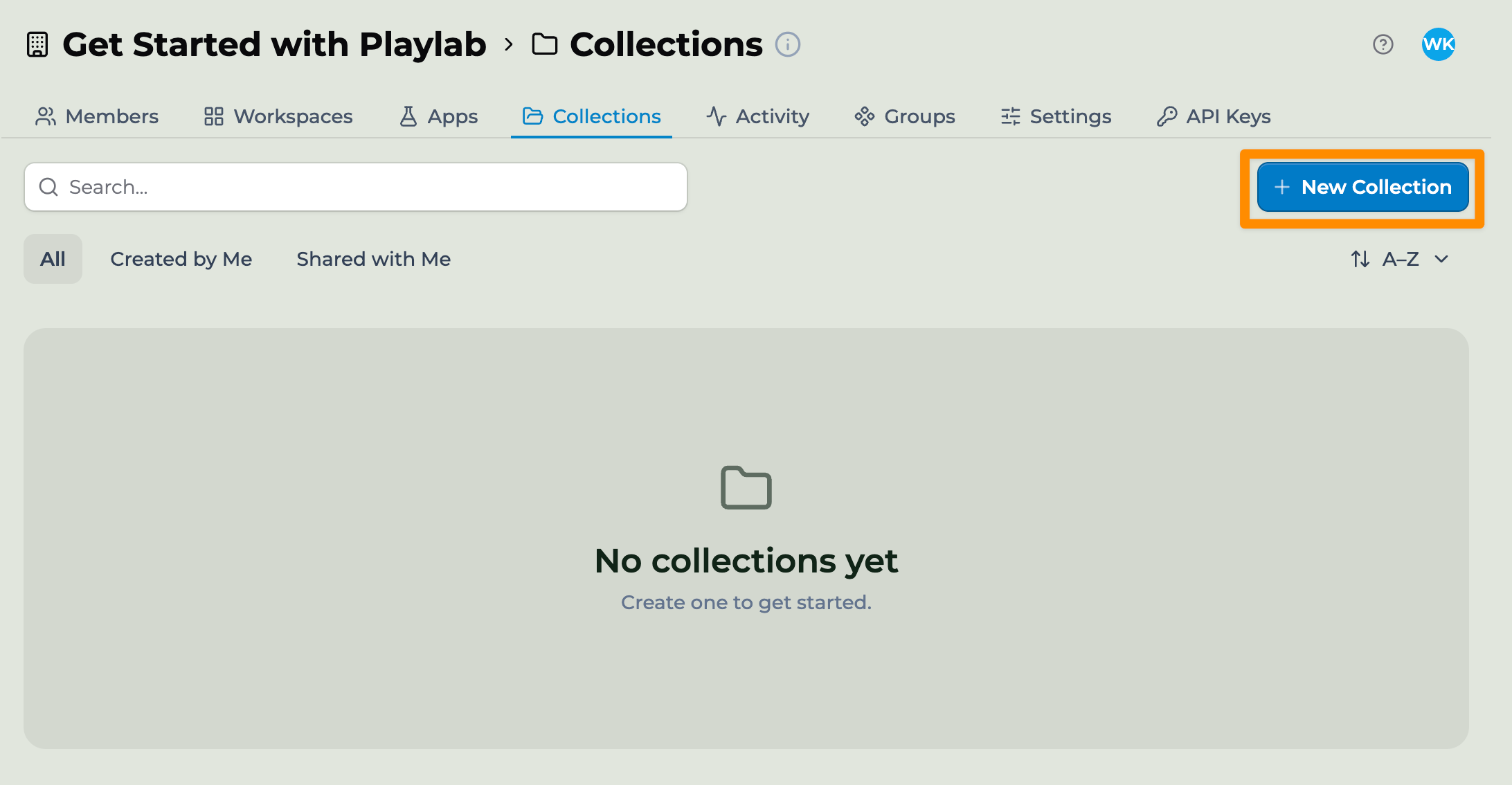
Collections live at the org level, alongside Workspaces, Apps, and Members.
You'll see existing Collections in your org, filters for **All**, **Created by Me**, and **Shared with Me**, and a **New Collection** button. An org with none yet shows a "No collections yet" empty state.
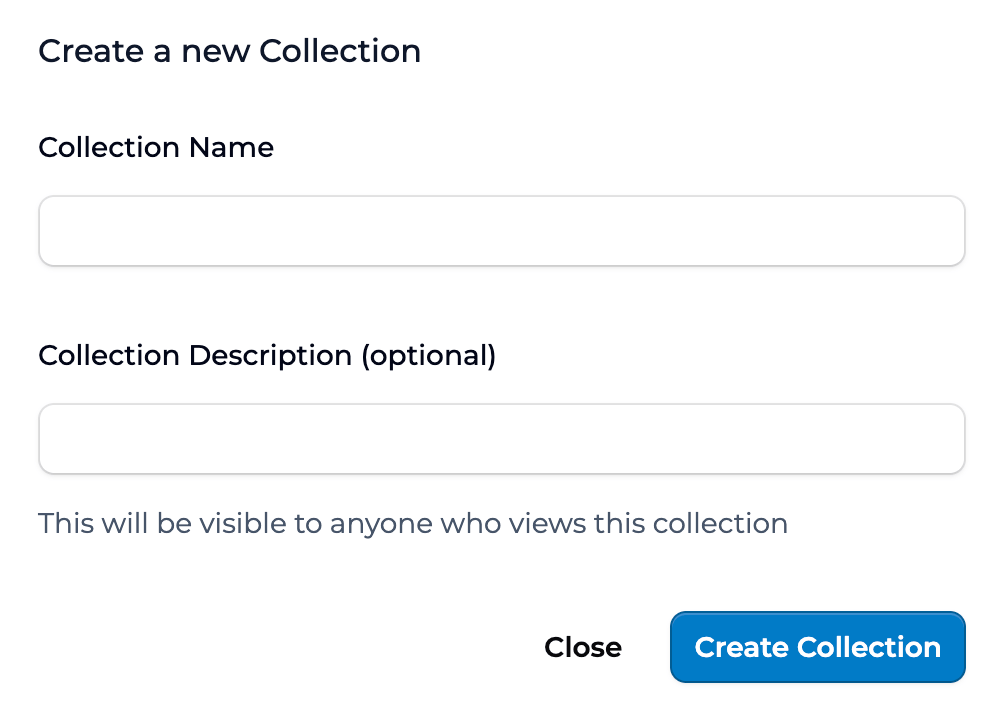
 The **Create a new Collection** dialog opens.
Give it a clear **Collection Name**. The optional **Collection Description** is visible to anyone who views the Collection, so write it for recipients. Click **Create Collection**.
The **Create a new Collection** dialog opens.
Give it a clear **Collection Name**. The optional **Collection Description** is visible to anyone who views the Collection, so write it for recipients. Click **Create Collection**.
 On the new Collection's page, click **Add apps** to open the picker and choose the apps to include. See [Add apps to your Collection](#add-apps-to-your-collection) below for the full walkthrough. You can change the contents anytime.
## Add apps to your Collection
A Collection is just a bundle until you add apps to it. From the Collection's page, click **Add apps** to open the picker.
On the Collection's page, click **Add apps** in the toolbar. The *Add apps to \[Collection name]* dialog opens.
Use the **Add more…** search field to find apps by name. The list shows apps you have access to use or edit — your own apps, apps shared with you, and apps from another Collection you can see — each labeled with its creator (**by …**). Check the box next to each app you want to include.
On the new Collection's page, click **Add apps** to open the picker and choose the apps to include. See [Add apps to your Collection](#add-apps-to-your-collection) below for the full walkthrough. You can change the contents anytime.
## Add apps to your Collection
A Collection is just a bundle until you add apps to it. From the Collection's page, click **Add apps** to open the picker.
On the Collection's page, click **Add apps** in the toolbar. The *Add apps to \[Collection name]* dialog opens.
Use the **Add more…** search field to find apps by name. The list shows apps you have access to use or edit — your own apps, apps shared with you, and apps from another Collection you can see — each labeled with its creator (**by …**). Check the box next to each app you want to include.
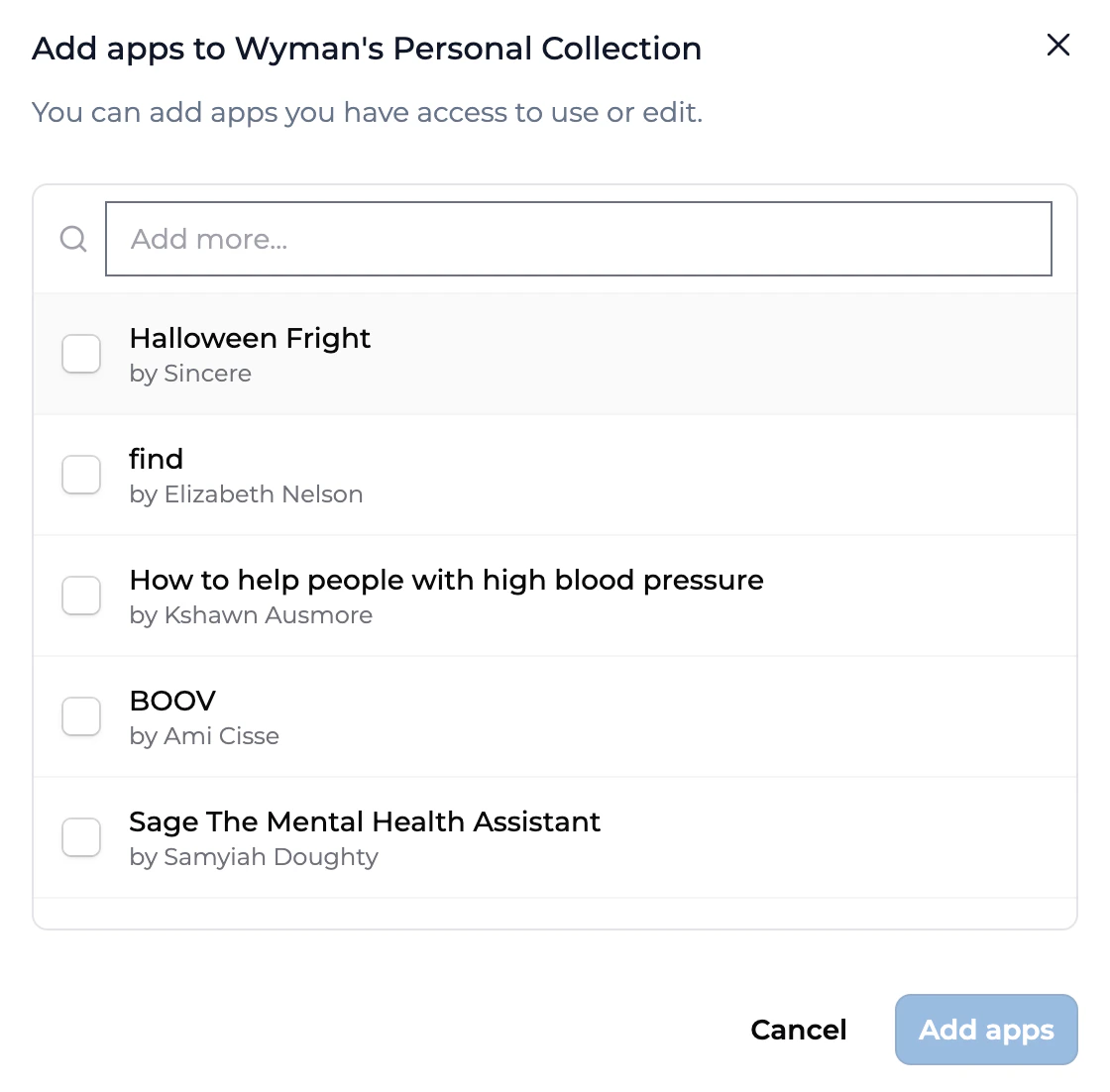 Click **Add apps** to add your selection. The button stays inactive until you've picked at least one app, and reflects the count — for example, *Add 3 apps*.
You can change a Collection's apps anytime. To remove one, open its card menu (**⋯**) and choose **Remove from collection** — this takes the app out of the Collection without deleting it. For more, see [Managing apps in a Collection](/features/collections/Managing%20Apps%20in%20a%20Collection).
## Share what you built
Once your Collection has apps, share the whole bundle as a single resource — with people, groups, or entire organizations, each set to a **Viewer**, **Editor**, or **Owner** role. Change the apps anytime and recipients see updates without re-sharing.
See [Sharing a Collection](/getstarted/Sharing%20a%20Collection) for the full walkthrough and permission levels.
## Key points
* A Collection is a curated set of apps you share like one resource
* Create it from your org dashboard's Collections tab, then add apps
* Share it the same way you share an app; recipients see updates automatically
## FAQ
A workspace is where members and apps live and where activity happens. A Collection is a sharing bundle — a curated set of apps you hand to others as one resource. A Collection doesn't have members or activity of its own.
No. You can add any app you have access to: your own, apps shared with you, or apps from a Collection you can see.
There's no hard limit, but aim for fewer than 20 so it stays readable for recipients.
Yes. Set its visibility to Public and anyone on Playlab can find and use it. See [Creating and sharing a Collection](/features/collections/Creating%20and%20Sharing%20a%20Collection).
***
Last updated: 06-05-2026
Contact us at [support@playlab.ai](mailto:support@playlab.ai)
Click **Add apps** to add your selection. The button stays inactive until you've picked at least one app, and reflects the count — for example, *Add 3 apps*.
You can change a Collection's apps anytime. To remove one, open its card menu (**⋯**) and choose **Remove from collection** — this takes the app out of the Collection without deleting it. For more, see [Managing apps in a Collection](/features/collections/Managing%20Apps%20in%20a%20Collection).
## Share what you built
Once your Collection has apps, share the whole bundle as a single resource — with people, groups, or entire organizations, each set to a **Viewer**, **Editor**, or **Owner** role. Change the apps anytime and recipients see updates without re-sharing.
See [Sharing a Collection](/getstarted/Sharing%20a%20Collection) for the full walkthrough and permission levels.
## Key points
* A Collection is a curated set of apps you share like one resource
* Create it from your org dashboard's Collections tab, then add apps
* Share it the same way you share an app; recipients see updates automatically
## FAQ
A workspace is where members and apps live and where activity happens. A Collection is a sharing bundle — a curated set of apps you hand to others as one resource. A Collection doesn't have members or activity of its own.
No. You can add any app you have access to: your own, apps shared with you, or apps from a Collection you can see.
There's no hard limit, but aim for fewer than 20 so it stays readable for recipients.
Yes. Set its visibility to Public and anyone on Playlab can find and use it. See [Creating and sharing a Collection](/features/collections/Creating%20and%20Sharing%20a%20Collection).
***
Last updated: 06-05-2026
Contact us at [support@playlab.ai](mailto:support@playlab.ai)