> ## Documentation Index
> Fetch the complete documentation index at: https://learn.playlab.ai/llms.txt
> Use this file to discover all available pages before exploring further.
# Collaborating on an app
> How to share a Playlab app with individuals, groups, or organizations using the Share modal.
The Share modal lets you add **individuals, groups, or whole organizations** as Owners, Editors, or Viewers on a single app. Access is per-app — if you give someone Editor on App A, they don't get access to your other apps. The modal also surfaces whether the app is published, so you can publish from the same place.
## How to share an app
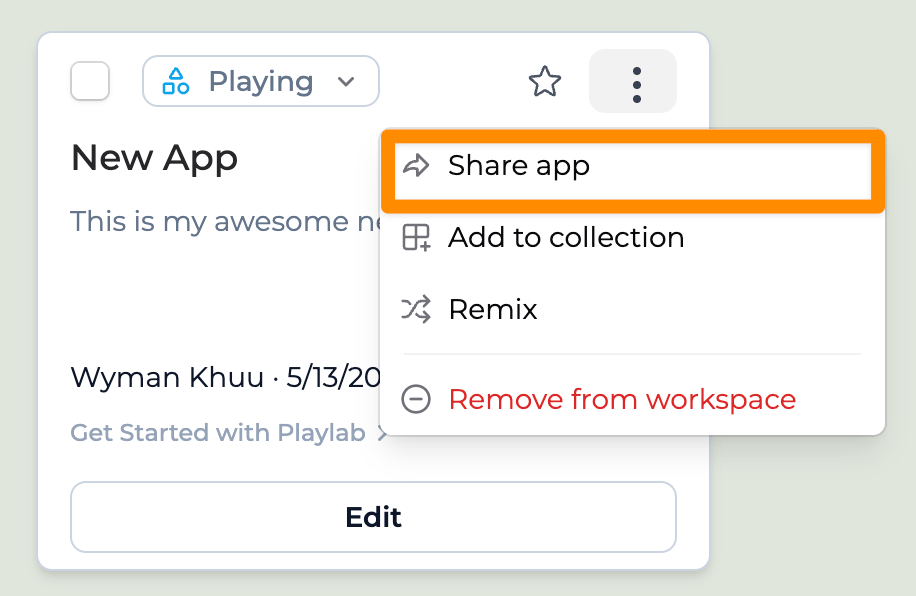
Go to the app you want to share and click **Share**. The button sits on the app card and in the top right of the builder.
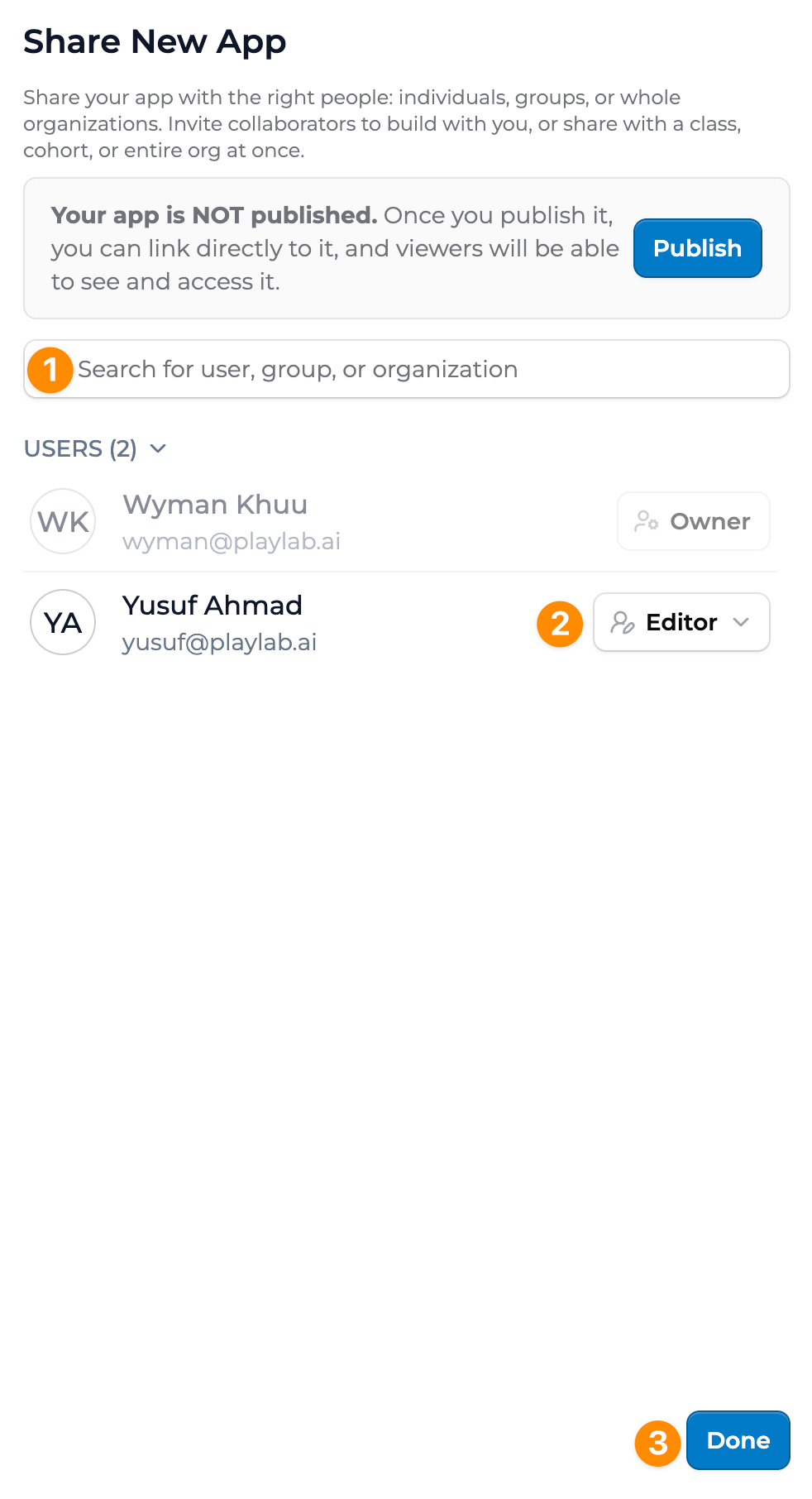
Type a name, email, group, or org name. Matches appear as you type. You can add individuals, groups (like a class or cohort), or a whole organization in one step.
Pick **Owner**, **Editor**, or **Viewer** from the dropdown next to each recipient. To revoke access later, open the same dropdown and pick **Remove access**.
Click **Done**. Recipients get a notification and can open the app from their dashboard.
 ## Permission levels
**Full control.** Edit, publish, share, delete, and reassign ownership. Use for co-builders who need the same authority you have.
**Can edit, not ship.** Edit instructions, references, starter inputs, model settings, and welcome message. Cannot publish, delete, or change access. Use for collaborators who help build and refine.
**Read-only.** Use the app and see its activity. Viewers see the app on their dashboard only once it's published. Use for people who only need to use the app.
For sharing patterns by audience, see [Sharing with individuals](/features/Sharing%20with%20Individuals) or [Sharing with groups and orgs](/features/Sharing%20with%20Groups%20and%20Orgs).
## Key points
* Share apps with individuals, groups, or whole organizations from one modal
* Three permission levels: **Owner** (manage), **Editor** (edit), **Viewer** (view)
* Sharing is per-app, separate from workspace membership
* The modal also surfaces publish state so you can publish from the same place
## FAQ
Yes. Add as many Editors as you need. Each one has the same edit rights.
Workspace membership still controls workspace-level activity views and access to apps added to the workspace as a whole. App sharing is the right tool when you want to grant access to one specific app.
That works the same way. Type their email in the recipient field. They get an invite if they are not already in Playlab. Cross-org Editor access is supported.
Their access is removed automatically when they're removed from the org. The app stays with you.
App version history shows what changed and who made the change. Open the app and look for the Versions tab.
Yes, but the last save wins on the same field. For close collaboration, agree on who owns which section before editing together.
***
Last updated: 06-01-2026
Contact us at [support@playlab.ai](mailto:support@playlab.ai)
## Permission levels
**Full control.** Edit, publish, share, delete, and reassign ownership. Use for co-builders who need the same authority you have.
**Can edit, not ship.** Edit instructions, references, starter inputs, model settings, and welcome message. Cannot publish, delete, or change access. Use for collaborators who help build and refine.
**Read-only.** Use the app and see its activity. Viewers see the app on their dashboard only once it's published. Use for people who only need to use the app.
For sharing patterns by audience, see [Sharing with individuals](/features/Sharing%20with%20Individuals) or [Sharing with groups and orgs](/features/Sharing%20with%20Groups%20and%20Orgs).
## Key points
* Share apps with individuals, groups, or whole organizations from one modal
* Three permission levels: **Owner** (manage), **Editor** (edit), **Viewer** (view)
* Sharing is per-app, separate from workspace membership
* The modal also surfaces publish state so you can publish from the same place
## FAQ
Yes. Add as many Editors as you need. Each one has the same edit rights.
Workspace membership still controls workspace-level activity views and access to apps added to the workspace as a whole. App sharing is the right tool when you want to grant access to one specific app.
That works the same way. Type their email in the recipient field. They get an invite if they are not already in Playlab. Cross-org Editor access is supported.
Their access is removed automatically when they're removed from the org. The app stays with you.
App version history shows what changed and who made the change. Open the app and look for the Versions tab.
Yes, but the last save wins on the same field. For close collaboration, agree on who owns which section before editing together.
***
Last updated: 06-01-2026
Contact us at [support@playlab.ai](mailto:support@playlab.ai)