> ## Documentation Index
> Fetch the complete documentation index at: https://learn.playlab.ai/llms.txt
> Use this file to discover all available pages before exploring further.
# Changing Name and Description
> Learn how to update your Playlab app name and description
Updating your Playlab app's name and description allows you to better reflect its purpose or functionality. This guide will walk you through the process of modifying these important details of your app.
**Important to Know**
Changing your app's name and description:
* Does not affect your app's URL
* Preserves all app history and versions
* Is immediately visible to all team members with access
* Can be done in two different ways for maximum convenience
## Update Your App Details
Keeping your app details current helps others understand what your app does and makes it easier to find in your workspace. There are two methods to update your app name: through the settings panel or directly from the title bar.
**Naming for Accessibility**
Choose names that are descriptive and memorable. If your app is intended for others to discover, use clear, searchable terms that accurately reflect its functionality. This makes your app more accessible and easier to find in shared workspaces.
## Method 1: Quick Title Bar Rename
The fastest way to change your app name is directly from the title bar.
**Open the app you want to rename in your Playlab workspace.**
1. Go to your Playlab workspace dashboard
2. Find the app you wish to modify
3. Click to open the app in edit mode
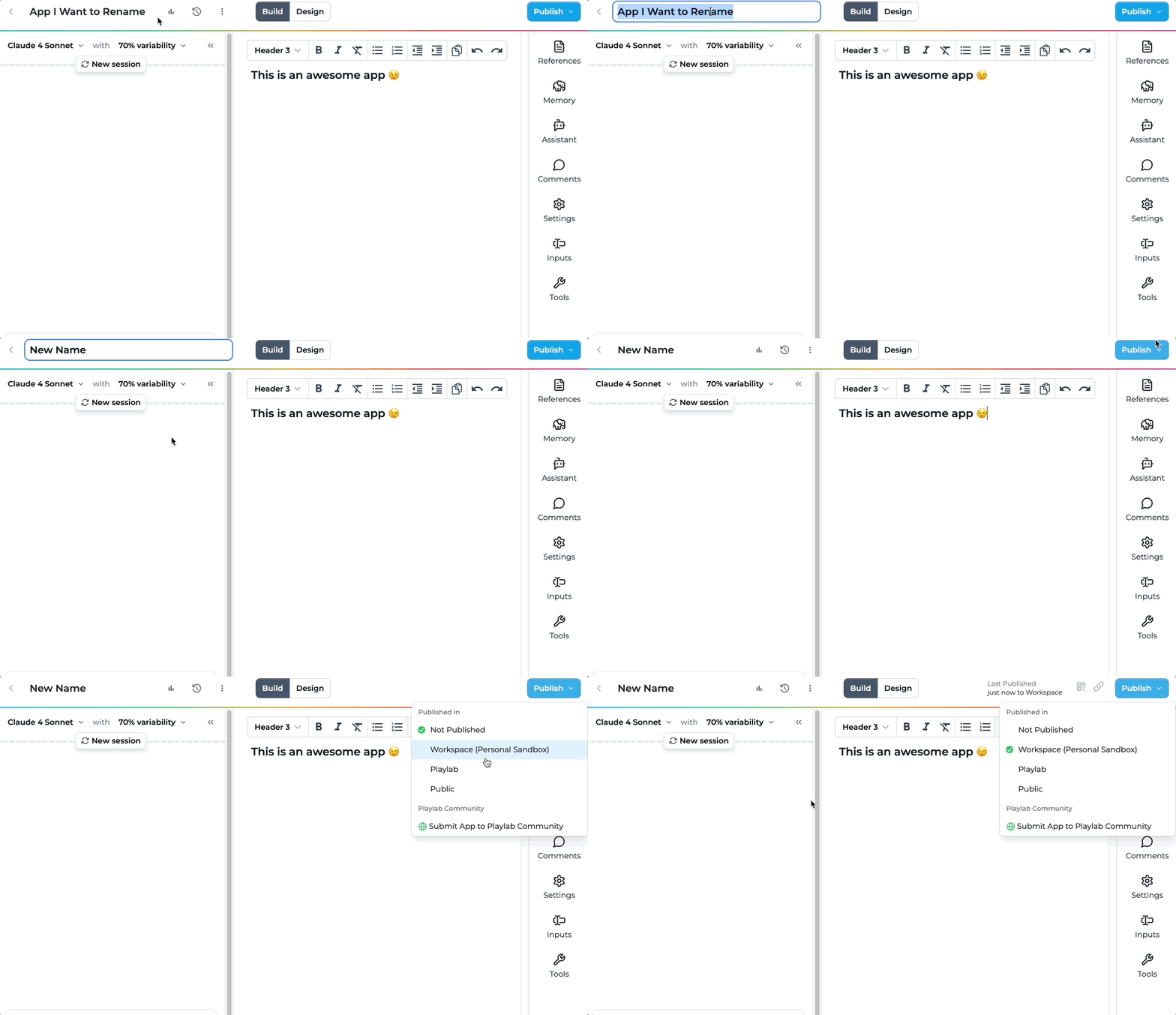
**Directly edit the app name from the top of the interface.**
1. Click on the app name in the title bar at the top of the screen
2. The name will become editable
3. Type your new app name
4. Press Enter or click outside the field to save
 **Ensure your name changes are live for all users.**
1. Click the "Publish" or "Update" button to save your changes
2. Confirm the republish when prompted
3. Your updated app name will now be visible to all users
## Method 2: Settings Panel Update
For more comprehensive updates including description changes, use the settings panel.
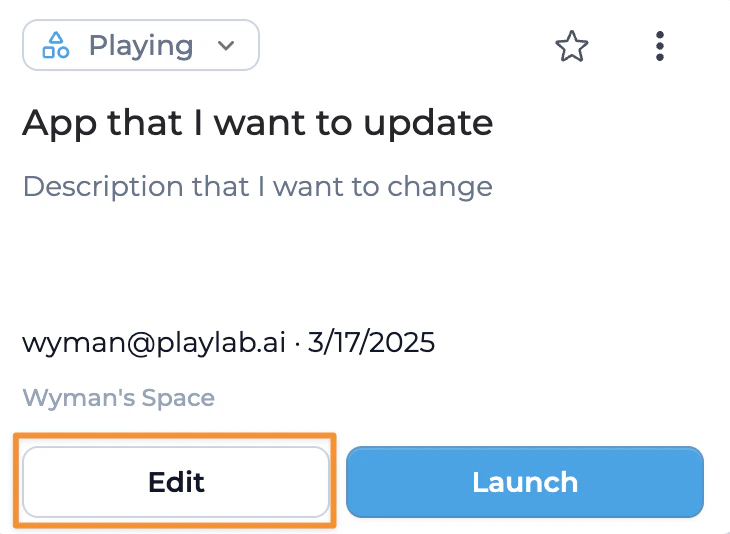
**Locate the app you want to update in your Playlab workspace.**
1. Go to your Playlab workspace dashboard
2. Find the app card for the app you wish to modify
3. Select "Edit" from the app card
**Ensure your name changes are live for all users.**
1. Click the "Publish" or "Update" button to save your changes
2. Confirm the republish when prompted
3. Your updated app name will now be visible to all users
## Method 2: Settings Panel Update
For more comprehensive updates including description changes, use the settings panel.
**Locate the app you want to update in your Playlab workspace.**
1. Go to your Playlab workspace dashboard
2. Find the app card for the app you wish to modify
3. Select "Edit" from the app card
 **Open the app settings to modify details.**
1. Click the settings icon on the toolbar
**Open the app settings to modify details.**
1. Click the settings icon on the toolbar
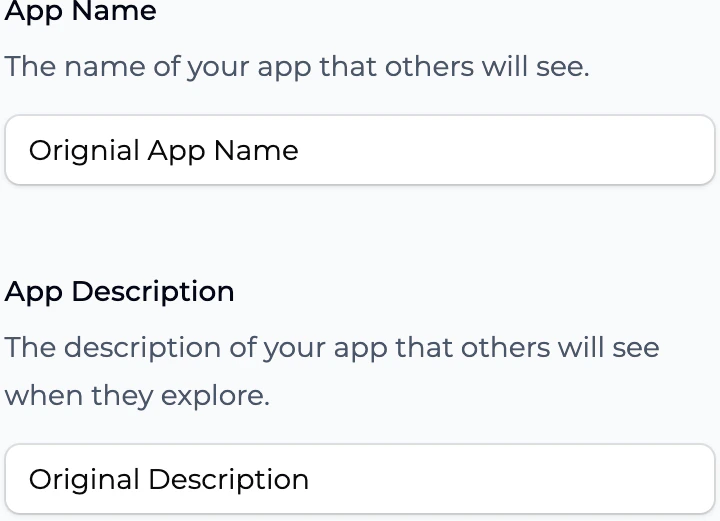
 **Modify your app's name and description.**
1. Enter the new name for your app in the "App Name" field
2. Update the app description in the "Description" field
**Modify your app's name and description.**
1. Enter the new name for your app in the "App Name" field
2. Update the app description in the "Description" field
 **See your changes reflected in the app.**
1. Refresh your app in the Preview panel to see the updated Playlab App Description
2. Verify that the name and description display as intended
**Make your updates live for all users.**
1. Click the "Publish" or "Update" button to save your changes
2. Confirm the republish when prompted
3. Your updated app details will now be visible to all users
## Best Practices
**When updating your Playlab app's details, keep these tips in mind:**
> * **Keep names concise yet descriptive** (limited to 50 characters)
> * **Create clear descriptions** that explain your app's purpose (limited to 250 characters)
> * **Choose memorable and searchable names** that accurately reflect your app's functionality
> * **Avoid special characters** in names that might cause issues in URLs (/, &, ?, #)
> * **Consider your audience** - if the app is for others to discover, use terms they would search for
> * **Consider informing team members** when you update details of a shared app
> * **Use emojis sparingly** to enhance your app name or description if desired
> * **Always republish** after making changes to ensure updates are live for all users
## Frequently Asked Questions
Yes, app names are limited to 50 characters. We recommend keeping names concise and descriptive for better user experience.
Most special characters are allowed in app names, but we recommend avoiding symbols that might cause confusion in URLs or when sharing your app, such as /, &, ?, and #.
App descriptions can be up to 250 characters. This gives you enough space to explain your app's purpose while keeping it concise for users.
No, changing your app name will not affect its URL. The original URL will continue to work, so links shared with others will remain valid.
Currently, app descriptions support plain text only. Formatting elements like bold, italics, or bullet points are not supported.
Yes, currently you can include emojis in your app name and description.
Yes, you should always republish your app after making changes to ensure that updates are visible to all users and properly saved.
The title bar method is faster for quick name changes, while the settings panel method allows you to update both name and description together. Both require republishing to make changes live.
## Need Support?
If you encounter any issues while updating your app details:
* Contact us at [support@playlab.ai](mailto:support@playlab.ai)
Last updated: 08-08-2025
**See your changes reflected in the app.**
1. Refresh your app in the Preview panel to see the updated Playlab App Description
2. Verify that the name and description display as intended
**Make your updates live for all users.**
1. Click the "Publish" or "Update" button to save your changes
2. Confirm the republish when prompted
3. Your updated app details will now be visible to all users
## Best Practices
**When updating your Playlab app's details, keep these tips in mind:**
> * **Keep names concise yet descriptive** (limited to 50 characters)
> * **Create clear descriptions** that explain your app's purpose (limited to 250 characters)
> * **Choose memorable and searchable names** that accurately reflect your app's functionality
> * **Avoid special characters** in names that might cause issues in URLs (/, &, ?, #)
> * **Consider your audience** - if the app is for others to discover, use terms they would search for
> * **Consider informing team members** when you update details of a shared app
> * **Use emojis sparingly** to enhance your app name or description if desired
> * **Always republish** after making changes to ensure updates are live for all users
## Frequently Asked Questions
Yes, app names are limited to 50 characters. We recommend keeping names concise and descriptive for better user experience.
Most special characters are allowed in app names, but we recommend avoiding symbols that might cause confusion in URLs or when sharing your app, such as /, &, ?, and #.
App descriptions can be up to 250 characters. This gives you enough space to explain your app's purpose while keeping it concise for users.
No, changing your app name will not affect its URL. The original URL will continue to work, so links shared with others will remain valid.
Currently, app descriptions support plain text only. Formatting elements like bold, italics, or bullet points are not supported.
Yes, currently you can include emojis in your app name and description.
Yes, you should always republish your app after making changes to ensure that updates are visible to all users and properly saved.
The title bar method is faster for quick name changes, while the settings panel method allows you to update both name and description together. Both require republishing to make changes live.
## Need Support?
If you encounter any issues while updating your app details:
* Contact us at [support@playlab.ai](mailto:support@playlab.ai)
Last updated: 08-08-2025