> ## Documentation Index
> Fetch the complete documentation index at: https://learn.playlab.ai/llms.txt
> Use this file to discover all available pages before exploring further.
# Managing apps in a Collection
> Add and remove apps from inside a Collection — in your org's Collections tab or your personal My Collections view.
New
A Collection's contents aren't fixed. You can change which apps are in a Collection at any time, directly from the Collection's page — no separate "manage" screen. This works in both your organization's **Collections** tab and your personal **My Collections** view.
You need edit access to the Collection — **Editor** or **Owner** — to add or remove apps. Recipients with **Viewer** access can use the apps but can't change the contents.
## Add apps to a Collection
Go to the Collection from your org's **Collections** tab or your **My Collections** view.
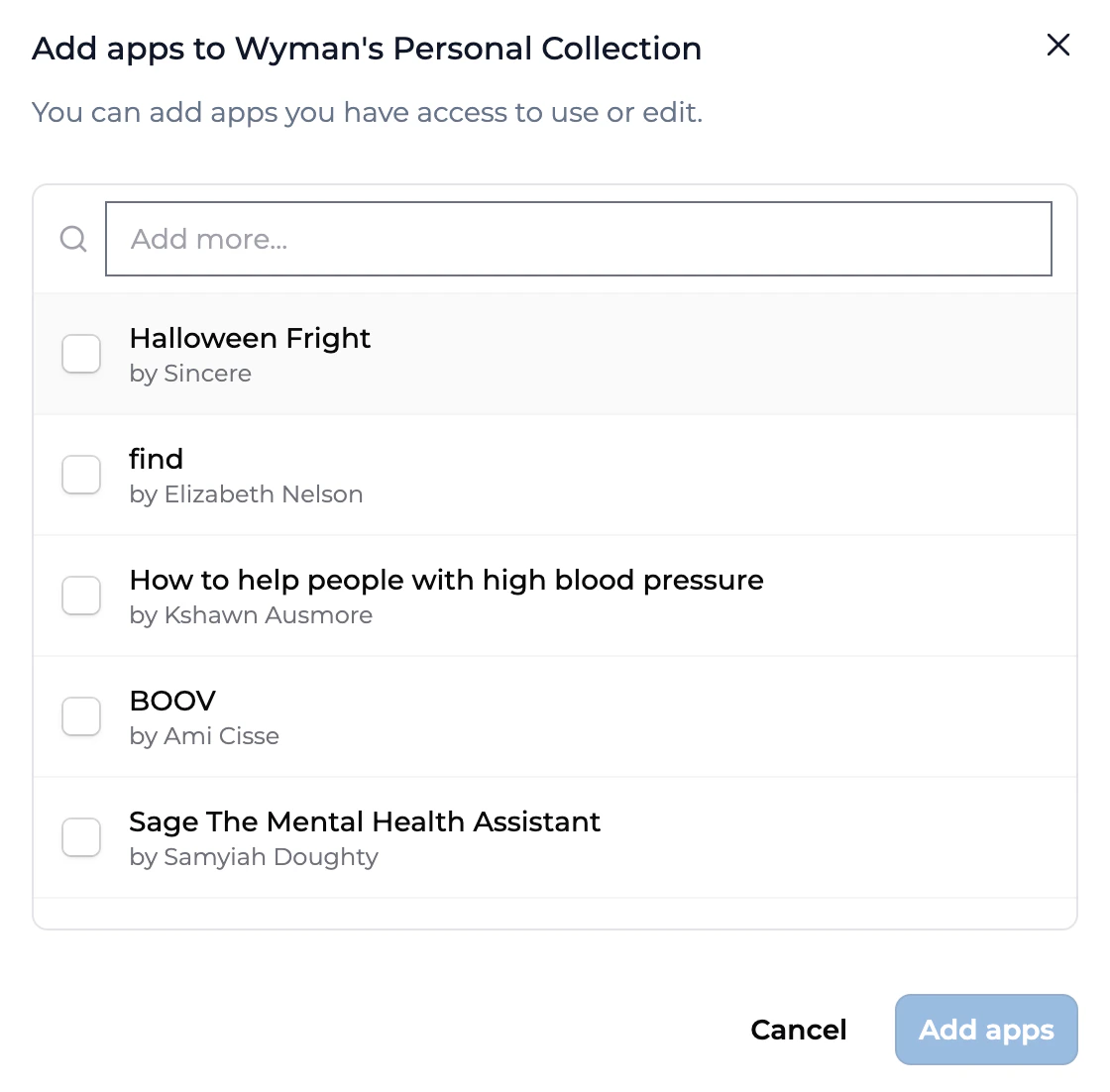
The **Add apps** button is in the Collection toolbar. It opens the *Add apps to \[Collection name]* dialog.
The dialog lists apps you have access to, each labeled with its creator (**by …**). Use the **Add more…** search field to filter by name. You can add any app you have access to use or edit — your own apps, apps shared with you, or apps from another Collection you can see. Apps already in the Collection don't appear here.
Check the box next to each app you want to include, then click **Add apps**. The button stays inactive until you've selected at least one app, and reflects your selection count (for example, *Add 3 apps*).
 ## Remove an app from a Collection
Find the app's card inside the Collection.
Click the **⋯** menu on the app's card and choose **Remove from collection**.
Confirm the removal. The app leaves the Collection right away.
Removing an app from a Collection does **not** delete it. The app stays in its original workspace, keeps its owner, and remains in any other Collections it belongs to. You're only changing this Collection's contents.
## What recipients see
Recipients don't need to re-add the Collection after you change it. Apps you add appear automatically; apps you remove drop out of recipient views. Everyone sees the updated set on their next visit. The same is true when an app's owner publishes a new version — the update flows through the Collection. See [Using a shared Collection](/features/collections/Using%20a%20Shared%20Collection) for the recipient side.
## Key points
* Add and remove apps from the Collection's page — in org Collections or personal My Collections
* **Add apps** opens a searchable picker of apps you can use or edit; check the ones to include
* **Remove from collection** takes an app out of the bundle without deleting it
* You need Editor or Owner access; recipients with Viewer access can't change the contents
## FAQ
No. **Remove from collection** only takes the app out of this Collection. The app stays in its workspace, keeps its owner, and stays in any other Collections it's part of.
Any app you have access to use or edit — your own apps, apps shared with you, and apps from another Collection you can see. Apps already in the Collection are hidden from the picker.
Yes. The **Add apps** button and **Remove from collection** action work the same in your personal **My Collections** view as in an org's **Collections** tab.
Only if you've given them **Editor** (or **Owner**) access. The default **Viewer** access lets recipients use the apps but not change the Collection.
It disappears from their view on their next visit. Activity history from that app is preserved; new sessions on the removed app stop being possible.
***
Last updated: 06-05-2026
Contact us at [support@playlab.ai](mailto:support@playlab.ai)
## Remove an app from a Collection
Find the app's card inside the Collection.
Click the **⋯** menu on the app's card and choose **Remove from collection**.
Confirm the removal. The app leaves the Collection right away.
Removing an app from a Collection does **not** delete it. The app stays in its original workspace, keeps its owner, and remains in any other Collections it belongs to. You're only changing this Collection's contents.
## What recipients see
Recipients don't need to re-add the Collection after you change it. Apps you add appear automatically; apps you remove drop out of recipient views. Everyone sees the updated set on their next visit. The same is true when an app's owner publishes a new version — the update flows through the Collection. See [Using a shared Collection](/features/collections/Using%20a%20Shared%20Collection) for the recipient side.
## Key points
* Add and remove apps from the Collection's page — in org Collections or personal My Collections
* **Add apps** opens a searchable picker of apps you can use or edit; check the ones to include
* **Remove from collection** takes an app out of the bundle without deleting it
* You need Editor or Owner access; recipients with Viewer access can't change the contents
## FAQ
No. **Remove from collection** only takes the app out of this Collection. The app stays in its workspace, keeps its owner, and stays in any other Collections it's part of.
Any app you have access to use or edit — your own apps, apps shared with you, and apps from another Collection you can see. Apps already in the Collection are hidden from the picker.
Yes. The **Add apps** button and **Remove from collection** action work the same in your personal **My Collections** view as in an org's **Collections** tab.
Only if you've given them **Editor** (or **Owner**) access. The default **Viewer** access lets recipients use the apps but not change the Collection.
It disappears from their view on their next visit. Activity history from that app is preserved; new sessions on the removed app stop being possible.
***
Last updated: 06-05-2026
Contact us at [support@playlab.ai](mailto:support@playlab.ai)