> ## Documentation Index
> Fetch the complete documentation index at: https://learn.playlab.ai/llms.txt
> Use this file to discover all available pages before exploring further.
# Workspace roles and permissions
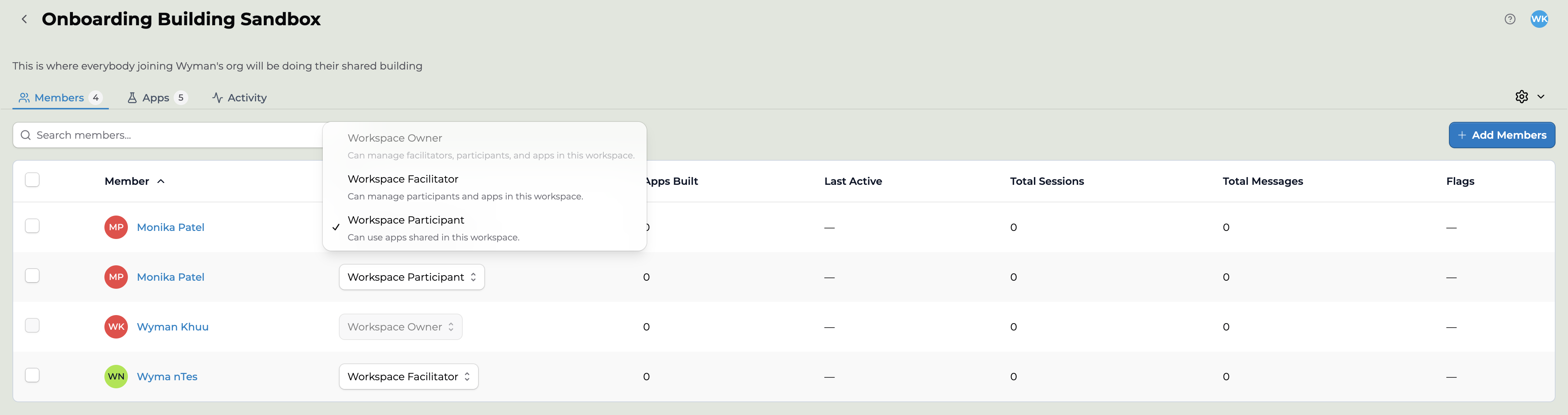
> The three workspace roles — Owner, Facilitator, and Participant — and exactly what each one can do inside a workspace.
Three roles govern who can do what **inside a workspace**. This page documents the user-facing labels, the role-to-capability mapping, and two boundary cases that are easy to miss.
These three roles govern **workspace administration**. They are separate from **org-level roles** (Owner, Creator, Editor, Viewer, Workspace-only) — for those, see [Org permissions and roles](/features/Org%20Permissions%20and%20Roles).
## The three workspace roles
| Role | What it's for |
| ------------------------- | --------------------------------------------------------------------------------------------- |
| **Workspace Owner** | Can manage facilitators, participants, and apps in this workspace — and delete the workspace. |
| **Workspace Facilitator** | Can manage participants and apps in this workspace. |
| **Workspace Participant** | Can use apps shared in this workspace. |
 ## Permissions by role
| Capability | Owner | Facilitator | Participant |
| ------------------------- | :---: | :---------: | :---------: |
| View the workspace | ✓ | ✓ | ✓ |
| Edit workspace settings | ✓ | ✓ | — |
| **Delete the workspace** | ✓ | — | — |
| Manage members & roles | ✓ | ✓ | — |
| Manage apps / projects | ✓ | ✓ | — |
| View insights & analytics | ✓ | ✓ | — |
| View activity log | ✓ | ✓ | — |
| Export activity | ✓ | ✓ | — |
| Review moderated content | ✓ | ✓ | — |
| View participants | ✓ | ✓ | — |
*✓ allowed · — not allowed. The one capability that separates Owner from Facilitator is **deleting the workspace**.*
## Key takeaways
**A Facilitator can do everything an Owner can, except delete the workspace.** Owner and Facilitator differ by exactly one permission. A Facilitator can manage members, manage apps, view and export insights and activity, and review moderated content. The one thing they cannot do is delete the workspace itself.
**A Participant is view-only at the workspace level.** They can see the workspace and use the apps shared into it, but cannot edit settings, see other members, view insights or activity, or manage anything.
**Roles don't carry between workspaces.** The mapping is flat: each role's permission set is independent, and a person's role is set per workspace. Being an Owner in one workspace says nothing about your role in another.
## Two caveats worth flagging
**Workspace creation is an org-level permission.** Who can create a workspace is granted at the organization level, not by any of the three workspace roles above. See [Org permissions and roles](/features/Org%20Permissions%20and%20Roles).
**Content access is a separate layer.** These three roles govern workspace *administration*. What a person can actually open or edit among the **apps and collections** inside the workspace is driven by app- and collection-level permissions. See [App privacy and visibility](/features/App%20Privacy%20and%20Visibility).
## Key points
* Three workspace roles: **Owner**, **Facilitator**, **Participant**
* Owner and Facilitator differ only by the ability to **delete the workspace**
* Participant is view-and-use only; it cannot manage anything
* Roles are set per workspace and do not cascade between workspaces
* Workspace **creation** is an org-level permission, not a workspace role
## FAQ
Exactly one thing: an Owner can delete the workspace and a Facilitator cannot. Everything else — managing members and apps, viewing and exporting activity and insights, reviewing moderated content — both can do.
Yes. A workspace can have multiple Owners and multiple Facilitators. Keep the number of people who can delete the workspace small.
Open the workspace **Members** tab, find the person, and pick a new role from the list — the change applies right there. See [Adding members and inviting users](/getstarted/Adding%20Members%20to%20your%20Workspace).
No. Workspace roles and org roles are independent, even though both use the name Owner. A workspace Owner controls one workspace; an organization Owner has access across the whole organization. See [Org permissions and roles](/features/Org%20Permissions%20and%20Roles).
Whether a Participant can build is controlled by the workspace's building-permission toggles, not by the role itself. See [Workspace building permissions](/getstarted/Workspace%20Building%20Permissions).
***
Last updated: 06-26-2026
Contact us at [support@playlab.ai](mailto:support@playlab.ai)
## Permissions by role
| Capability | Owner | Facilitator | Participant |
| ------------------------- | :---: | :---------: | :---------: |
| View the workspace | ✓ | ✓ | ✓ |
| Edit workspace settings | ✓ | ✓ | — |
| **Delete the workspace** | ✓ | — | — |
| Manage members & roles | ✓ | ✓ | — |
| Manage apps / projects | ✓ | ✓ | — |
| View insights & analytics | ✓ | ✓ | — |
| View activity log | ✓ | ✓ | — |
| Export activity | ✓ | ✓ | — |
| Review moderated content | ✓ | ✓ | — |
| View participants | ✓ | ✓ | — |
*✓ allowed · — not allowed. The one capability that separates Owner from Facilitator is **deleting the workspace**.*
## Key takeaways
**A Facilitator can do everything an Owner can, except delete the workspace.** Owner and Facilitator differ by exactly one permission. A Facilitator can manage members, manage apps, view and export insights and activity, and review moderated content. The one thing they cannot do is delete the workspace itself.
**A Participant is view-only at the workspace level.** They can see the workspace and use the apps shared into it, but cannot edit settings, see other members, view insights or activity, or manage anything.
**Roles don't carry between workspaces.** The mapping is flat: each role's permission set is independent, and a person's role is set per workspace. Being an Owner in one workspace says nothing about your role in another.
## Two caveats worth flagging
**Workspace creation is an org-level permission.** Who can create a workspace is granted at the organization level, not by any of the three workspace roles above. See [Org permissions and roles](/features/Org%20Permissions%20and%20Roles).
**Content access is a separate layer.** These three roles govern workspace *administration*. What a person can actually open or edit among the **apps and collections** inside the workspace is driven by app- and collection-level permissions. See [App privacy and visibility](/features/App%20Privacy%20and%20Visibility).
## Key points
* Three workspace roles: **Owner**, **Facilitator**, **Participant**
* Owner and Facilitator differ only by the ability to **delete the workspace**
* Participant is view-and-use only; it cannot manage anything
* Roles are set per workspace and do not cascade between workspaces
* Workspace **creation** is an org-level permission, not a workspace role
## FAQ
Exactly one thing: an Owner can delete the workspace and a Facilitator cannot. Everything else — managing members and apps, viewing and exporting activity and insights, reviewing moderated content — both can do.
Yes. A workspace can have multiple Owners and multiple Facilitators. Keep the number of people who can delete the workspace small.
Open the workspace **Members** tab, find the person, and pick a new role from the list — the change applies right there. See [Adding members and inviting users](/getstarted/Adding%20Members%20to%20your%20Workspace).
No. Workspace roles and org roles are independent, even though both use the name Owner. A workspace Owner controls one workspace; an organization Owner has access across the whole organization. See [Org permissions and roles](/features/Org%20Permissions%20and%20Roles).
Whether a Participant can build is controlled by the workspace's building-permission toggles, not by the role itself. See [Workspace building permissions](/getstarted/Workspace%20Building%20Permissions).
***
Last updated: 06-26-2026
Contact us at [support@playlab.ai](mailto:support@playlab.ai)