> ## Documentation Index
> Fetch the complete documentation index at: https://learn.playlab.ai/llms.txt
> Use this file to discover all available pages before exploring further.
# Spanish Mode
> Enable Spanish language support in your Playlab apps for a full Spanish Playlab experience
New
## What is this feature?
Spanish Mode allows you to configure your Playlab applications to interact with users in Spanish. This feature enables natural language processing, responses, and user interactions entirely in Spanish, making your apps accessible to Spanish-speaking audiences.
Spanish Mode changes the primary language of your app's interactions. Ensure your prompts and content are appropriately configured for Spanish-speaking users.
## Rationale for the feature
Reaching Spanish-speaking audiences is essential for global applications. Spanish Mode ensures that your Playlab app can communicate naturally and effectively with users in their preferred language, improving accessibility and user experience.
## How to Use Spanish Mode
How to use Spanish Mode in Playlab
## Watch how to use Spanish Mode
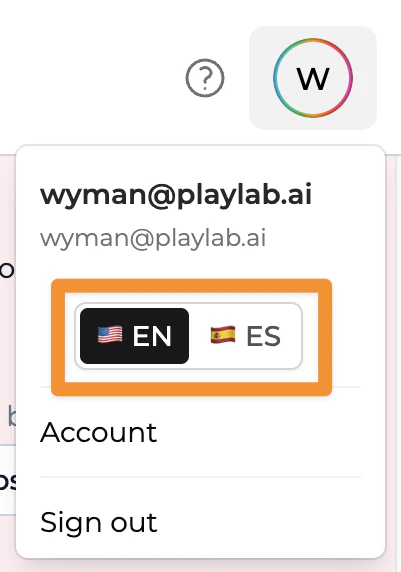
Navigate to your Playlab Account settings in the top right hand corner of Playlab.
 In the account settings panel, locate the language toggle and select Spanish (ES) as your primary language.
 Update your app prompts to include Spanish language instructions or use bilingual prompts if needed.
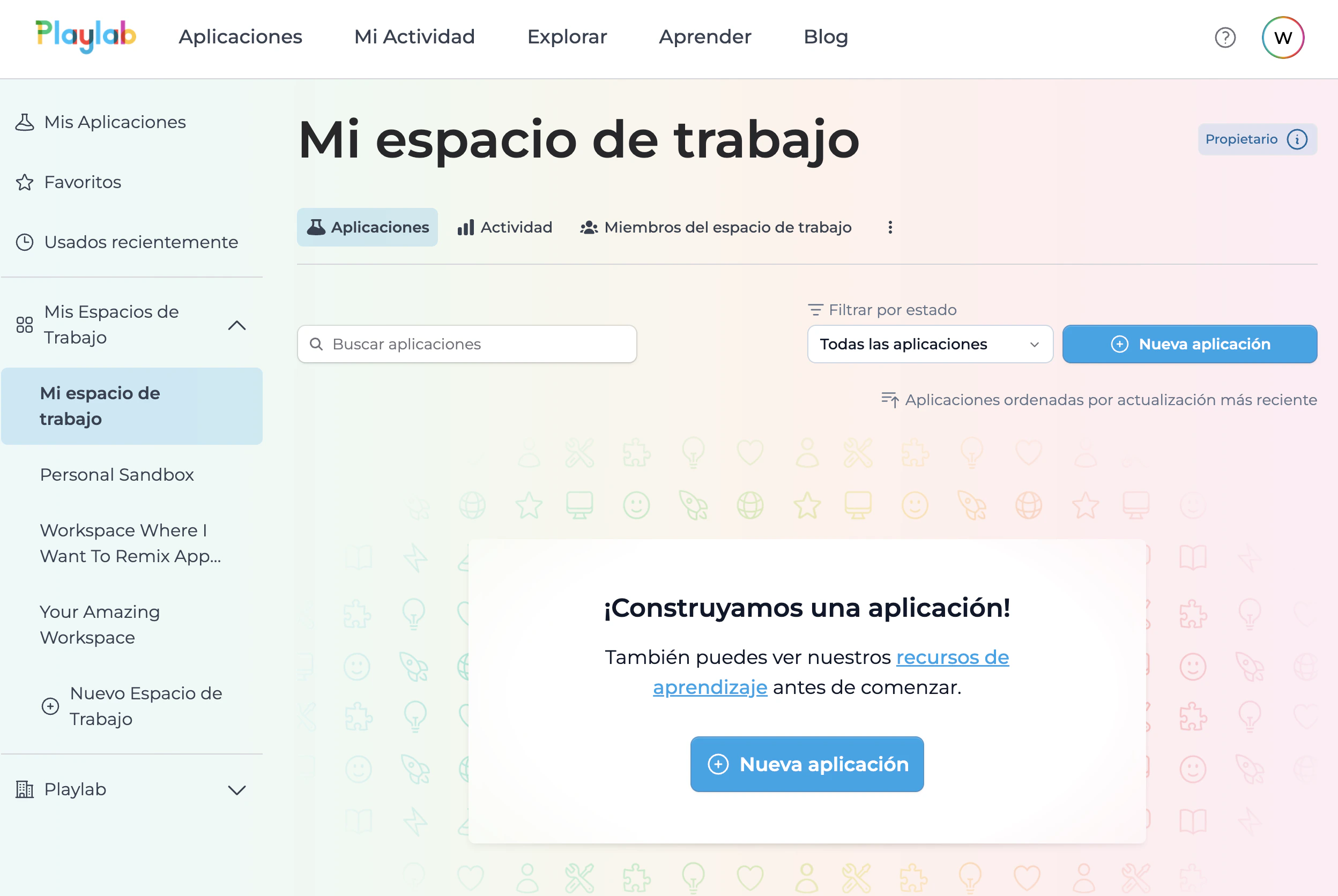 Test your app thoroughly in Spanish Mode to ensure all responses are culturally appropriate and grammatically correct.
Test your app with Spanish-speaking users to verify the quality of interactions. Make adjustments as needed before deploying to production.
You can switch between English and Spanish modes at any time during development
## Tips for Using Spanish Mode Effectively
### Best Practices
Ensure your prompts and responses consider cultural nuances and regional variations in Spanish-speaking markets.
Have native Spanish speakers review your app to identify any awkward phrasing or translation issues that automated systems might miss.
Spanish varies by region (Spain, Mexico, Argentina, etc.). Consider which variant is most appropriate for your target audience.
Use consistent Spanish terminology throughout your app to avoid confusing users with different words for the same concept.
## FAQ
Yes, you can toggle between language modes in your app settings. You can also create bilingual apps that detect user language preferences automatically.
Spanish Mode uses neutral Spanish by default, but you can customize your prompts to target specific regional variations like Mexican Spanish or European Spanish.
Your existing English prompts will need to be translated or adapted for Spanish Mode. The AI Assisted Builder can help you optimize prompts for Spanish-language interactions.
Yes, you can configure language switching functionality within your app to allow users to toggle between Spanish and other supported languages.
## Important Considerations
Always test your Spanish Mode apps with native speakers before launching to production. Language quality and cultural appropriateness are crucial for user satisfaction and engagement.
Spanish Mode is designed to make your apps accessible to Spanish-speaking audiences, but you maintain full control over the content and tone of interactions. Combine Spanish Mode with thoughtful prompt engineering for the best results.
## We Want Your Feedback!
Have you used Spanish Mode to reach new audiences? We'd love to hear about your experience and any suggestions for improvement!
Contact us at [support@playlab.ai](mailto:support@playlab.ai)
***
Last updated: 05-13-2026
Test your app thoroughly in Spanish Mode to ensure all responses are culturally appropriate and grammatically correct.
Test your app with Spanish-speaking users to verify the quality of interactions. Make adjustments as needed before deploying to production.
You can switch between English and Spanish modes at any time during development
## Tips for Using Spanish Mode Effectively
### Best Practices
Ensure your prompts and responses consider cultural nuances and regional variations in Spanish-speaking markets.
Have native Spanish speakers review your app to identify any awkward phrasing or translation issues that automated systems might miss.
Spanish varies by region (Spain, Mexico, Argentina, etc.). Consider which variant is most appropriate for your target audience.
Use consistent Spanish terminology throughout your app to avoid confusing users with different words for the same concept.
## FAQ
Yes, you can toggle between language modes in your app settings. You can also create bilingual apps that detect user language preferences automatically.
Spanish Mode uses neutral Spanish by default, but you can customize your prompts to target specific regional variations like Mexican Spanish or European Spanish.
Your existing English prompts will need to be translated or adapted for Spanish Mode. The AI Assisted Builder can help you optimize prompts for Spanish-language interactions.
Yes, you can configure language switching functionality within your app to allow users to toggle between Spanish and other supported languages.
## Important Considerations
Always test your Spanish Mode apps with native speakers before launching to production. Language quality and cultural appropriateness are crucial for user satisfaction and engagement.
Spanish Mode is designed to make your apps accessible to Spanish-speaking audiences, but you maintain full control over the content and tone of interactions. Combine Spanish Mode with thoughtful prompt engineering for the best results.
## We Want Your Feedback!
Have you used Spanish Mode to reach new audiences? We'd love to hear about your experience and any suggestions for improvement!
Contact us at [support@playlab.ai](mailto:support@playlab.ai)
***
Last updated: 05-13-2026