> ## Documentation Index
> Fetch the complete documentation index at: https://learn.playlab.ai/llms.txt
> Use this file to discover all available pages before exploring further.
# Sharing with individuals
> How to share a Playlab app with one person at a time using the Share modal.
New
You can share any app with a specific person, from inside or outside your organization, with one of two permission levels. The flow is the same whether you are sharing a draft with a peer or giving a colleague access to a finished app.
## When to share with individuals
Some common cases:
You finished an app and want a coworker to try it before you publish. Add them as a Viewer.
You want a peer to help refine the prompt or references. Add them as an Editor.
You want a friend or family member to use the app you built without making it public. Add them as a Viewer.
You are running a small pilot with three teachers across two organizations. Add each one directly.
For sharing with whole groups or organizations, see [Sharing with groups and orgs](/features/Sharing%20with%20Groups%20and%20Orgs).
## How to share an app with a person
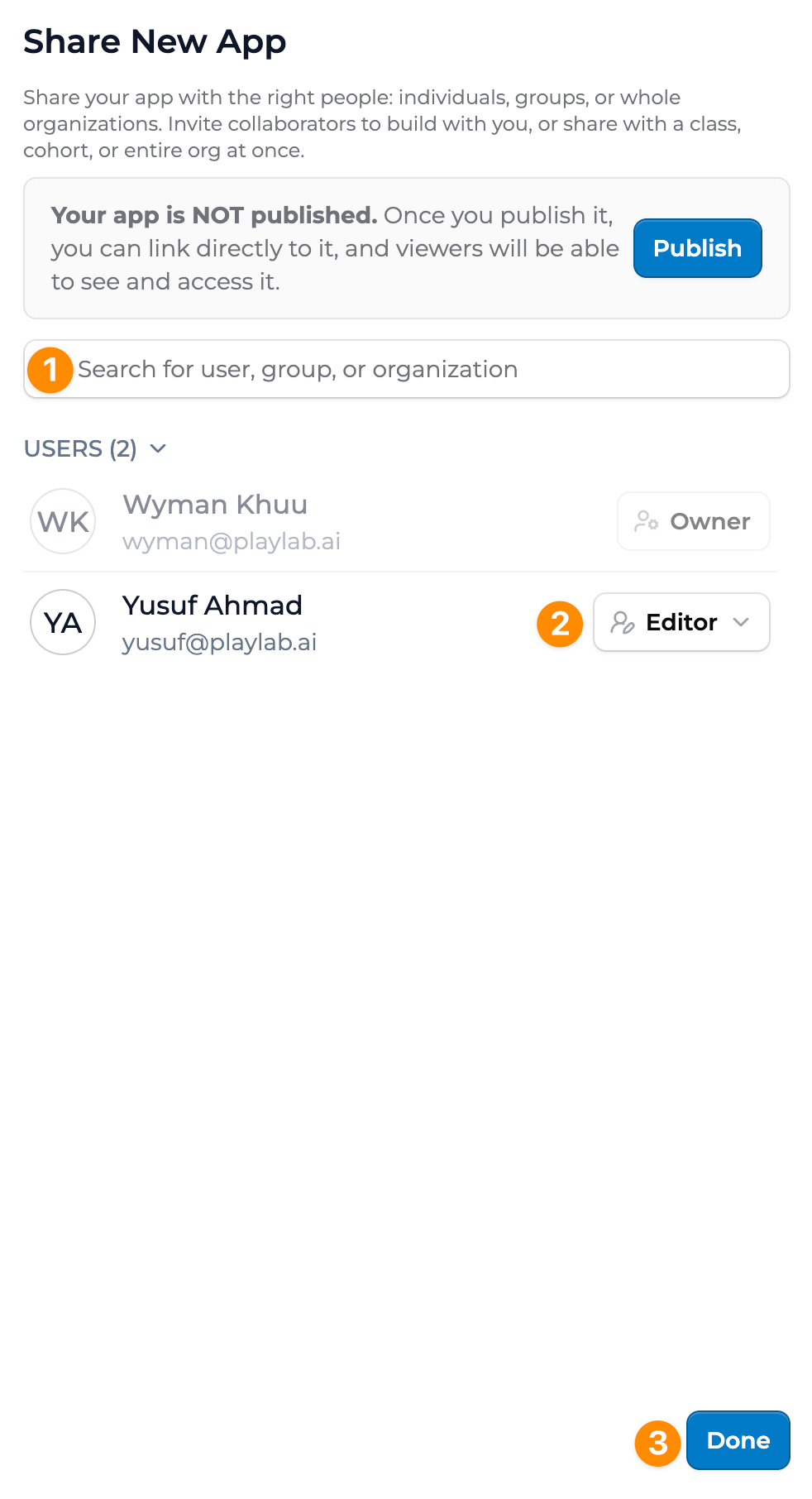
The app builder or the app overview both work.
The **Share** button is in the top right.
Email works for anyone with a Playlab account. For people in your org, typing their name shows matches.
Choose **Editor** to let them help build, or **Viewer** to let them use the app once published.
Click **Send**. The recipient gets a notification and can open the app from their dashboard.
 ## Permission levels
**Editor**
Can edit the app: prompt, references, starter inputs, settings. Cannot reassign ownership, delete the app, change who else has access, or publish. Publishing stays with the owner. See [Collaborating on an app](/getstarted/Collaborating%20on%20an%20App).
**Viewer**
Can use the app once it is published. Cannot edit anything. Sees the app on their dashboard.
If the app is not published yet, a Viewer sees a "not yet published" state. Publish to give them access.
## Removing or changing access
Open the app, click **Share**, find the person in the recipient list, and either change their permission or click the remove icon. Changes take effect immediately. The person no longer sees the app on their dashboard.
## Key points
* Use the Share modal on any app to add a person as Editor or Viewer
* Editors can edit the app; Viewers can only use it
* Cross-org sharing works the same as in-org sharing
## FAQ
To use the app, yes. If you share with an email that does not have a Playlab account, they get an invite to create one. Once they sign up, the shared app is on their dashboard.
Yes. Editors can see and edit a draft. Viewers see the unpublished state and gain access once you publish. To preview a draft with someone before launch, share with them as a Viewer and publish to Private. They can use it. You can later change visibility or unpublish.
Yes. Type their email and pick a permission. They keep their own org context and join the app as an external collaborator.
There is no hard limit on individual recipients. For sharing with very large groups, the group or org sharing flow is faster. See [Sharing with groups and orgs](/features/Sharing%20with%20Groups%20and%20Orgs).
No. Direct shares are not transitive. The original owner controls who has access. If the recipient wants to bring someone else in, they ask the owner to add them.
Yes. Recipients get an email and an in-product notification. They can also open the app from their dashboard once they sign in.
Yes. Type or paste several emails into the recipient field. Permissions you set apply to all of them. You can change individual permissions afterward.
***
Last updated: 06-01-2026
Contact us at [support@playlab.ai](mailto:support@playlab.ai)
## Permission levels
**Editor**
Can edit the app: prompt, references, starter inputs, settings. Cannot reassign ownership, delete the app, change who else has access, or publish. Publishing stays with the owner. See [Collaborating on an app](/getstarted/Collaborating%20on%20an%20App).
**Viewer**
Can use the app once it is published. Cannot edit anything. Sees the app on their dashboard.
If the app is not published yet, a Viewer sees a "not yet published" state. Publish to give them access.
## Removing or changing access
Open the app, click **Share**, find the person in the recipient list, and either change their permission or click the remove icon. Changes take effect immediately. The person no longer sees the app on their dashboard.
## Key points
* Use the Share modal on any app to add a person as Editor or Viewer
* Editors can edit the app; Viewers can only use it
* Cross-org sharing works the same as in-org sharing
## FAQ
To use the app, yes. If you share with an email that does not have a Playlab account, they get an invite to create one. Once they sign up, the shared app is on their dashboard.
Yes. Editors can see and edit a draft. Viewers see the unpublished state and gain access once you publish. To preview a draft with someone before launch, share with them as a Viewer and publish to Private. They can use it. You can later change visibility or unpublish.
Yes. Type their email and pick a permission. They keep their own org context and join the app as an external collaborator.
There is no hard limit on individual recipients. For sharing with very large groups, the group or org sharing flow is faster. See [Sharing with groups and orgs](/features/Sharing%20with%20Groups%20and%20Orgs).
No. Direct shares are not transitive. The original owner controls who has access. If the recipient wants to bring someone else in, they ask the owner to add them.
Yes. Recipients get an email and an in-product notification. They can also open the app from their dashboard once they sign in.
Yes. Type or paste several emails into the recipient field. Permissions you set apply to all of them. You can change individual permissions afterward.
***
Last updated: 06-01-2026
Contact us at [support@playlab.ai](mailto:support@playlab.ai)