> ## Documentation Index
> Fetch the complete documentation index at: https://learn.playlab.ai/llms.txt
> Use this file to discover all available pages before exploring further.
# Safety and moderation updates
> How Playlab keeps student interactions safe with moderation, notifications, and org-level controls
Updated
## What's Changing?
Playlab is strengthening its safety and moderation systems to give educators and administrators better visibility into student interactions. These updates focus on three areas: improved moderation accuracy, org-level notification controls, and clearer tools for reviewing flagged content.
## Moderation Improvements
Playlab's moderation system automatically detects and hides potentially inappropriate AI messages from being shown to users. Ongoing improvements include:
* Refining moderation categories to be more intuitive and clearly labeled
* Checking app prompts for usage policy violations before they turn into problematic conversations
* Using additional context from surrounding messages to reduce false positives
* In-product moderation feedback so users can report incorrect flags
* A data annotation pipeline to train more accurate moderation models
Moderation is still in active development. If you encounter a moderation decision that seems incorrect, please let us know at [support@playlab.ai](mailto:support@playlab.ai).
Moderated user lists exclude Playlab staff accounts, so the people you review are only the members of your own organization. The widgets and exports behind these views are also faster and more reliable.
## Org-Level Moderation Notifications
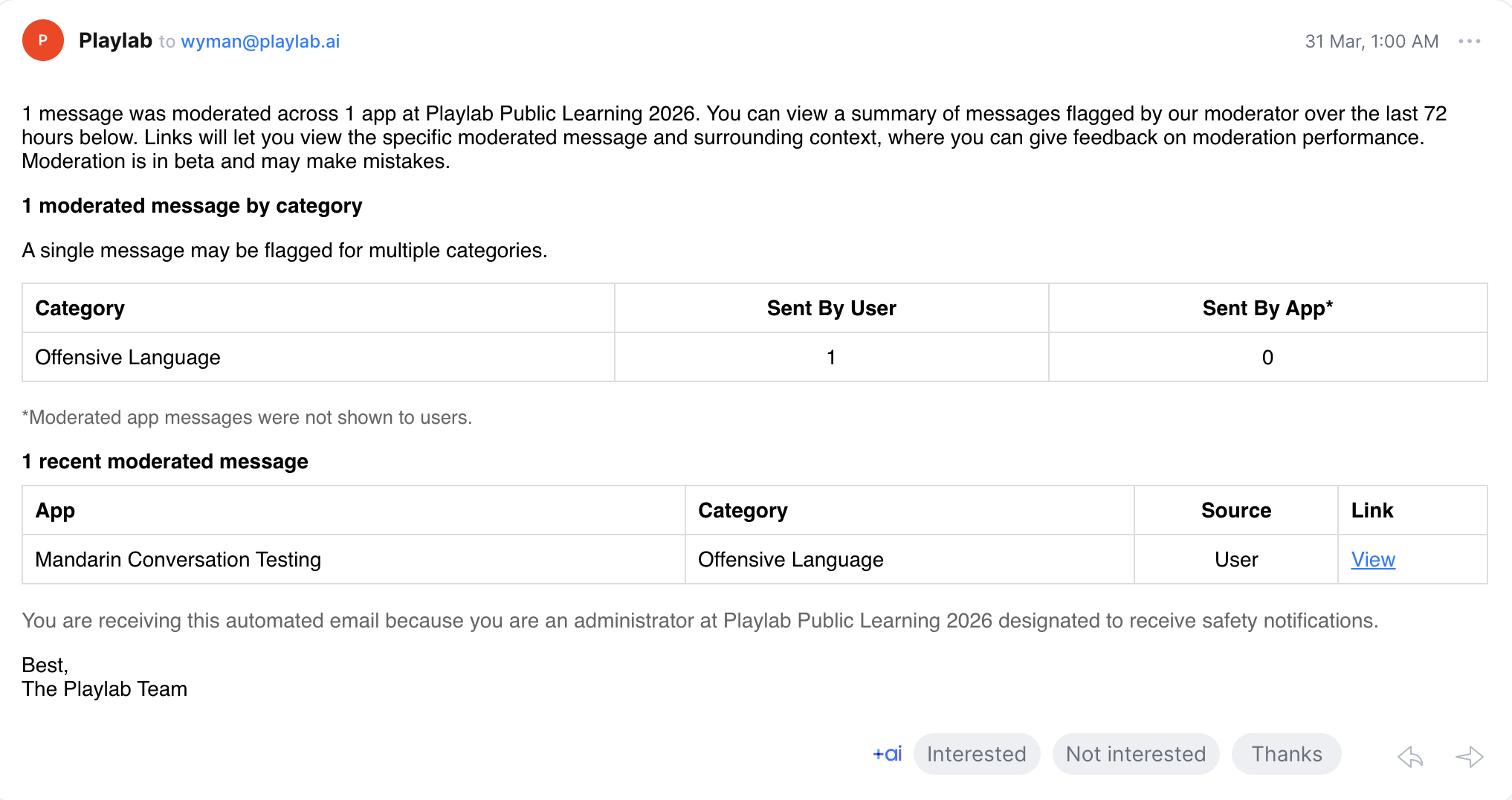
Organization admins now receive email notifications when moderated content is detected in their apps. These batch emails provide a digest of flagged activity so you can stay informed without being overwhelmed.
### How Notifications Work
* Notifications are **batched into a digest** sent every 72 hours, so your inbox stays manageable
* **Messages flagged for self-harm are the exception:** these are always sent as urgent, real-time notifications (see below)
### Self-Harm Alerts
Messages flagged for self-harm bypass the digest and are sent as urgent, real-time notifications to your organization's designated safety recipients.
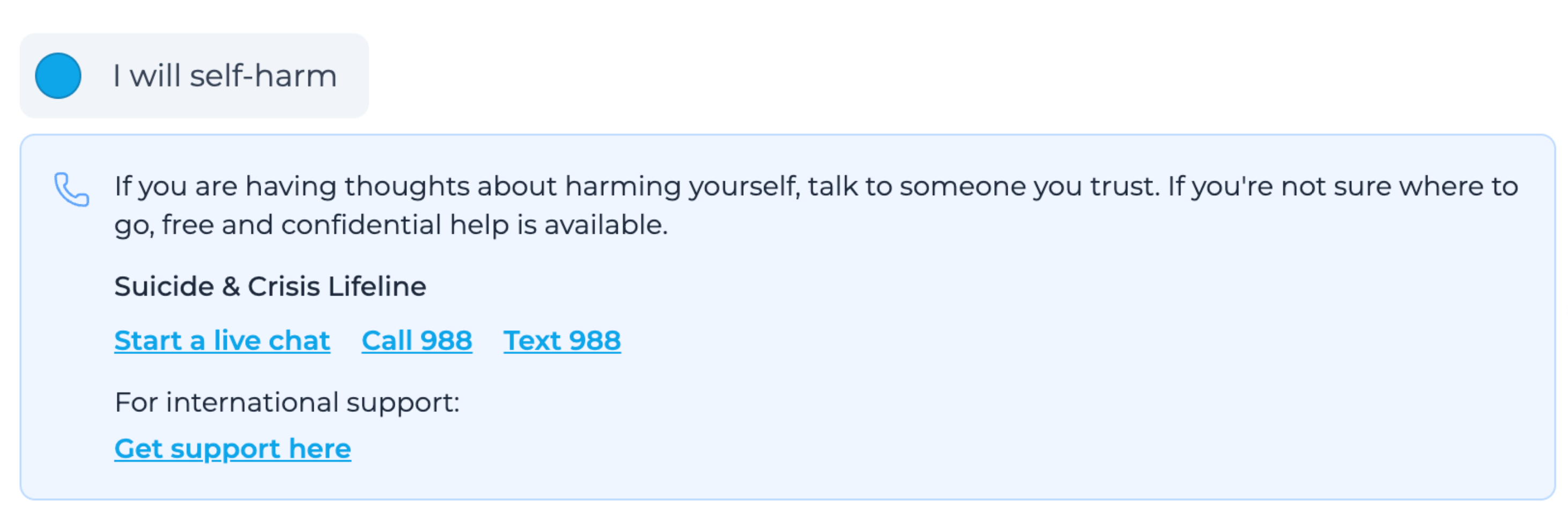 Self-harm alerts cannot be turned off.
### What's Included in a Notification
Each moderation email includes the flagging rationale, the app name, and a link to review the message in context.
Self-harm alerts cannot be turned off.
### What's Included in a Notification
Each moderation email includes the flagging rationale, the app name, and a link to review the message in context.
 At least one admin in your organization must be designated to receive safety notifications. This ensures that flagged content is always reviewed and no moderation alerts go unnoticed.
If you received a moderation email and are unsure about a category label, this is expected as the team works to refine category names. Contact your Playlab org admins or reach out to [support@playlab.ai](mailto:support@playlab.ai) with any questions.
## Safety Notification Designation
Organizations can designate specific admins to receive safety notifications, giving your team a clear point of responsibility for reviewing flagged activity. These notifications are designed for the people responsible for student safety oversight.
## Flag Visibility and Acknowledgement
The safety team is building toward a system where flagged content is not only visible but actionable. Upcoming improvements include:
* **Flag visibility at the workspace and member level** so admins can see what needs attention across their organization
* **Acknowledge and mark as seen** functionality that lets admins indicate they have reviewed a flag while preserving a full audit trail
* **Insights views** that surface patterns and trends in flagged content, starting with simple metrics and expanding over time
These features are informed by educator feedback and are being prioritized for the next development cycle as part of the upcoming Workspaces work.
Flag acknowledgement and insights views are currently in development and not yet available. This page will be updated as these features ship.
## Responding to a Moderation Email
When you receive a moderation notification, here's the recommended order of operations:
Click the link in the email to open the flagged message and surrounding context directly in Playlab.
Determine whether the content was correctly flagged or a false positive (a message that shouldn't have been flagged).
**If the flag is correct:**
* For **self-harm alerts**, follow your school or organization's established safety protocols immediately.
* For other violations, consider updating the app's instructions or guardrails, and address the incident with the app creator and/or user(s) involved.
**If the flag is a false positive:**
* Use the moderation feedback button in the Activity view to report it. This feedback directly helps improve moderation accuracy.
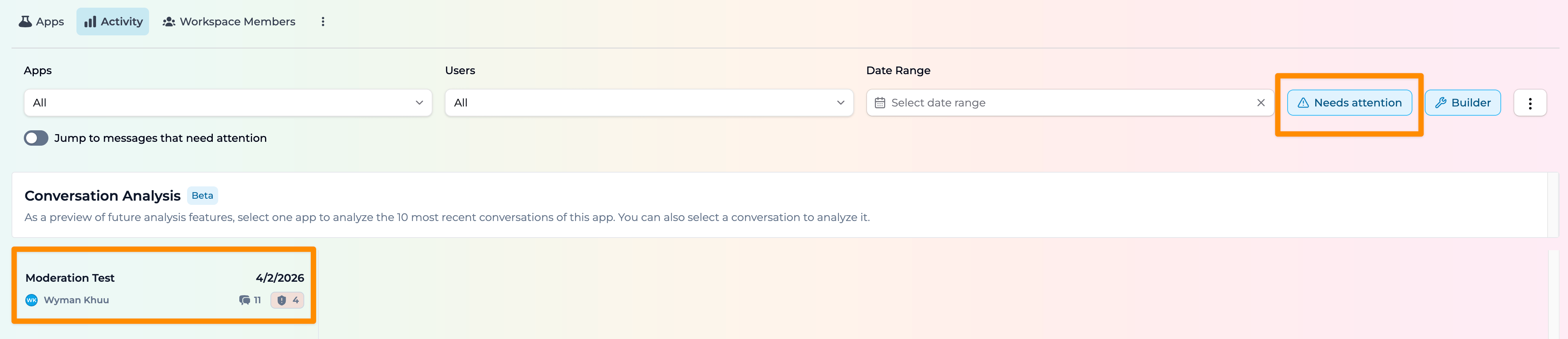
Use the **"Needs Attention"** filter in your Activity view to see all moderated and reported messages in one place. This makes it easier to stay on top of flagged content without checking email.
Builder test conversations are included in this view, so moderated content from your own testing shows up the same way as end-user conversations.
At least one admin in your organization must be designated to receive safety notifications. This ensures that flagged content is always reviewed and no moderation alerts go unnoticed.
If you received a moderation email and are unsure about a category label, this is expected as the team works to refine category names. Contact your Playlab org admins or reach out to [support@playlab.ai](mailto:support@playlab.ai) with any questions.
## Safety Notification Designation
Organizations can designate specific admins to receive safety notifications, giving your team a clear point of responsibility for reviewing flagged activity. These notifications are designed for the people responsible for student safety oversight.
## Flag Visibility and Acknowledgement
The safety team is building toward a system where flagged content is not only visible but actionable. Upcoming improvements include:
* **Flag visibility at the workspace and member level** so admins can see what needs attention across their organization
* **Acknowledge and mark as seen** functionality that lets admins indicate they have reviewed a flag while preserving a full audit trail
* **Insights views** that surface patterns and trends in flagged content, starting with simple metrics and expanding over time
These features are informed by educator feedback and are being prioritized for the next development cycle as part of the upcoming Workspaces work.
Flag acknowledgement and insights views are currently in development and not yet available. This page will be updated as these features ship.
## Responding to a Moderation Email
When you receive a moderation notification, here's the recommended order of operations:
Click the link in the email to open the flagged message and surrounding context directly in Playlab.
Determine whether the content was correctly flagged or a false positive (a message that shouldn't have been flagged).
**If the flag is correct:**
* For **self-harm alerts**, follow your school or organization's established safety protocols immediately.
* For other violations, consider updating the app's instructions or guardrails, and address the incident with the app creator and/or user(s) involved.
**If the flag is a false positive:**
* Use the moderation feedback button in the Activity view to report it. This feedback directly helps improve moderation accuracy.
Use the **"Needs Attention"** filter in your Activity view to see all moderated and reported messages in one place. This makes it easier to stay on top of flagged content without checking email.
Builder test conversations are included in this view, so moderated content from your own testing shows up the same way as end-user conversations.
 ## Frequently Asked Questions
Contact your organization's Playlab admin or reach out to [support@playlab.ai](mailto:support@playlab.ai) to be designated to receive safety notifications for your organization.
Moderation notifications are enabled by default for org admins and workspace owners. If you need to adjust notification settings, contact [support@playlab.ai](mailto:support@playlab.ai).
Playlab uses a set of moderation categories to classify flagged content. These categories are being refined for clarity and accuracy. If you see a category label that is confusing, please let us know.
See the [Responding to a Moderation Email](#responding-to-a-moderation-email) section above for a step-by-step guide.
No. Playlab's moderation and notification tools are designed to complement your existing safety protocols, not replace them. Playlab focuses on surfacing what needs attention so your team can follow your own established procedures.
***
**We want your feedback!** These safety features are actively evolving based on educator input. If you have ideas, questions, or feedback on how moderation and notifications are working for your organization, reach out to us.
**Contact us:** [support@playlab.ai](mailto:support@playlab.ai)
*Last updated: 06-22-2026*
## Frequently Asked Questions
Contact your organization's Playlab admin or reach out to [support@playlab.ai](mailto:support@playlab.ai) to be designated to receive safety notifications for your organization.
Moderation notifications are enabled by default for org admins and workspace owners. If you need to adjust notification settings, contact [support@playlab.ai](mailto:support@playlab.ai).
Playlab uses a set of moderation categories to classify flagged content. These categories are being refined for clarity and accuracy. If you see a category label that is confusing, please let us know.
See the [Responding to a Moderation Email](#responding-to-a-moderation-email) section above for a step-by-step guide.
No. Playlab's moderation and notification tools are designed to complement your existing safety protocols, not replace them. Playlab focuses on surfacing what needs attention so your team can follow your own established procedures.
***
**We want your feedback!** These safety features are actively evolving based on educator input. If you have ideas, questions, or feedback on how moderation and notifications are working for your organization, reach out to us.
**Contact us:** [support@playlab.ai](mailto:support@playlab.ai)
*Last updated: 06-22-2026*