> ## Documentation Index
> Fetch the complete documentation index at: https://learn.playlab.ai/llms.txt
> Use this file to discover all available pages before exploring further.
# App Status Designations
> Categorize your apps by development status to better organize your Playlab workspaces
## What is this feature?
Help organizations better organize and distinguish between apps in their Playlab workspaces based on development status. This feature allows you to categorize your apps by different status designations to clearly indicate their stage in the development lifecycle.
Only administrators, workspace owners, and app creators can designate app status.
## Rationale for the feature
Users looking at a workspace full of apps don't have a clear idea of which apps are complete and ready to be used and which are half baked or still in progress. This feature provides visual cues and filtering capabilities to help teams better understand the status of each app in their workspace.
As you build more apps, organization becomes essential. This feature helps you manage your growing collection of Playlab apps by clearly identifying their current development stage.
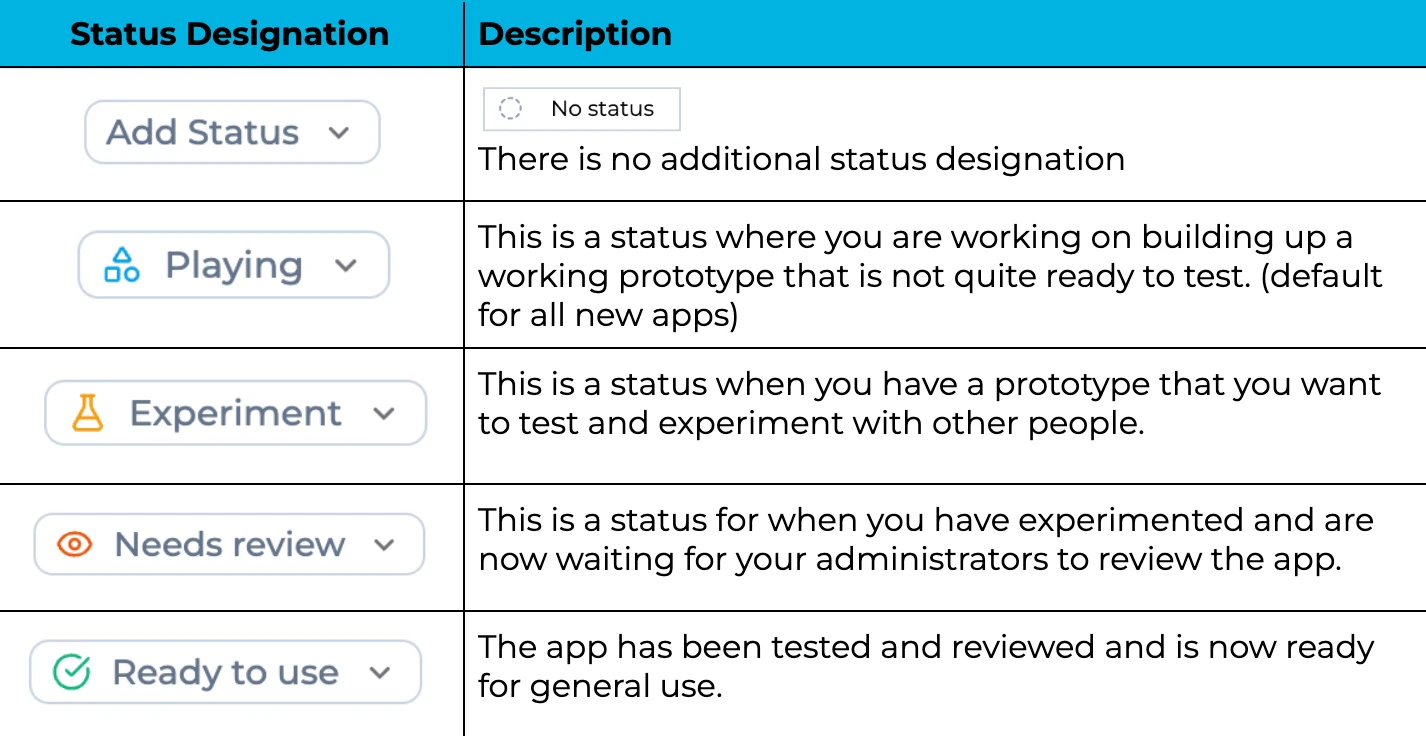
## Status Designations
 ## Workspace Before & After
### Workspace before organizing by status:
My team and I have built a bunch of Playlab apps. It's getting hard to figure out the status of each of our apps.
## Workspace Before & After
### Workspace before organizing by status:
My team and I have built a bunch of Playlab apps. It's getting hard to figure out the status of each of our apps.
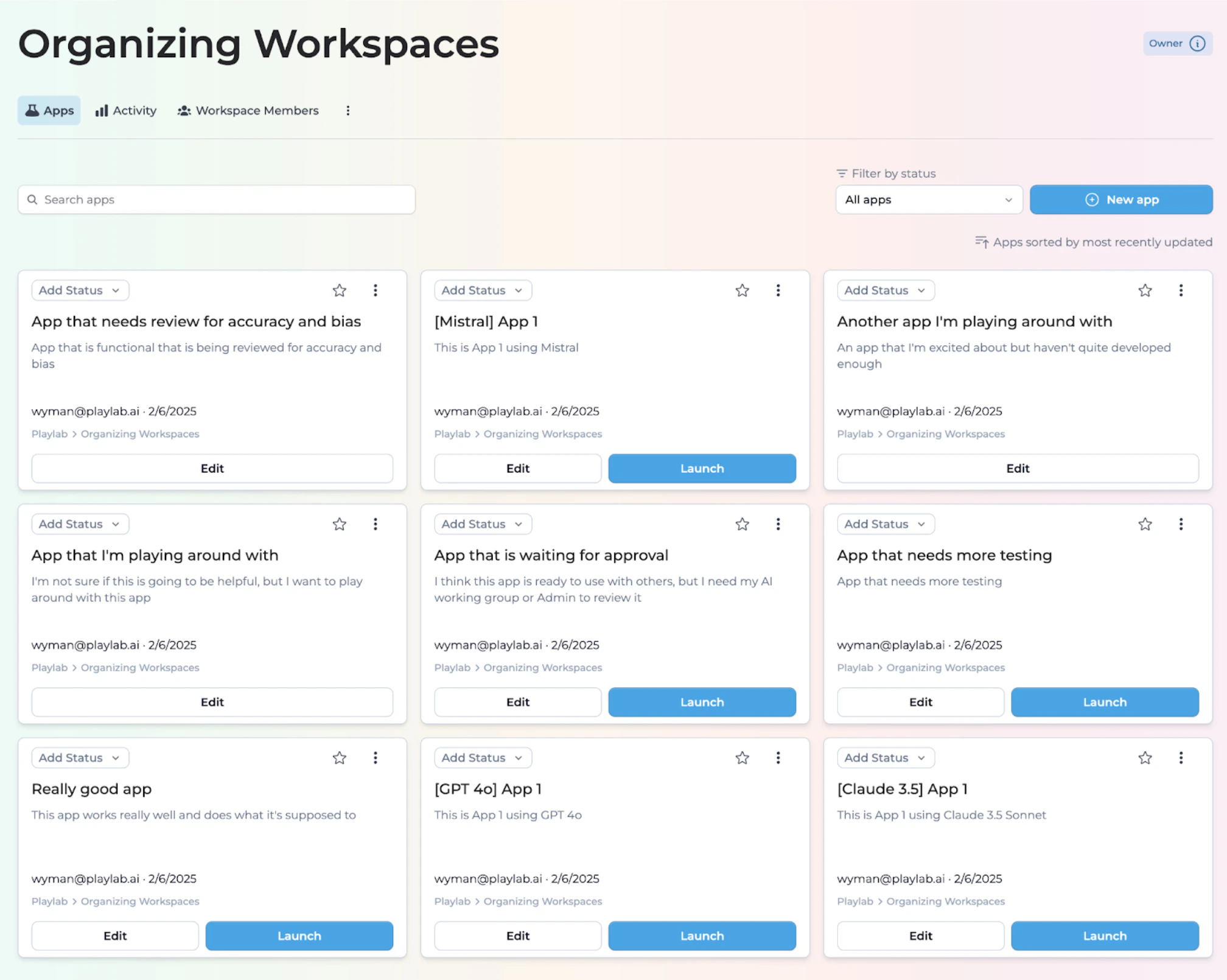 * As a **user** I don't know which apps are ready to use and which ones are finished, just started, or need additional support.
* As a **creator** I'm having a hard time keeping track of which apps I'm playing with and which apps I want to test.
* As an **administrator** I'm having a hard time figuring out what to review, and what to share out with others as a finished product.
### Workspace after organizing by status:
My team and I have built a bunch of Playlab apps. We are going to use this feature to help sort our apps into appropriate statuses.
* As a **user** I don't know which apps are ready to use and which ones are finished, just started, or need additional support.
* As a **creator** I'm having a hard time keeping track of which apps I'm playing with and which apps I want to test.
* As an **administrator** I'm having a hard time figuring out what to review, and what to share out with others as a finished product.
### Workspace after organizing by status:
My team and I have built a bunch of Playlab apps. We are going to use this feature to help sort our apps into appropriate statuses.
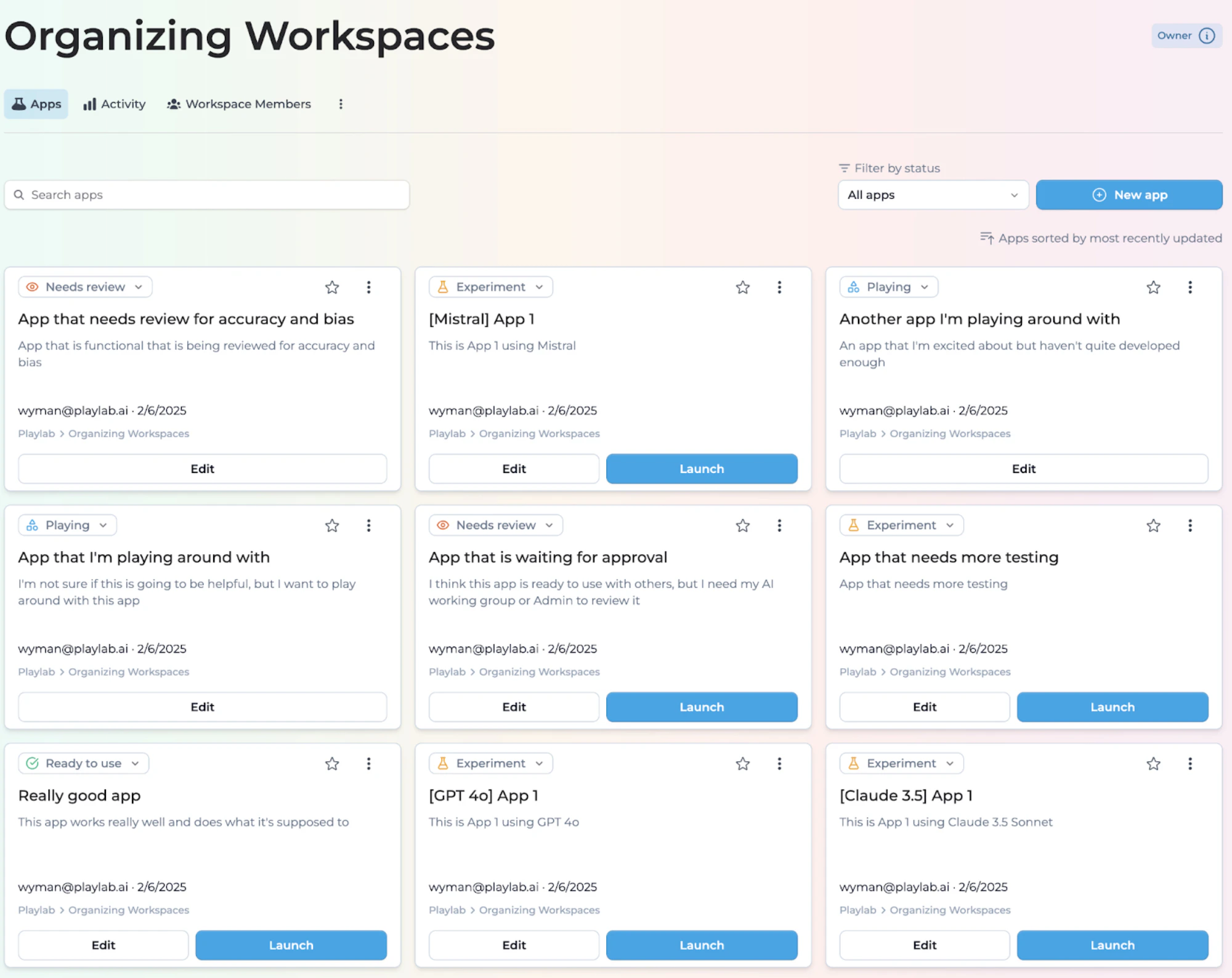 * As a **user** I now know that apps marked Ready to use are good to go.
* As a **creator** I can clearly identify which apps are in Play status and which Experiment apps need to be tested more.
* As an **administrator** I can see which apps are being experimented with, what people are playing with, and what apps I need to review.
## Filtering by Status
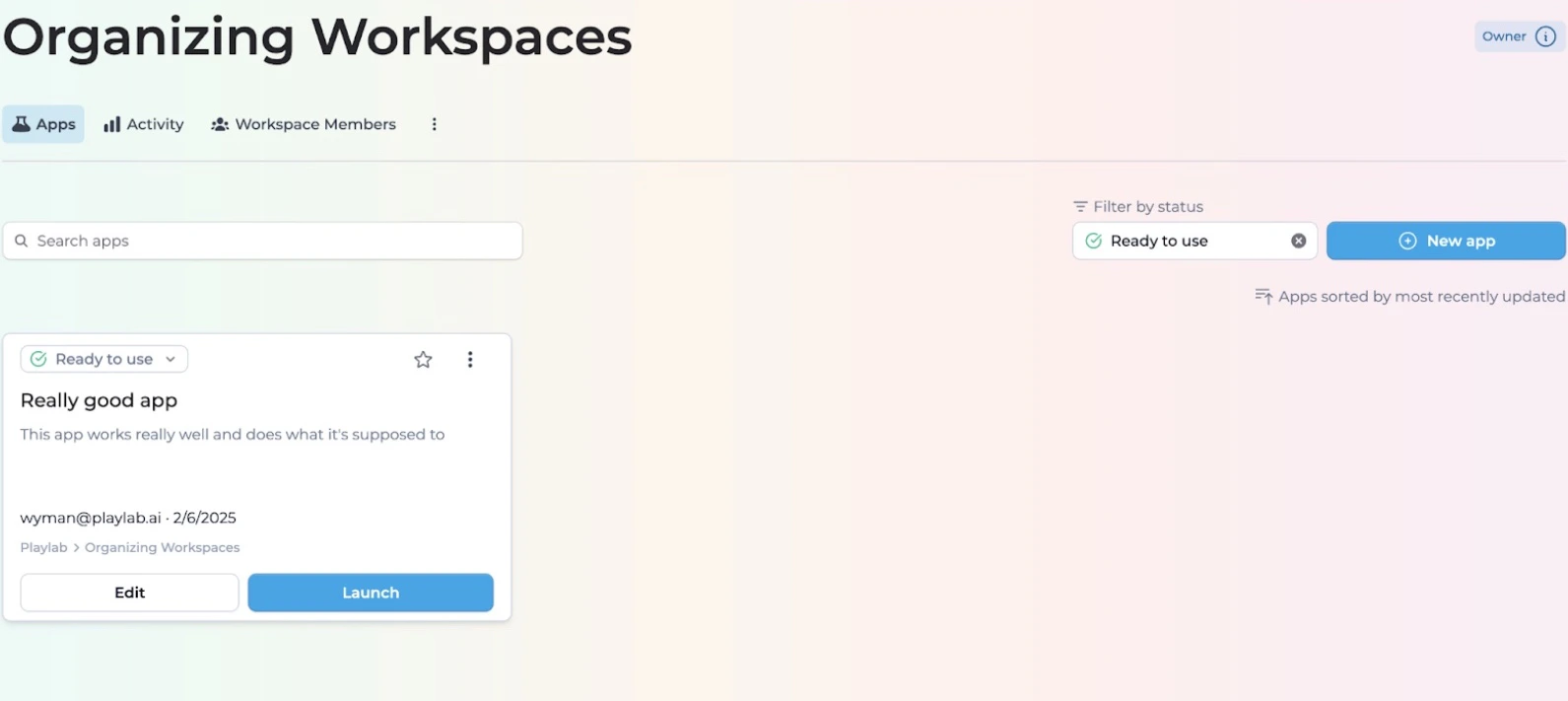
You can filter your apps by status type. This will allow you to streamline your workspace, organize your apps, and focus on a certain set of apps.
Go to your workspace where your apps are located
Find the filter option at the top of your apps list
* As a **user** I now know that apps marked Ready to use are good to go.
* As a **creator** I can clearly identify which apps are in Play status and which Experiment apps need to be tested more.
* As an **administrator** I can see which apps are being experimented with, what people are playing with, and what apps I need to review.
## Filtering by Status
You can filter your apps by status type. This will allow you to streamline your workspace, organize your apps, and focus on a certain set of apps.
Go to your workspace where your apps are located
Find the filter option at the top of your apps list
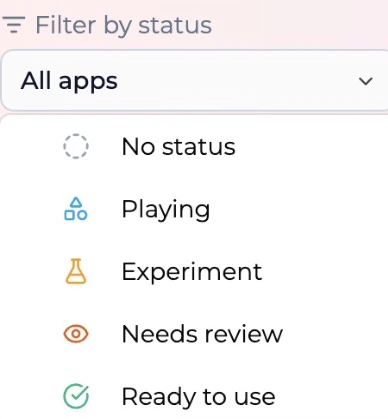 Choose the status(es) you want to view
Your workspace will update to show only apps with the selected status(es)
Choose the status(es) you want to view
Your workspace will update to show only apps with the selected status(es)
 ## Tips for Using App Status
### Best Practices
All apps default to **Playing** when first created or remixed.
Statuses are fluid. You can change the status of an app at any time as it progresses through development.
Apps made before this release will not have any accompanying status.
Publish apps that you are **Experimenting** with or **In Review** with folks who you want to have access to. Don't publish to the public if it's not **Ready to use**.
If you've tested many versions of the same app and ultimately decide one is the best one, you might want to **archive** versions you do not intend on using.
## FAQ
Only administrators, workspace owners, and app creators can designate app status.
Navigate to the app settings and select the appropriate status from the dropdown menu.
No, changing the status of an app is purely organizational and doesn't affect its functionality.
No, an app's status is consistent across all workspaces where it appears.
## We Want Your Feedback!
Have you tried organizing your workspace with status designations? We'd love to hear about your experience!
Contact us at [support@playlab.ai](mailto:support@playlab.ai)
## Related
Looking for strategies on how to organize your workspaces by subject, grade, or role? Check out the Organizing Workspaces guide.
***
Last updated: 03-15-2026
## Tips for Using App Status
### Best Practices
All apps default to **Playing** when first created or remixed.
Statuses are fluid. You can change the status of an app at any time as it progresses through development.
Apps made before this release will not have any accompanying status.
Publish apps that you are **Experimenting** with or **In Review** with folks who you want to have access to. Don't publish to the public if it's not **Ready to use**.
If you've tested many versions of the same app and ultimately decide one is the best one, you might want to **archive** versions you do not intend on using.
## FAQ
Only administrators, workspace owners, and app creators can designate app status.
Navigate to the app settings and select the appropriate status from the dropdown menu.
No, changing the status of an app is purely organizational and doesn't affect its functionality.
No, an app's status is consistent across all workspaces where it appears.
## We Want Your Feedback!
Have you tried organizing your workspace with status designations? We'd love to hear about your experience!
Contact us at [support@playlab.ai](mailto:support@playlab.ai)
## Related
Looking for strategies on how to organize your workspaces by subject, grade, or role? Check out the Organizing Workspaces guide.
***
Last updated: 03-15-2026