> ## Documentation Index
> Fetch the complete documentation index at: https://learn.playlab.ai/llms.txt
> Use this file to discover all available pages before exploring further.
# Export to Google Drive
> Export your Playlab conversations and generated content directly to your Google Drive for easy organization and sharing
🧪 This feature is currently in BETA and available to all users
## What is this feature?
The Google Drive Export feature allows you to save your Playlab conversations, generated content, and artifacts directly to your Google Drive account. Whether you've created lesson plans, educational resources, student assignments, or research materials, you can now organize and store everything in your preferred cloud storage system with just a few clicks.
Think of it like having a direct pipeline from your Playlab workspace to your filing cabinet. Instead of manually copying and pasting content or taking screenshots, you can export complete conversations, or generated content with proper formatting and organization preserved.
This feature requires Google Drive integration and appropriate permissions to access your Google Drive account.
## What is the Rationale for this feature?
Currently, saving Playlab content requires manually copying and pasting text, which often results in lost formatting and creates organizational overhead when managing multiple files across different systems. This manual process becomes particularly cumbersome when sharing materials with colleagues or students, requiring multiple steps and often leading to version control issues.
The Google Drive Export feature eliminates these friction points by providing an easier way to move content from Playlab to Google Drive. This integration leverages Google Drive's built-in collaboration features, making it easier to share materials while maintaining organization and version tracking.
## Connect Playlab to Your Google Drive
There are two ways to connect your Playlab Account to Google Drive
### Option 1 - From Account Settings
How to leverage Organizational References
Click your profile picture in the top-right corner and select **Account Settings** from the dropdown menu.
Scroll down to the **Connections** section on the settings page.
 Click the **Connect** button to begin the authorization process.
You'll be redirected to Google's authorization page. Sign in to your Google account and grant Playlab permission to access your Google Drive.
Return to Playlab and verify that Google Drive shows as "Connected" in your account settings.
### Option 2 - From Builder Interface
How to leverage Organizational References
Navigate to any Playlab app in the builder interface.
Look for the Google Drive icon in the text input bar. ]
Click the **Connect** button to begin the authorization process.
You'll be redirected to Google's authorization page. Sign in to your Google account and grant Playlab permission to access your Google Drive.
Return to Playlab and verify that Google Drive shows as "Connected" in your account settings.
### Option 2 - From Builder Interface
How to leverage Organizational References
Navigate to any Playlab app in the builder interface.
Look for the Google Drive icon in the text input bar. ]
 Click on **Connect** to connect Playlab to your Google Drive
Follow the Google authorization flow to grant permissions and connect your account.
Once connected, you can immediately proceed with exporting your content to Google Drive.
## How to Export Content to Google Drive
How to leverage Organizational References
You can do this from either the builder or published app view in Playlab
Make sure you have the **Export to Google Drive** tool toggled on in your Tools menu and that your Google Drive is connected.
Create the lesson plan, quiz, presentation, or other content you want to export using your Playlab app.
Ask your app to export the content to Google Drive. For example: "Export this lesson plan to Google Drive as a Google Doc" or "Save this presentation to Google Drive as Google Slides."
Your app will provide a link to the newly created file in your Google Drive. Click on this link to access your exported content.
Click on **Connect** to connect Playlab to your Google Drive
Follow the Google authorization flow to grant permissions and connect your account.
Once connected, you can immediately proceed with exporting your content to Google Drive.
## How to Export Content to Google Drive
How to leverage Organizational References
You can do this from either the builder or published app view in Playlab
Make sure you have the **Export to Google Drive** tool toggled on in your Tools menu and that your Google Drive is connected.
Create the lesson plan, quiz, presentation, or other content you want to export using your Playlab app.
Ask your app to export the content to Google Drive. For example: "Export this lesson plan to Google Drive as a Google Doc" or "Save this presentation to Google Drive as Google Slides."
Your app will provide a link to the newly created file in your Google Drive. Click on this link to access your exported content.
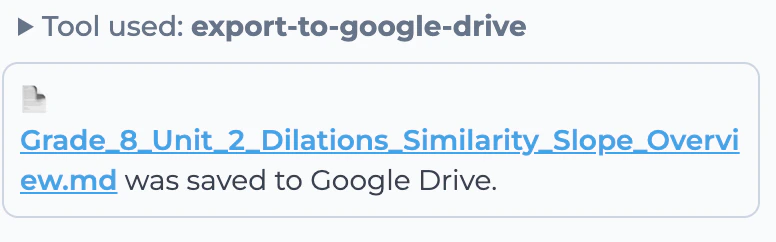 Once you click the link, you'll need to click **"Open As Google Doc"** (or the respective file type like "Open As Google Slides") to start editing the document in Google Workspace.
Now you can edit, format, share, and collaborate on your exported content just like any other Google Workspace file.
## Best Practices
By default, Playlab exports to **Google Docs** (converted from Markdown) — the most editable option, and now the default in place of HTML. You can still request any of these formats explicitly:
* **Google Docs**: Perfect for text-based content that you want to edit and collaborate on
* **Google Sheets**: Ideal for data, tables, and spreadsheet content
* **Google Slides**: Best for presentations and visual content
* **HTML Files**: Great for interactive tools and web-based content
These Google Workspace formats allow for seamless editing and collaboration directly in your browser.
You need to prompt your app to export to Google Drive and it will create a link to your new file. Once you click the link, you'll need to click "Open As Google Doc" (or the respective file type) to start editing the document in Google Workspace.
After opening as a Google file, you can then edit, share, and collaborate on that document just like any other Google Workspace file.
If you export to HTML format, you can download the file and run it locally on your computer. This is a fun way to play with interactive tools and web-based content that you've generated in Playlab. Simply download the HTML file and open it in your web browser to see it in action.
After exporting, use Google Drive's powerful sharing features:
* Share folders with your teaching team for easy collaboration
* Create view-only links for student resources
* Use comment features for collaborative review of lesson plans
* Set up shared folders for department-wide resource sharing
## Frequently Asked Questions
We recommend using only these four file formats for the best experience:
* **Google Docs** for text-based content and documents
* **Google Sheets** for data, tables, and spreadsheets
* **Google Slides** for presentations and visual content
* **HTML** for interactive tools and web-based content
These formats provide optimal functionality and editing capabilities within the Google Drive ecosystem.
Currently, exports are done one conversation or artifact at a time. However, you can quickly export multiple items by using the export function repeatedly. Bulk export features may be added in future updates.
Storage usage varies by content type and length:
* Text-based conversations: 50-500 KB typically
* Conversations with code: 200 KB - 2 MB
* Rich content with images: 1-10 MB
* Large lesson plans or comprehensive materials: 2-20 MB
Most exports use minimal storage space relative to typical Google Drive quotas.
Yes, you can disconnect Google Drive integration at any time through your Account Settings. This will remove Playlab's access to your Google Drive, but any previously exported files will remain in your Drive. You can reconnect at any time if you want to resume using the export feature.
Playlab requests permission to create and manage files in your Google Drive. This allows the app to export content and organize it in folders. Playlab cannot access existing files that it didn't create and cannot delete files from your Drive.
No, Playlab can only write or add files to your Google Drive. It does not have permission to access or read your existing files. The integration is designed specifically for exporting content from Playlab to your Drive, not for accessing files that are already stored there.
Yes, if you have appropriate permissions within the team workspace. The ability to export depends on your role and the workspace settings configured by your administrator. Check with your workspace admin if you're unable to export content you think you should have access to.
If your Google Drive storage is full, the export will fail with an error message. You'll need to free up space in your Google Drive or upgrade your storage plan before you can successfully export content.
## We Want Your Feedback!
Thank you for trying out exporting to Google Drive. Our hope is to make this even more seamless and effective moving forward. We'd love to hear from you as this feature is still in beta.
Contact us at [support@playlab.ai](mailto:support@playlab.ai)
***
*Last updated: 09-18-2025*
Once you click the link, you'll need to click **"Open As Google Doc"** (or the respective file type like "Open As Google Slides") to start editing the document in Google Workspace.
Now you can edit, format, share, and collaborate on your exported content just like any other Google Workspace file.
## Best Practices
By default, Playlab exports to **Google Docs** (converted from Markdown) — the most editable option, and now the default in place of HTML. You can still request any of these formats explicitly:
* **Google Docs**: Perfect for text-based content that you want to edit and collaborate on
* **Google Sheets**: Ideal for data, tables, and spreadsheet content
* **Google Slides**: Best for presentations and visual content
* **HTML Files**: Great for interactive tools and web-based content
These Google Workspace formats allow for seamless editing and collaboration directly in your browser.
You need to prompt your app to export to Google Drive and it will create a link to your new file. Once you click the link, you'll need to click "Open As Google Doc" (or the respective file type) to start editing the document in Google Workspace.
After opening as a Google file, you can then edit, share, and collaborate on that document just like any other Google Workspace file.
If you export to HTML format, you can download the file and run it locally on your computer. This is a fun way to play with interactive tools and web-based content that you've generated in Playlab. Simply download the HTML file and open it in your web browser to see it in action.
After exporting, use Google Drive's powerful sharing features:
* Share folders with your teaching team for easy collaboration
* Create view-only links for student resources
* Use comment features for collaborative review of lesson plans
* Set up shared folders for department-wide resource sharing
## Frequently Asked Questions
We recommend using only these four file formats for the best experience:
* **Google Docs** for text-based content and documents
* **Google Sheets** for data, tables, and spreadsheets
* **Google Slides** for presentations and visual content
* **HTML** for interactive tools and web-based content
These formats provide optimal functionality and editing capabilities within the Google Drive ecosystem.
Currently, exports are done one conversation or artifact at a time. However, you can quickly export multiple items by using the export function repeatedly. Bulk export features may be added in future updates.
Storage usage varies by content type and length:
* Text-based conversations: 50-500 KB typically
* Conversations with code: 200 KB - 2 MB
* Rich content with images: 1-10 MB
* Large lesson plans or comprehensive materials: 2-20 MB
Most exports use minimal storage space relative to typical Google Drive quotas.
Yes, you can disconnect Google Drive integration at any time through your Account Settings. This will remove Playlab's access to your Google Drive, but any previously exported files will remain in your Drive. You can reconnect at any time if you want to resume using the export feature.
Playlab requests permission to create and manage files in your Google Drive. This allows the app to export content and organize it in folders. Playlab cannot access existing files that it didn't create and cannot delete files from your Drive.
No, Playlab can only write or add files to your Google Drive. It does not have permission to access or read your existing files. The integration is designed specifically for exporting content from Playlab to your Drive, not for accessing files that are already stored there.
Yes, if you have appropriate permissions within the team workspace. The ability to export depends on your role and the workspace settings configured by your administrator. Check with your workspace admin if you're unable to export content you think you should have access to.
If your Google Drive storage is full, the export will fail with an error message. You'll need to free up space in your Google Drive or upgrade your storage plan before you can successfully export content.
## We Want Your Feedback!
Thank you for trying out exporting to Google Drive. Our hope is to make this even more seamless and effective moving forward. We'd love to hear from you as this feature is still in beta.
Contact us at [support@playlab.ai](mailto:support@playlab.ai)
***
*Last updated: 09-18-2025*