> ## Documentation Index
> Fetch the complete documentation index at: https://learn.playlab.ai/llms.txt
> Use this file to discover all available pages before exploring further.
# Playlab Data Export Guide
> Export activity data and analytics from your Playlab workspace for Enterprise Organizations
🏢 Enterprise
Looking for the **Organization Insights** export — the date-range CSV download on the Insights page? That's the current export; see [Exporting activity data to CSV](/features/Exporting%20Activity%20Data). This page documents the older enterprise **Activity Export (JSON)** and the **Org Analytics Export**, which the Organization Insights export is replacing.
## What is this feature?
Playlab offers two types of exports to help Enterprise Organizations track and understand platform usage: **Activity Exports** and **Org Analytics Exports**. These exports provide detailed insights into user interactions, app usage, and organizational trends across your workspace.
## Rationale for the feature
Enterprise Organizations need comprehensive data insights to understand how their teams are using Playlab, track engagement patterns, and make informed decisions about AI tool adoption. The data export features provide detailed analytics and activity logs that help administrators monitor usage, identify trends, and optimize their Playlab deployment.
## Types of Data Exports
### 1. Activity Export (JSON file)
This export gives you a detailed look at user interactions across selected apps during a specific time range (up to 31 days). Perfect for analyzing detailed usage patterns and AI interactions.
**Format:** JSON file\
**Time Range:** Up to 31 days\
**Best for:** Detailed conversation analysis
Get granular insights into user interactions across selected apps. Perfect for analyzing detailed usage patterns and AI interactions.
What you'll get:
Time range and export metadata
Selected apps and users (id, name, email)
Detailed conversation data including:
Model name and temperature settings
User information and timestamps
Conversation metrics (message counts, flags, moderation)
Complete message content with feedback and file attachments
Source attribution (AI provider vs. user)
**Format:** ZIP file with 4 CSVs\
**Time Range:** Monthly snapshots\
**Best for:** High-level organizational trends
Get comprehensive organizational insights across your entire Playlab deployment with four detailed CSV reports.
What you'll get:
user-analytics.csv: Creator activity, apps created/published, categories
app-analytics.csv: App performance, user engagement, session metrics
category-analytics.csv: Category distribution across active apps
general-analytics.csv: Organization-wide summary statistics
## Who can export data?
**Activity Export**: Org administrators who also belong to a specific workspace.
**Org Analytics Export**: Org administrators who can view the org analytics page.
## How to export Activity Data
Log into your Playlab account and go to your workspace.
Click on "Activity" in your workspace.
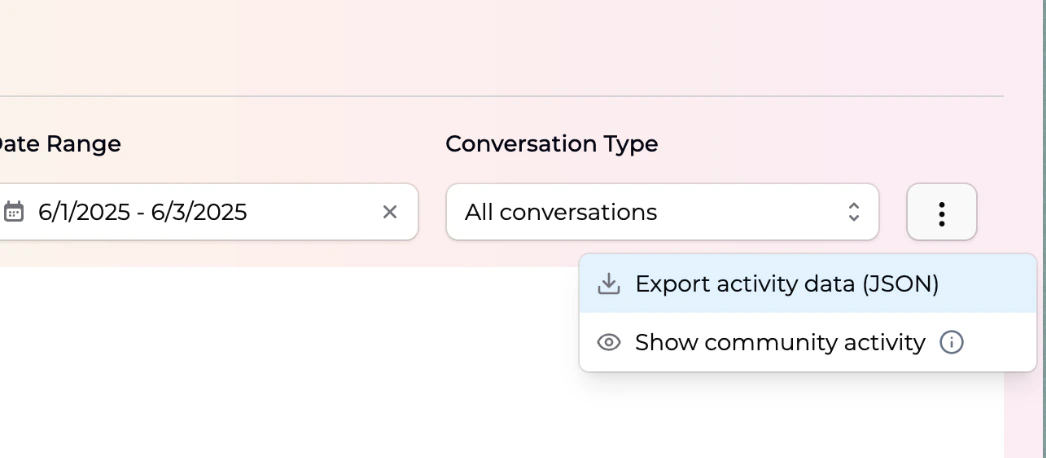
**Important**: Select a date range of up to 31 days. Without a date range, you will not be allowed to export data.
Any filters you select for users, apps, or sections will also be applied to the export.
In the dropdown menu, select "Export activity data (JSON)" to download your export file.
 ## How to export Org Analytics
Navigate to the organization analytics page in your admin dashboard.
## How to export Org Analytics
Navigate to the organization analytics page in your admin dashboard.
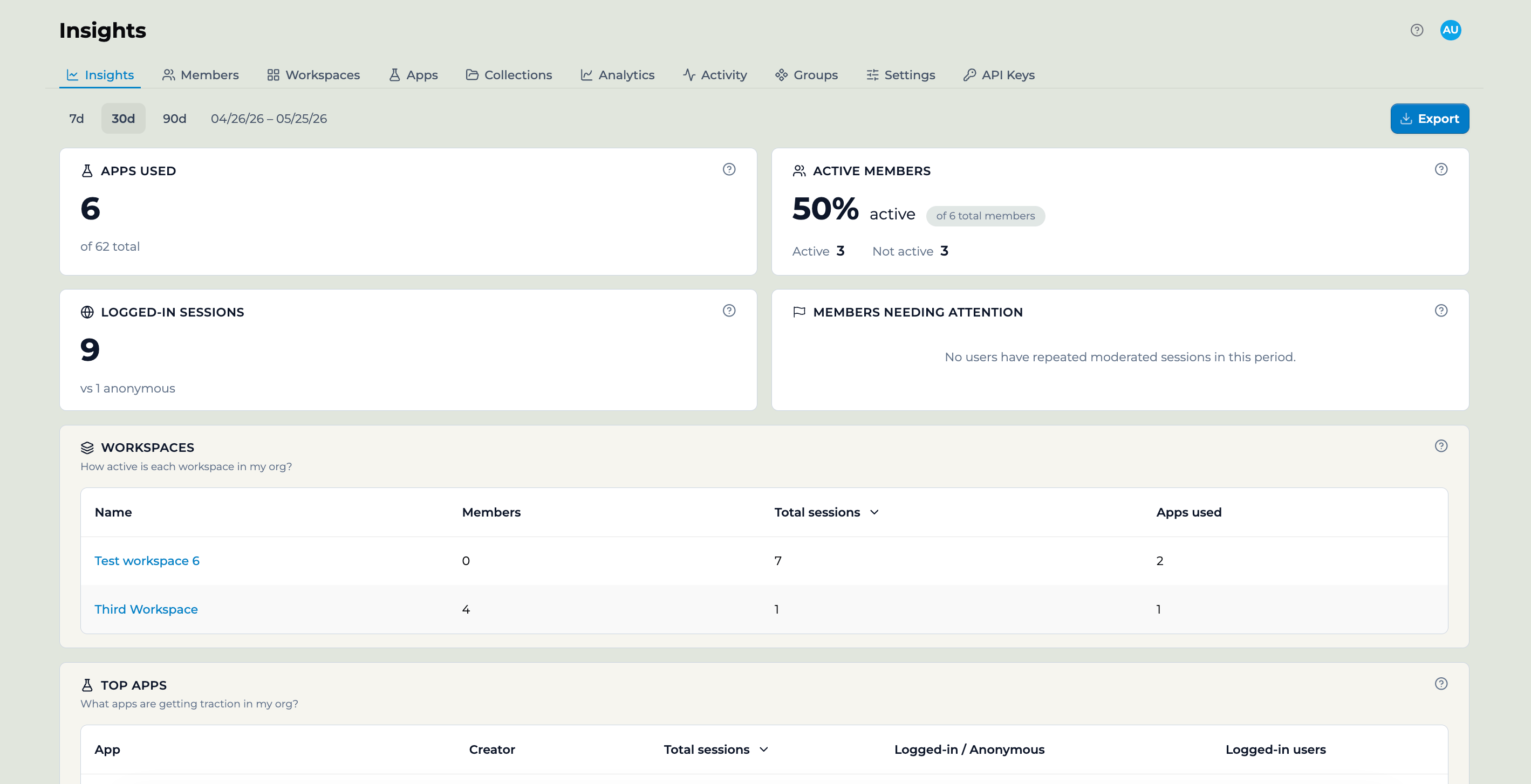 Click on "Export" to download the ZIP file containing all four CSV analytics files.
## Sample Activity Export
```json theme={null}
{
"workspaceId": "cma4jh63d0042okihsyjy9uil",
"startDate": "2025-06-02",
"endDate": "2025-06-03",
"selectedApps": [
{
"id": "appId1",
"name": "app1"
},
{
"id": "appId2",
"name": "app2"
}
],
"selectedUsers": [
{
"id": "id1",
"email": "someone@playlab.ai"
},
{
"id": "id2",
"email": "someone_else@playlab.ai"
}
],
"exportedAt": "2025-06-03T18:04:34.124Z",
"conversations": [
{
"appId": "appId1",
"appName": "app1",
"conversationId": "...",
"modelName": "claude-3-7-sonnet-20250219",
"temperature": 0.7,
"userId": "id1",
"userEmail": "someone@playlab.ai",
"createdAt": "2025-06-03T18:03:38.979Z",
"endedAt": "2025-06-03T18:03:47.255Z",
"conversationMetric": {
"userMessageCount": 1,
"messageCount": 3,
"flaggedMessageCount": 0,
"moderatedMessageCount": 0
},
"messages": [
{
"content": "Welcome to test rmx! Are you ready to get started?",
"timestamp": "2025-06-03T18:03:39.015Z",
"source": "provider",
"messageFeedback": {
"isBiased": false,
"isInaccurate": false,
"isInappropriate": false,
"moderationResults": []
},
"messageFile": null
},
{
"content": "hi this is a test for activity",
"timestamp": "2025-06-03T18:03:45.565Z",
"source": "user",
"messageFeedback": {
"isBiased": false,
"isInaccurate": false,
"isInappropriate": false,
"moderationResults": []
},
"messageFile": null
}
]
}
]
}
```
## Tips for Using Data Exports
* **Plan your date ranges**: Activity exports are limited to 31-day periods, so plan multiple exports for longer time ranges.
* **Use filters strategically**: Apply user and app filters to focus on specific teams or projects.
* **Regular monitoring**: Set up regular export schedules to track trends over time.
* **Data analysis**: Use the CSV format from Org Analytics for easy analysis in spreadsheet applications.
* **Privacy considerations**: Ensure exported data is handled according to your organization's data privacy policies.
## FAQ
Data export features are available to enterprise Playlab partners only and must be enabled by our team. Contact support at [partnerships@playlab.ai](mailto:partnerships@playlab.ai) to enable export functionality for your organization.
Activity Export provides detailed conversation-level data for a specific time period (up to 31 days), while Org Analytics Export gives you monthly organizational trends and high-level statistics across four different categories.
For Activity Exports, you're limited to 31-day periods. For longer time ranges, you'll need to make multiple export requests. Org Analytics Exports can cover longer periods as they're designed for monthly snapshots.
Activity exports include detailed message content, timestamps, user information, conversation metrics, moderation flags, and file attachment information. All data respects user privacy while providing comprehensive usage insights.
There are no specific limits on export frequency, but exports are designed for periodic analysis rather than real-time monitoring. Contact support if you need frequent exports for specific use cases.
Activity Exports are provided as JSON files for detailed data structure, while Org Analytics Exports are ZIP files containing CSV files for easy analysis in spreadsheet applications.
## We Want Your Feedback!
If you need additional support or have feedback please contact us at [support@playlab.ai](mailto:support@playlab.ai)
***
Last updated: 09-02-2025
Click on "Export" to download the ZIP file containing all four CSV analytics files.
## Sample Activity Export
```json theme={null}
{
"workspaceId": "cma4jh63d0042okihsyjy9uil",
"startDate": "2025-06-02",
"endDate": "2025-06-03",
"selectedApps": [
{
"id": "appId1",
"name": "app1"
},
{
"id": "appId2",
"name": "app2"
}
],
"selectedUsers": [
{
"id": "id1",
"email": "someone@playlab.ai"
},
{
"id": "id2",
"email": "someone_else@playlab.ai"
}
],
"exportedAt": "2025-06-03T18:04:34.124Z",
"conversations": [
{
"appId": "appId1",
"appName": "app1",
"conversationId": "...",
"modelName": "claude-3-7-sonnet-20250219",
"temperature": 0.7,
"userId": "id1",
"userEmail": "someone@playlab.ai",
"createdAt": "2025-06-03T18:03:38.979Z",
"endedAt": "2025-06-03T18:03:47.255Z",
"conversationMetric": {
"userMessageCount": 1,
"messageCount": 3,
"flaggedMessageCount": 0,
"moderatedMessageCount": 0
},
"messages": [
{
"content": "Welcome to test rmx! Are you ready to get started?",
"timestamp": "2025-06-03T18:03:39.015Z",
"source": "provider",
"messageFeedback": {
"isBiased": false,
"isInaccurate": false,
"isInappropriate": false,
"moderationResults": []
},
"messageFile": null
},
{
"content": "hi this is a test for activity",
"timestamp": "2025-06-03T18:03:45.565Z",
"source": "user",
"messageFeedback": {
"isBiased": false,
"isInaccurate": false,
"isInappropriate": false,
"moderationResults": []
},
"messageFile": null
}
]
}
]
}
```
## Tips for Using Data Exports
* **Plan your date ranges**: Activity exports are limited to 31-day periods, so plan multiple exports for longer time ranges.
* **Use filters strategically**: Apply user and app filters to focus on specific teams or projects.
* **Regular monitoring**: Set up regular export schedules to track trends over time.
* **Data analysis**: Use the CSV format from Org Analytics for easy analysis in spreadsheet applications.
* **Privacy considerations**: Ensure exported data is handled according to your organization's data privacy policies.
## FAQ
Data export features are available to enterprise Playlab partners only and must be enabled by our team. Contact support at [partnerships@playlab.ai](mailto:partnerships@playlab.ai) to enable export functionality for your organization.
Activity Export provides detailed conversation-level data for a specific time period (up to 31 days), while Org Analytics Export gives you monthly organizational trends and high-level statistics across four different categories.
For Activity Exports, you're limited to 31-day periods. For longer time ranges, you'll need to make multiple export requests. Org Analytics Exports can cover longer periods as they're designed for monthly snapshots.
Activity exports include detailed message content, timestamps, user information, conversation metrics, moderation flags, and file attachment information. All data respects user privacy while providing comprehensive usage insights.
There are no specific limits on export frequency, but exports are designed for periodic analysis rather than real-time monitoring. Contact support if you need frequent exports for specific use cases.
Activity Exports are provided as JSON files for detailed data structure, while Org Analytics Exports are ZIP files containing CSV files for easy analysis in spreadsheet applications.
## We Want Your Feedback!
If you need additional support or have feedback please contact us at [support@playlab.ai](mailto:support@playlab.ai)
***
Last updated: 09-02-2025