> ## Documentation Index
> Fetch the complete documentation index at: https://learn.playlab.ai/llms.txt
> Use this file to discover all available pages before exploring further.
# Camera handwriting input
> Snap a photo of handwritten work and send it directly to the AI for interpretation and feedback
🔑 Org Only
Beta
## What is this feature?
Camera Handwriting Input adds a camera button directly inside Playlab conversations. Users can snap a photo of handwritten notes, equations, diagrams, or other paper-based inputs and send them to the AI without leaving the app. There is no need to save a photo separately, find it in a file browser, or upload it manually.
When the AI receives a camera capture, it recognizes that the image contains handwriting and reads the content accordingly, including math equations. Math is rendered with LaTeX formatting so equations display cleanly in the conversation.
## Why is this useful?
A lot of thinking, especially in math and science, still happens on paper. Getting handwritten notes, equations, or diagrams into an AI conversation usually means taking a photo, saving it, opening a file picker, locating the image, and uploading it. That is a lot of steps, and each one is a place where a user might lose focus or give up.
With Camera Handwriting Input, users tap one button, take a photo, confirm it looks good, and send. The AI is prompted to treat the image as handwriting, so it reads content left to right, top to bottom, and outputs formatted math in its response.
This can be particularly helpful for younger users, users with accessibility needs, or anyone who thinks best with a pencil in hand. Rather than asking people to change how they express their thinking, it brings paper-based inputs into the digital conversation.
## Watch it in Action
## How does it work?
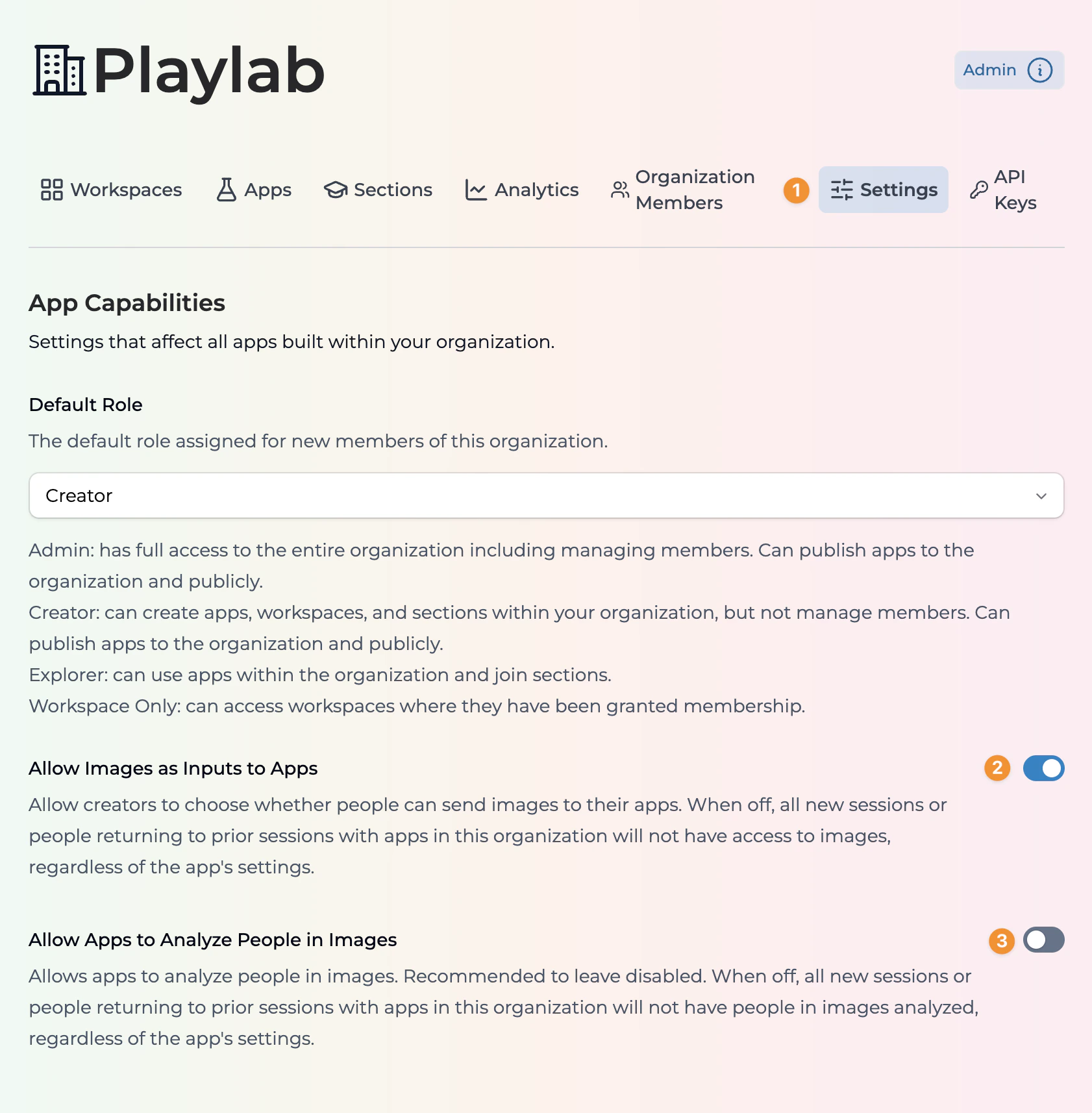
Camera Handwriting Input requires image inputs to be turned on in two places. First, your organization admin must enable image inputs in the **Organization Settings**.
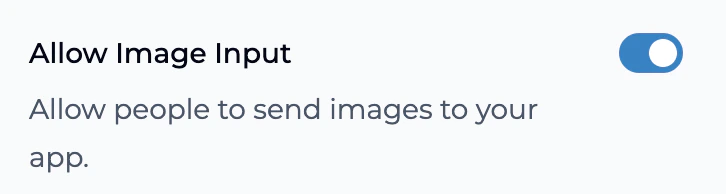
 Then, the app creator must toggle on image inputs in the app's **Settings** panel.
 In the chat input area, tap the **camera icon** next to the file upload button. This opens a full-screen camera view. If your browser asks for camera permission, tap **Allow**.
 Point the camera at your handwritten input and tap the **capture button**. You can switch between front and rear cameras if needed. If you use the front-facing camera, the image is automatically flipped so text reads left to right.
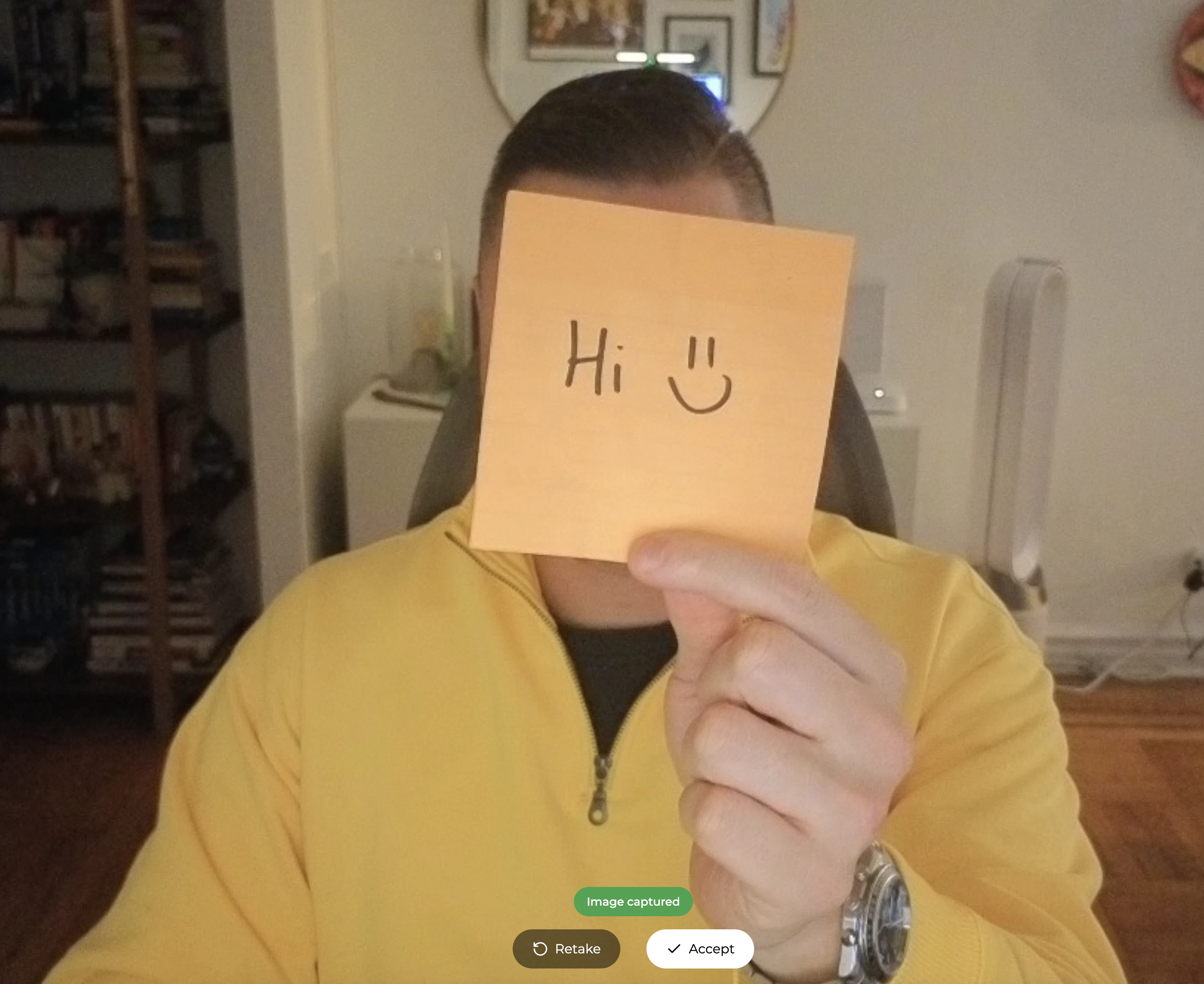 After capturing, you will see a preview of your photo. Tap **Retake** if the image is unclear, or tap **Accept** to attach it to your message. Add any text you want to include, then send your message as usual.
The AI interprets your handwritten input and responds with formatted feedback. If math is detected, equations are rendered using LaTeX so they display cleanly in the conversation.
## Tips and Best Practices
Hold the camera steady and make sure the image is in focus before capturing. Blurry or out-of-focus photos make it much harder for the AI to read your handwriting. If the preview looks unclear, tap **Retake**.
Use a dark pen or marker and write with clear, well-spaced lines. Light pencil marks, overlapping text, or cramped spacing can reduce accuracy. The bolder and cleaner the writing, the better the results.
Make sure your paper is well-lit and avoid shadows or glare across the page. Uneven lighting can obscure parts of your handwriting and lead to incomplete interpretation.
Handwriting interpretation is not 100% accurate. Always review the AI's response to make sure it read your input correctly, especially for math equations, variable names, or symbols that can look similar in handwriting.
For best results, capture one problem or section at a time rather than an entire page. This helps the AI focus on the specific input you want feedback on.
After capturing a photo, add a message like "Can you check if I solved this correctly?" or "Help me with step 3." This gives the AI more context about what kind of feedback you need.
## Best Models for Handwriting
For the best results with camera handwriting input, we recommend pairing this feature with models that have strong vision and handwriting recognition capabilities:
Among the best models for handwriting recognition. Google's vision capabilities excel at reading handwritten text, equations, and diagrams with high accuracy, making it an ideal choice for camera-based inputs.
Strong vision understanding combined with excellent instruction following. Reads handwriting reliably and provides well-structured, contextual feedback on student work.
Powerful multimodal capabilities with strong handwriting interpretation. Particularly effective at reading complex equations and mixed text-and-diagram inputs.
A faster alternative when speed matters more than maximum accuracy. Good handwriting recognition with significantly faster response times.
You can change your app's model anytime from the LLM selector in the top left of the builder. See [Selecting an LLM](/features/Selecting%20an%20LLM) for a full comparison of all available models.
## What's Supported
* Works on any device with a camera (phones, tablets, laptops with webcam)
* Supports front and rear cameras with automatic switching
* Front-camera images are automatically flipped so handwriting reads correctly
* Math equations are rendered with LaTeX formatting in the AI response
* Available in English and Spanish
* Fully accessible with keyboard navigation and screen reader support
* Photos follow the same upload pipeline, image optimization, and content moderation as regular image uploads
## Known Limitations
Camera Handwriting Input is currently in an experimental phase. The following limitations are known:
* Requires browser camera permissions to be granted
* Image inputs must be enabled at both the organization and app level
* Handwriting recognition accuracy depends on legibility, lighting, and image quality
* Very complex diagrams or mixed text and drawings may not be fully interpreted
* Each image uses a flat token count regardless of content complexity
## Frequently Asked Questions
Yes. Image inputs must be enabled at the organization level by an admin, and the app creator must also enable image inputs in the app's settings. Once both are enabled, the camera button will appear automatically in supported browsers.
It works on any device with a camera and a browser that supports the standard camera API. This includes most modern smartphones, tablets, Chromebooks, and laptops with webcams. It uses the same browser API as Playlab's voice input feature.
Front-facing cameras typically mirror the image (like a selfie). Camera Handwriting Input automatically detects this and flips the image so your handwriting reads correctly from left to right.
The AI does its best to interpret a wide range of handwriting styles, but results are best with clear, legible writing. Very messy handwriting, overlapping text, or low-quality images may produce less accurate results.
Photos taken with Camera Handwriting Input follow the same privacy and data handling policies as any other image uploaded to Playlab. The image is processed through Playlab's existing upload pipeline and is subject to the same content moderation checks.
The end result is the same, but the experience is much faster. Instead of taking a photo separately, saving it, and then finding and uploading it through the file picker, you can capture and send in two taps. The AI also receives a hint that the image contains handwriting, which improves interpretation accuracy.
***
**We want your feedback!** Camera Handwriting Input is an experimental feature and we are actively improving it. If you have ideas, run into issues, or want to share how you are using it, reach out to us.
**Contact us:** [support@playlab.ai](mailto:support@playlab.ai)
*Last updated: 04-01-2026*
After capturing, you will see a preview of your photo. Tap **Retake** if the image is unclear, or tap **Accept** to attach it to your message. Add any text you want to include, then send your message as usual.
The AI interprets your handwritten input and responds with formatted feedback. If math is detected, equations are rendered using LaTeX so they display cleanly in the conversation.
## Tips and Best Practices
Hold the camera steady and make sure the image is in focus before capturing. Blurry or out-of-focus photos make it much harder for the AI to read your handwriting. If the preview looks unclear, tap **Retake**.
Use a dark pen or marker and write with clear, well-spaced lines. Light pencil marks, overlapping text, or cramped spacing can reduce accuracy. The bolder and cleaner the writing, the better the results.
Make sure your paper is well-lit and avoid shadows or glare across the page. Uneven lighting can obscure parts of your handwriting and lead to incomplete interpretation.
Handwriting interpretation is not 100% accurate. Always review the AI's response to make sure it read your input correctly, especially for math equations, variable names, or symbols that can look similar in handwriting.
For best results, capture one problem or section at a time rather than an entire page. This helps the AI focus on the specific input you want feedback on.
After capturing a photo, add a message like "Can you check if I solved this correctly?" or "Help me with step 3." This gives the AI more context about what kind of feedback you need.
## Best Models for Handwriting
For the best results with camera handwriting input, we recommend pairing this feature with models that have strong vision and handwriting recognition capabilities:
Among the best models for handwriting recognition. Google's vision capabilities excel at reading handwritten text, equations, and diagrams with high accuracy, making it an ideal choice for camera-based inputs.
Strong vision understanding combined with excellent instruction following. Reads handwriting reliably and provides well-structured, contextual feedback on student work.
Powerful multimodal capabilities with strong handwriting interpretation. Particularly effective at reading complex equations and mixed text-and-diagram inputs.
A faster alternative when speed matters more than maximum accuracy. Good handwriting recognition with significantly faster response times.
You can change your app's model anytime from the LLM selector in the top left of the builder. See [Selecting an LLM](/features/Selecting%20an%20LLM) for a full comparison of all available models.
## What's Supported
* Works on any device with a camera (phones, tablets, laptops with webcam)
* Supports front and rear cameras with automatic switching
* Front-camera images are automatically flipped so handwriting reads correctly
* Math equations are rendered with LaTeX formatting in the AI response
* Available in English and Spanish
* Fully accessible with keyboard navigation and screen reader support
* Photos follow the same upload pipeline, image optimization, and content moderation as regular image uploads
## Known Limitations
Camera Handwriting Input is currently in an experimental phase. The following limitations are known:
* Requires browser camera permissions to be granted
* Image inputs must be enabled at both the organization and app level
* Handwriting recognition accuracy depends on legibility, lighting, and image quality
* Very complex diagrams or mixed text and drawings may not be fully interpreted
* Each image uses a flat token count regardless of content complexity
## Frequently Asked Questions
Yes. Image inputs must be enabled at the organization level by an admin, and the app creator must also enable image inputs in the app's settings. Once both are enabled, the camera button will appear automatically in supported browsers.
It works on any device with a camera and a browser that supports the standard camera API. This includes most modern smartphones, tablets, Chromebooks, and laptops with webcams. It uses the same browser API as Playlab's voice input feature.
Front-facing cameras typically mirror the image (like a selfie). Camera Handwriting Input automatically detects this and flips the image so your handwriting reads correctly from left to right.
The AI does its best to interpret a wide range of handwriting styles, but results are best with clear, legible writing. Very messy handwriting, overlapping text, or low-quality images may produce less accurate results.
Photos taken with Camera Handwriting Input follow the same privacy and data handling policies as any other image uploaded to Playlab. The image is processed through Playlab's existing upload pipeline and is subject to the same content moderation checks.
The end result is the same, but the experience is much faster. Instead of taking a photo separately, saving it, and then finding and uploading it through the file picker, you can capture and send in two taps. The AI also receives a hint that the image contains handwriting, which improves interpretation accuracy.
***
**We want your feedback!** Camera Handwriting Input is an experimental feature and we are actively improving it. If you have ideas, run into issues, or want to share how you are using it, reach out to us.
**Contact us:** [support@playlab.ai](mailto:support@playlab.ai)
*Last updated: 04-01-2026*