> ## Documentation Index
> Fetch the complete documentation index at: https://learn.playlab.ai/llms.txt
> Use this file to discover all available pages before exploring further.
# App privacy and visibility
> How privacy works for Playlab apps: who can see your app, when, and why.
New
Every Playlab app starts private. Only you and your organization's Owners can see it until you take action to share or publish. This page explains who can see what, why org Owners still have visibility, and how to move from private to shared.
## Who can see your app
| Audience | Sees the app? | When |
| -------------------------------------------------- | -------------------------------------------- | --------------------------------------- |
| You (the owner) | Always | From creation |
| Org Owners of your organization | Always | For trust and safety oversight |
| People you have added as Editors | Yes | After you share |
| People you have added as Viewers | After publishing | Once you publish |
| Members of workspaces where you have added the app | Yes | After you add the app to that workspace |
| Other members of your organization | Only if visibility is Organization or Public | After you publish at that level |
| Anyone on Playlab | Only if visibility is Public | After you publish at that level |
```mermaid theme={null}
graph LR
App["🔒 Your App
(private by default)"]
You["👤 You"]
Owner["🛡️ Org Owner"]
Editor["✏️ Editor
(direct share)"]
Viewer["👁️ Viewer
(after publish)"]
Workspace["📁 Workspace members
(if added to workspace)"]
OrgPub["🏛️ Org members
(if published org-wide)"]
Public["🌐 Anyone
(if published public)"]
App --> You
App --> Owner
App -.share.-> Editor
App -.share + publish.-> Viewer
App -.add to workspace.-> Workspace
App -.publish: Organization.-> OrgPub
App -.publish: Public.-> Public
classDef app fill:#a4beeb,stroke:#0c0f14,stroke-width:2px,color:#0c0f14
classDef always fill:#feffa0,stroke:#0c0f14,stroke-width:1px,color:#0c0f14
classDef opt fill:#fbf9f6,stroke:#0c0f14,stroke-width:1px,color:#0c0f14
class App app
class You,Owner always
class Editor,Viewer,Workspace,OrgPub,Public opt
```
*Yellow blocks see the app from creation. The rest open up only after you share, add, or publish.*
For details on publishing and visibility levels, see [Publishing your app](/features/Publishing).
**Filtering your app list.** These same scopes appear as filter tabs wherever you browse apps — **All**, **Built by me**, **Shared with me**, **Built in my org**, and **Shared with my org**. They only ever surface apps you already have permission to see. See [Finding apps](/getstarted/Navigating%20Playlab#finding-apps-filter-by-scope) in Navigating Playlab.
## Going from private to shared
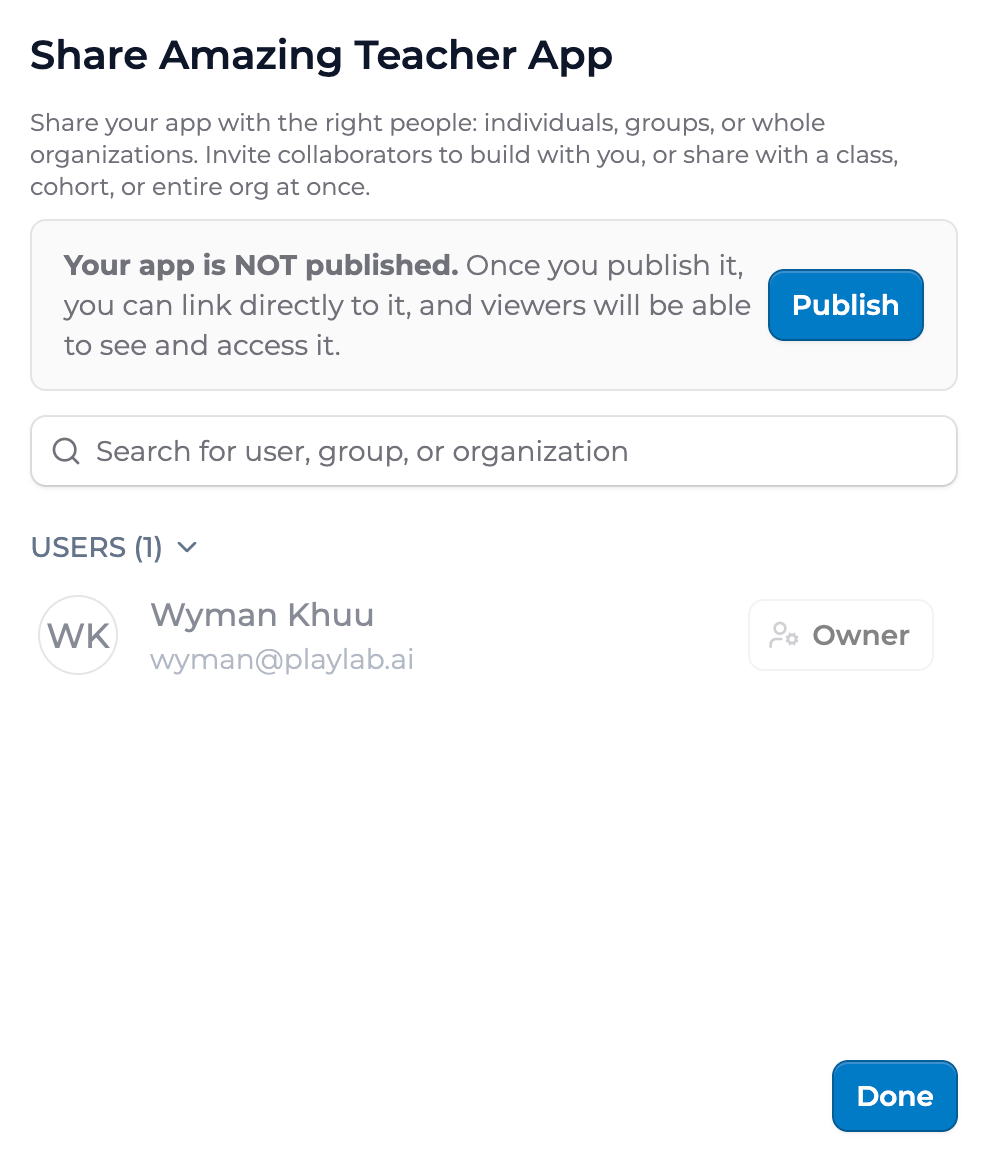 You have several ways to share an app, each with different reach:
**Share with one person.** Use the Share modal. They get Viewer or Editor access. See [Sharing with individuals](/features/Sharing%20with%20Individuals).
**Share with a workspace.** Add the app to the workspace's Apps tab. Members of that workspace can use the app. See [Cross-workspace app use](/features/Cross-Workspace%20App%20Use).
**Share with a group or organization.** Use the Share modal. The whole group or org gets Viewer access. See [Sharing with groups and orgs](/features/Sharing%20with%20Groups%20and%20Orgs).
**Publish broadly.** Set visibility to Organization or Public. See [Publishing](/features/Publishing).
You can combine these. An app can be Public and also shared with specific Editors in your org. The most permissive setting wins.
## Why org Owners still see your app
Org Owners have always-on visibility for trust and safety reasons. If a student conversation in any app is flagged, an Owner needs to be able to find the conversation, the app it came from, and the people involved.
For most builders, the practical effect is small. The Owner sees the app in their org-level dashboard. They do not get notified when you create or edit it.
You have several ways to share an app, each with different reach:
**Share with one person.** Use the Share modal. They get Viewer or Editor access. See [Sharing with individuals](/features/Sharing%20with%20Individuals).
**Share with a workspace.** Add the app to the workspace's Apps tab. Members of that workspace can use the app. See [Cross-workspace app use](/features/Cross-Workspace%20App%20Use).
**Share with a group or organization.** Use the Share modal. The whole group or org gets Viewer access. See [Sharing with groups and orgs](/features/Sharing%20with%20Groups%20and%20Orgs).
**Publish broadly.** Set visibility to Organization or Public. See [Publishing](/features/Publishing).
You can combine these. An app can be Public and also shared with specific Editors in your org. The most permissive setting wins.
## Why org Owners still see your app
Org Owners have always-on visibility for trust and safety reasons. If a student conversation in any app is flagged, an Owner needs to be able to find the conversation, the app it came from, and the people involved.
For most builders, the practical effect is small. The Owner sees the app in their org-level dashboard. They do not get notified when you create or edit it.
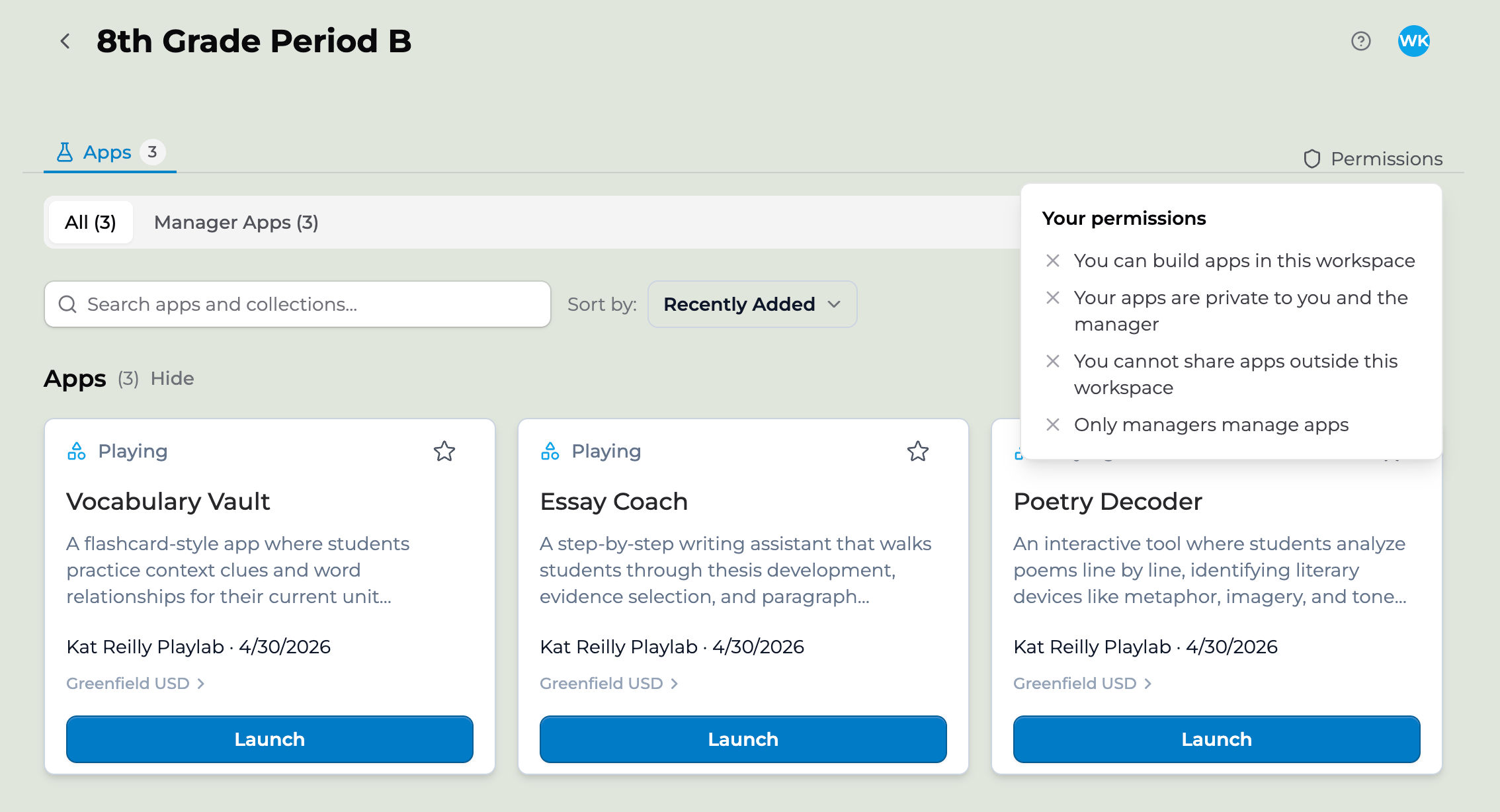 Owner visibility is read-only. They can view the app but not edit it. They cannot publish your app or change who has access.
## Key points
* New apps start private to you and your org's Owners
* Sharing is an explicit action: Editor, Viewer, or add to a workspace
* Org Owners always see your apps for trust and safety oversight
## FAQ
No. Org Owners keep visibility for trust and safety. The default is private from peers and members of your workspaces unless you share or publish.
Yes. Activity views show usage per app, including who used it and when. See [Reviewing student activity per class](/getstarted/Reviewing%20Activity).
Yes. Private apps do not appear in any search outside the owner's view and the org Owner's dashboard.
Yes. From the Share modal, click Export. You get a CSV of every individual, group, and organization with access, plus their permission level.
They lose access immediately. The app and its conversations are removed. Activity history is retained for compliance, visible only to org Owners.
No. Conversations are preserved. Privacy controls future access, not past records.
***
Last updated: 06-26-2026
Contact us at [support@playlab.ai](mailto:support@playlab.ai)
Owner visibility is read-only. They can view the app but not edit it. They cannot publish your app or change who has access.
## Key points
* New apps start private to you and your org's Owners
* Sharing is an explicit action: Editor, Viewer, or add to a workspace
* Org Owners always see your apps for trust and safety oversight
## FAQ
No. Org Owners keep visibility for trust and safety. The default is private from peers and members of your workspaces unless you share or publish.
Yes. Activity views show usage per app, including who used it and when. See [Reviewing student activity per class](/getstarted/Reviewing%20Activity).
Yes. Private apps do not appear in any search outside the owner's view and the org Owner's dashboard.
Yes. From the Share modal, click Export. You get a CSV of every individual, group, and organization with access, plus their permission level.
They lose access immediately. The app and its conversations are removed. Activity history is retained for compliance, visible only to org Owners.
No. Conversations are preserved. Privacy controls future access, not past records.
***
Last updated: 06-26-2026
Contact us at [support@playlab.ai](mailto:support@playlab.ai)